
In this article · jump to a section
Key Takeaways
- Animate an existing composition; avoid asking one shot to invent a new identity or scene.
- Review the whole result. A clean first frame can conceal later defects.
- Generation, video editing and Instagram publishing are separate steps.
- Reach, engagement rate and watch time answer different questions.
Why Turn AI Influencer Photos Into Instagram Reels?
Reels give a still image movement, pacing and an opening hook that can support discovery. General Instagram research associates Reels with greater reach, while carousels can earn stronger interaction rates. Neither finding proves video is always better, or that animating an AI photo causes growth. Choose motion when it adds meaning to the original scene.
Instagram Reels vs. Other Formats: Reach
Reported relative reach difference; each bar uses its own comparison format as the baseline. Scale: 0–150%.
Instagram Median Engagement Rate by Format
Median interactions relative to reach, not followers. Separate 2026 report; scale: 0–8%.
Reach counts accounts exposed. Engagement rate describes interactions relative to a denominator. Watch time measures viewing duration. A discovery clip can reach more people while a smaller carousel audience interacts more often. Metricool’s June 2026 study, covering 24.3M+ posts and 375K accounts, offers separate format context; its sample is not pooled here.
How to Turn an AI Influencer Photo Into a Reel: 6 Steps
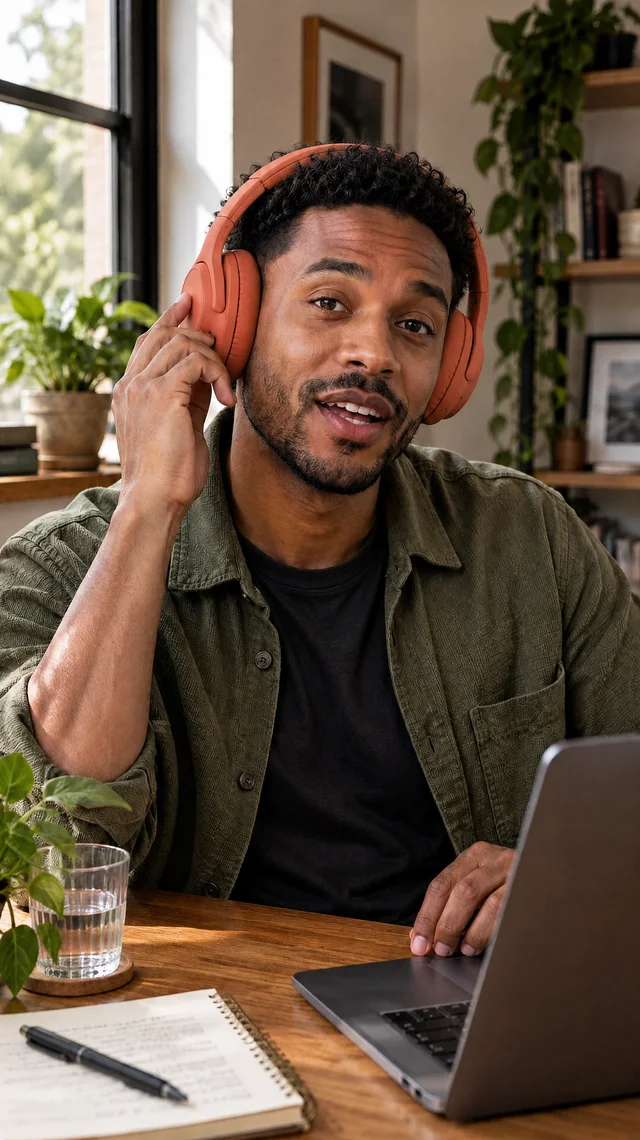
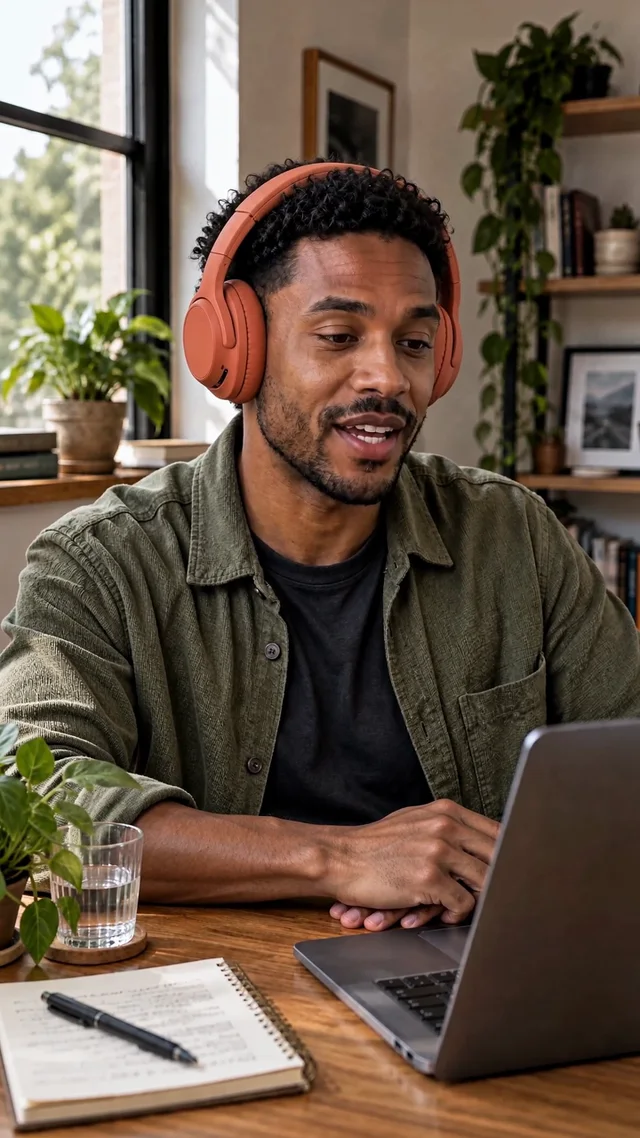
Start with a photo that already contains the identity, composition and objects you want. Animate a modest action, review it, then finish the social edit elsewhere. The example above supplies a real matched source and result; the instructions below describe the current Studio workflow, which may use different model settings from that historical generation.
1. Choose a high-quality AI influencer photo
Zoom in on eyes, teeth, fingers, shoulders and background lines. Reject defects before animation; motion rarely repairs a broken hand. Choose a vertical composition with room for the intended movement and captions. Avoid heavy beauty smoothing, obstructed faces and tiny products.
The source photo above already establishes the creator, headphones, hand contact and window light. Keep that approved identity reference. If you still need the character, follow our creation guide first.
2. Upload the photo to AI Image to Video
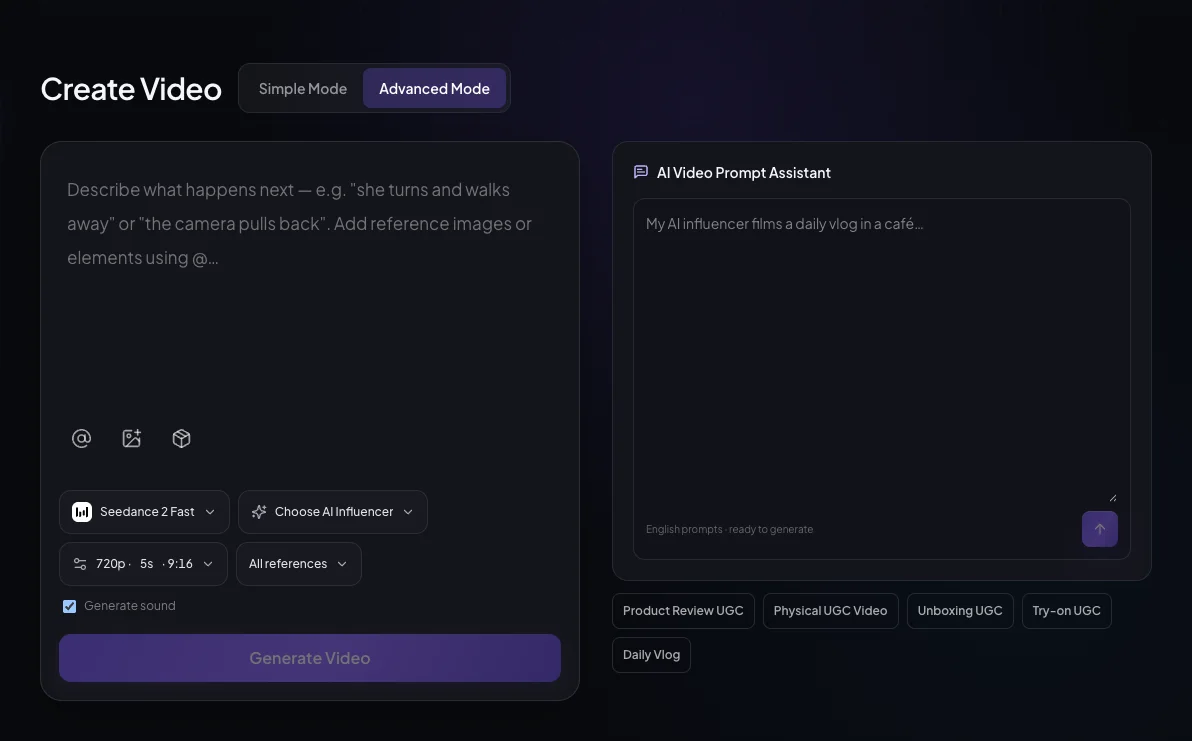
Open AI Image to Video, then enter the Animate Photo workspace. In Create Video, use Upload reference files or Upload reference materials to add your authorized image. Verify the correct reference is attached before generating.
The current Advanced Mode exposes Direction, model selection, generation settings, reference mode and Generate sound. Set 9:16 when available. Duration, resolution, reference handling and sound depend on the chosen model; review the displayed settings and cost.
3. Write a realistic motion prompt
In Direction, specify the action, camera behavior, pace and what must remain unchanged. Start with “adjust the earcup once, then lower the hand; fixed phone camera; preserve face, outfit and desk.” The photo supplies appearance; the prompt explains movement.
Keep one continuous shot. A head turn plus a dance plus an orbit asks the model to reconstruct too much at once. Use the templates below as editable starting briefs, not guaranteed model commands.
4. Generate and review the video
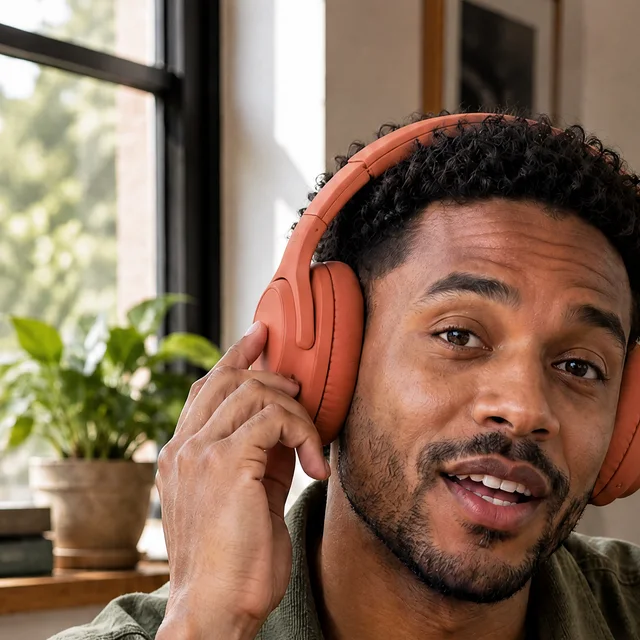
Select Generate Video, then inspect the completed creation in My Videos or History. Watch at normal speed and scrub face turns, fingers and object contact. Compare the beginning, middle and end with the source. Check clothing seams, product geometry, reflections and background stability.
Download the usable result through its available result controls. If something drifts, simplify that action and generate another draft within your budget. Keep the approved file and its prompt/settings together.
5. Add a hook, music, captions and transitions
Import the downloaded clip into Instagram or an external editor. Put the premise in the opening: “One small desk reset.” Remove dead time, add licensed audio and proofread captions against the actual speech. Use simple cuts when they clarify a change; elaborate transitions cannot repair anatomy.
Generated sound is model-dependent. The existing demo has native speech and background audio, but Studio generation does not establish a full caption, music-library or timeline workflow. Preview the storyboard for an editable structure.
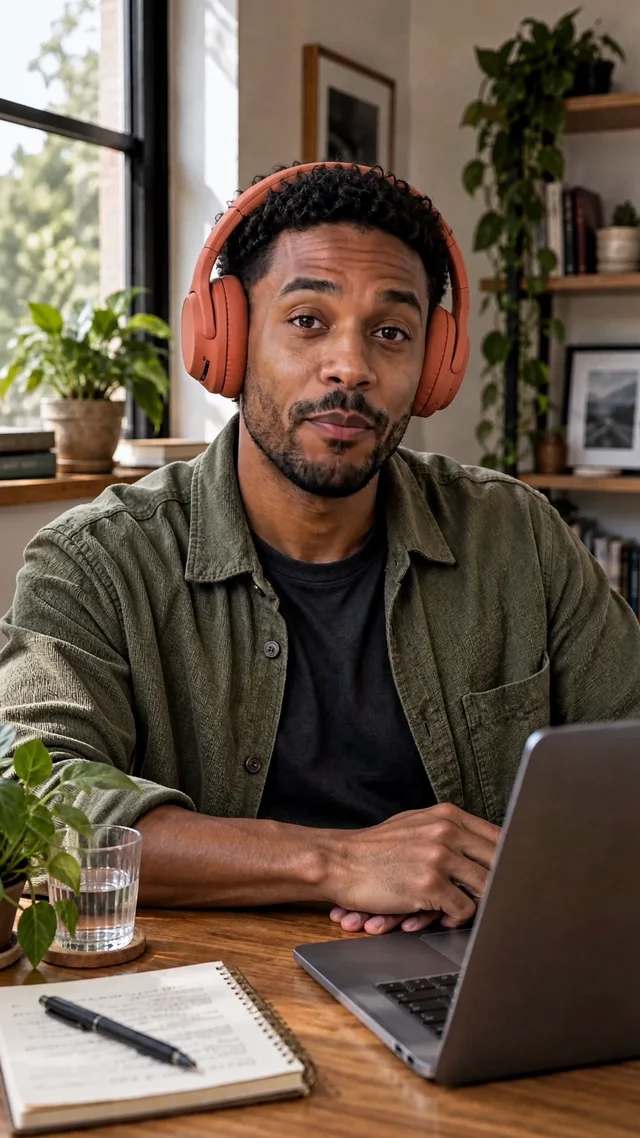 One small desk reset.
6. Export and publish the Reel
Export the final edit using the settings below. Our existing demo is 24 FPS source footage, so prepare a 30 FPS delivery version in your editor to meet Instagram’s published minimum. Frame-rate conversion does not create new authentic motion detail.
Preview the cover, text and interface overlap on your phone. Upload in Instagram, check sound and caption timing, apply required AI and commercial disclosures, then publish. Keep rights records. Review reach, interactions and watch time separately; use our Instagram growth guide for the broader account strategy.
5 AI Influencer Reel Prompts You Can Copy
A useful image-to-video prompt names a visible action and protects the identity and scene already present. These five original templates use restrained movement so defects are easier to spot. Match the brief to your actual photo and selected model. They are writing examples, not tested outputs or promises of consistent results.
1. Natural Selfie Reel
Best for: A quiet greeting or personal update. Watch for: Repeated blinking, changing teeth or a wobbling phone edge.
Animate the fictional adult creator in the reference photo in one continuous selfie shot. Begin with relaxed eye contact, allow one natural blink, then a small closed-mouth smile and a slight head turn before returning to camera. Keep the phone framing nearly still, with only subtle handheld breathing. Preserve the exact face shape, complexion, hairline, hairstyle, age, jewelry, outfit, background layout and lighting. Hands stay in their existing positions. Keep the movement unhurried; do not add speech or a new scene.
2. Fashion Reel
Best for: An outfit detail when the source already shows the clothing. Watch for: A full spin inventing the unseen back of an outfit.
Use the reference photo as the visual anchor for a single fashion shot of the same fictional adult creator. The creator shifts weight gently, makes a small quarter-turn within the visible clothing silhouette, then settles into the original stance. Let the visible fabric move slightly with the body. Keep a fixed full-body camera and the original light. Preserve facial identity, skin tone, hair, accessories, garment color, seams, print, shoes and background geometry. Keep hands relaxed in their starting positions; no full spin, wardrobe change or scene transition.
3. Lifestyle Reel
Best for: A café moment with a stable table and cup. Watch for: Fingers merging with a cup or a changing cup handle.
Animate the same fictional adult creator seated at the café table in the reference. The creator glances toward the window, breathes naturally and gives a small smile, then looks back toward the camera. The cup remains on the table and both hands rest where they are already visible. Use one steady medium shot with subtle ambient movement outside the window. Preserve the exact face, adult age, hairstyle, outfit, cup shape, table objects, room layout and direction of daylight. Keep this a quiet continuous moment without drinking, lifting objects or dialogue.
4. Product Showcase Reel
Best for: An appearance demonstration with authorized product art. Watch for: Product geometry or labels changing under the hand.
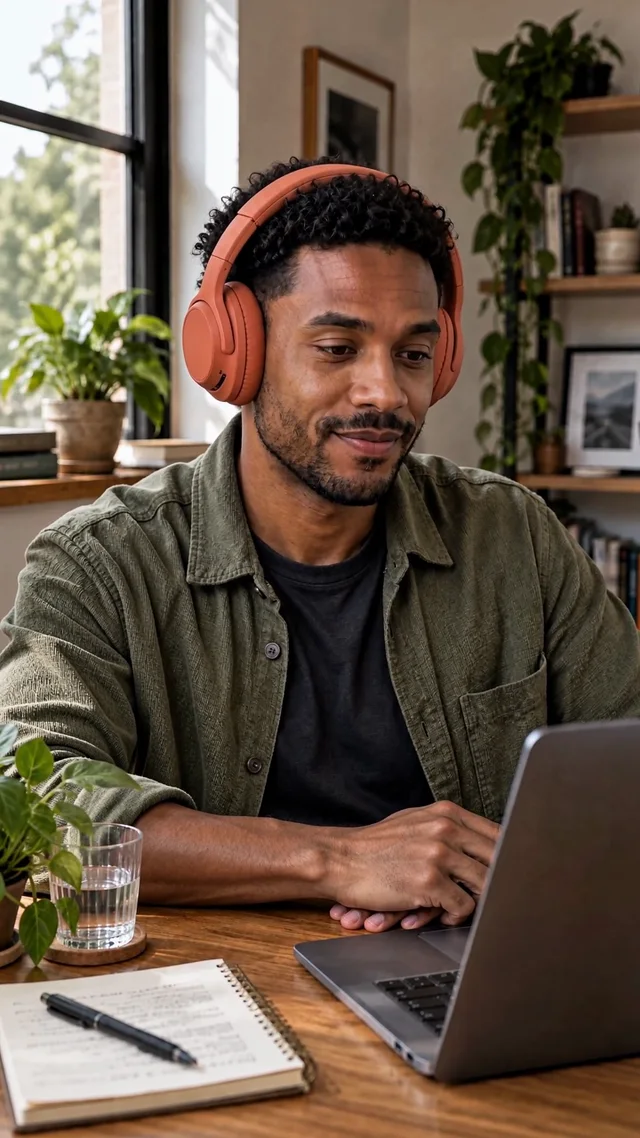
Starting from the reference photo, animate the same fictional adult creator wearing the same over-ear headphones at the desk. The fingertips already touching the outer earcup make one gentle adjustment, then the hand lowers slowly to the desk. End with a relaxed glance toward the laptop. Keep the phone camera fixed. Preserve the exact facial identity, hair, sage overshirt, charcoal shirt, headphone color, oval earcups, cushions, headband, hand anatomy, desk objects and window light. Maintain believable fingertip contact. No new logos, extra product, dialogue or performance claims.
5. Cinematic Reel
Best for: A restrained opening shot or atmospheric transition. Watch for: An aggressive push revealing invented scene details.
Create one continuous shot anchored to the reference photo of the same fictional adult creator. The creator breathes gently and makes a slight eye movement toward the existing light source. Move the camera forward very slowly over a short distance, maintaining the original lens perspective and natural shallow depth of field. Allow only a faint, gradual change in the existing window light. Preserve the face, skin texture, hair, wardrobe, jewelry, body proportions, object positions and background structure. No orbit, focus pumping, dramatic relighting, speech or scene change.
Three Ways to Animate an AI Influencer Photo
Use image-to-video when a small action will carry the scene. Choose motion transfer when a specific authorized performance matters, or a talking-photo workflow when spoken delivery is the point. These inputs solve different problems. A reference video supplies movement; a speech track supplies timing and words; neither guarantees perfect anatomy or identity.
| Workflow | Inputs and useful output | Review priority |
|---|---|---|
| Image to Video | Photo + motion prompt → a short animated scene | Face, object contact, scene stability |
| Motion Transfer | Character photo + authorized motion video → reference-led movement | Full-body anatomy, feet, occlusion and clothing |
| Talking Photo / Avatar | Photo + text or authorized audio, as supported → speaking presenter | Lip sync, pronunciation, expression and voice rights |
Best Instagram Reel Settings for AI Influencers
Use a vertical 9:16 delivery file at 1080 × 1920 as a practical production target. Instagram’s published minimums are broader: supported ratios range from 1.91:1 to 9:16, with at least 720 pixels and 30 FPS. Production recommendations, app upload rules and publishing-API specifications are different; check the intended publishing route before exporting.
| Setting | Practical choice | Requirement or limitation |
|---|---|---|
| Shape and size | 9:16 · 1080 × 1920 | Instagram Help: 1.91:1–9:16; minimum 720 pixels. 1080 × 1920 is our target, not the minimum. |
| Frame rate | 30 FPS delivery timeline | Instagram Help specifies a 30 FPS minimum. Inspect converted source footage for judder. |
| Duration and pacing | Try one 15-second story; cut on meaningful beats | Editorial starting point, not an optimal length or upload cap. Check current account limits in the composer. |
| File and sound | MP4, H.264 video, AAC audio | Recommended editor export, not an exhaustive list of formats accepted by the Instagram app. Recheck playback after export. |
| Text safe area | Keep key text away from edges, bottom captions and right-side buttons | Preview actual Instagram overlays and feed/grid crops; no single pixel margin guarantees every placement. |
| Cover | Choose a sharp face/action frame; preview the grid crop | Help recommends 420 × 654 for cover images. Keep critical details within the visible crop. |
| Music | Use audio licensed for this placement | Instagram’s licensed library is intended for personal, non-commercial use; commercial use needs appropriate rights. |
| AI disclosure | Use Instagram’s disclosure tool for realistic synthetic video/audio | Meta’s 2026 guidance requires disclosure for organic photorealistic video or realistic audio digitally created or altered. |
For commercial work, check the exact track’s terms; Meta points eligible users to Sound Collection. A download or “credit to the artist” does not grant reuse rights. Likewise, an AI label does not replace a required partnership disclosure.
How to Make AI Influencer Reels Look Natural
Natural motion starts with a believable source and a small, readable action. Keeping the camera steady makes identity changes, hand defects and scene drift easier to detect. Simple movement is a review strategy, not a guaranteed quality improvement. If a clip fails, reduce the competing movements or replace the source rather than disguising the problem.
| Problem | What to inspect | Practical fix |
|---|---|---|
| Face identity drift | Jaw, eye spacing and hairline during turns | Use a clearer source; reduce head rotation and shorten the shot. |
| Unnatural blinking | Repeated eyelid flutter, fixed stare or changing teeth | Request a relaxed expression; omit speech if unnecessary. |
| Distorted hands/body | Finger contact, crossings, feet and weight shifts | Keep hands in a visible resting position; simplify interaction. |
| Outfit/background changes | Seams, logos, doorframes, reflections | Preserve named details; avoid revealing unseen surfaces. |
| Excessive camera movement | Orbiting, warped depth and focus pumping | Use a fixed camera or one gentle push, not several moves. |
| Poor cuts/caption placement | Jumps, unreadable type, covered faces or controls | Cut on action, proofread text and preview destination overlays. |
For a stronger opening idea, use the video idea workflow. For distribution context, see the viral-content guide; this tutorial focuses on producing one usable Reel.
A 15-Second AI Influencer Reel Storyboard
Build a short Reel around one recognizable moment: a creator settling into a desk routine. The timeline below is an editorial re-cut plan using the existing headphone scene. Its captions and timing are proposed edits, not the exact generated script, a published Reel or an experimentally verified best duration. Assemble and review it in an editor.
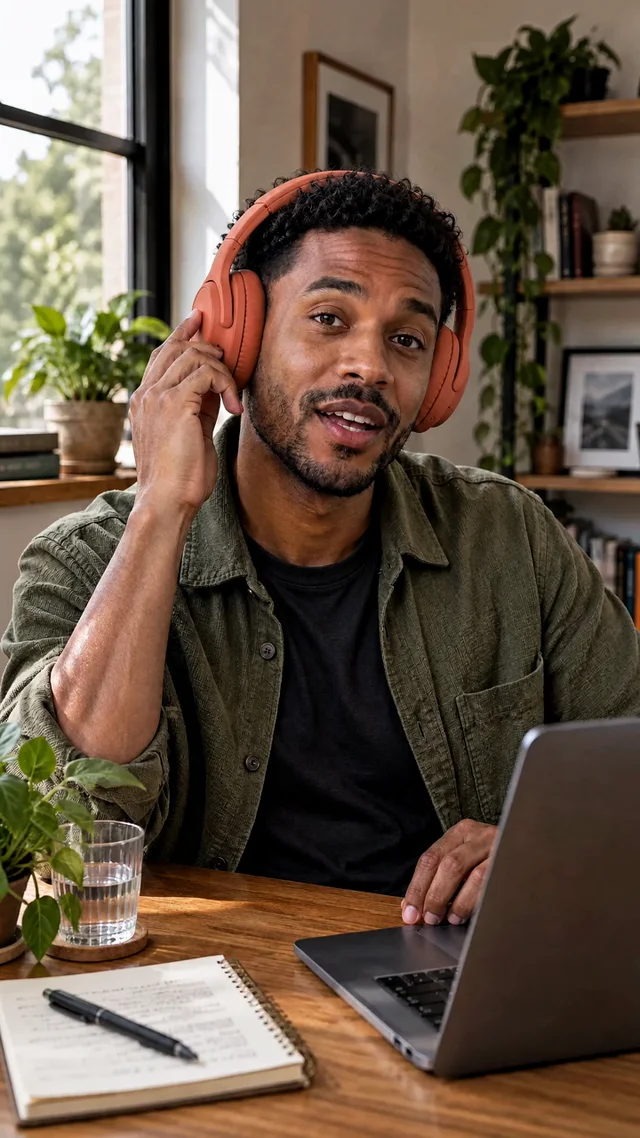
Hook
Shot/action: Opening close view; one small earcup adjustment.
Caption: One small desk reset.
Sound: Quiet licensed instrumental; keep speech readable if retained.
Production: Trim the existing opening; add text externally.
Main action
Shot/action: Hand lowers; creator glances toward the laptop.
Caption: Headphones on. One task.
Sound: Continue the same licensed bed; avoid abrupt volume changes.
Production: Use the reviewed middle section; no new scene required.
Visual emphasis
Shot/action: Slight crop change on the same shot; face stays clear.
Caption: Find your rhythm.
Sound: One restrained beat accent; no unlicensed trending track.
Production: Make the crop in the editor, not a new generated camera orbit.
Close + CTA
Shot/action: Return to the wider desk composition.
Caption: Save this reset idea.
Sound: Resolve the music cleanly; remove conflicting original speech.
Production: Add CTA text, choose a cover and review overlays.
Frames illustrate the existing scene, not exact proposed edit boundaries. Do not present the fictional creator’s desk routine as a customer testimonial or a measured product benefit.
Frequently Asked Questions
You can start with one image, but the right animation method depends on whether you need subtle movement, choreography or speech. Every result still needs review, editing and a separate publishing step. The answers below address common production decisions; none of the general Instagram research establishes a guaranteed outcome for AI-generated Reels.
Can I turn one AI photo into an Instagram Reel?
Yes. Image-to-video can animate one photo into a short clip. Edit that clip for Reels, check the export and upload it separately. One source image does not guarantee stable identity or believable motion throughout the result.
What is the best AI tool to animate influencer photos?
Choose by the task: image-to-video for small scene movement, motion transfer for a specific authorized performance, or talking photo for speech. Compare reference handling, usable duration, export options, cost and review quality. There is no universally best tool for every photo.
Can I make an AI influencer dance from a photo?
Yes, a motion-transfer workflow can combine a suitable character image with an authorized dance reference. Use a full-body source with visible limbs and room to move. Review limb crossings, feet, clothing and identity; complex choreography can require another source or a simpler movement.
How do I keep the same face in AI videos?
Start with a sharp, unobstructed reference. Preserve the face, hair and lighting in the prompt, limit head rotation and avoid competing camera motion. Compare several moments with the source. A preservation instruction helps guide generation but does not lock identity perfectly.
How long should an AI influencer Reel be?
Use the shortest edit that delivers the idea. Fifteen seconds is the editorial example here, not a proven optimum or Instagram’s maximum. Build longer stories from reviewed shots, and check the current account’s publishing and recommendation guidance before upload.
Can I add music and captions to AI-generated videos?
Yes. Add and proofread captions in Instagram or an external editor, and use music licensed for the intended placement. Some generation models offer native sound, but that does not establish music rights or replace a proper caption and editing pass.
Does Instagram allow AI-generated Reels?
AI generation alone does not make a Reel prohibited. The content must still comply with Meta’s rules and others’ rights. Meta requires its disclosure tool for organic photorealistic video or realistic-sounding audio that was digitally created or altered. Disclose commercial relationships separately when applicable.
How do I make AI Reels look realistic?
Use one small purposeful action, stable framing and consistent light. Check the full video for face drift, blinking, hands, clothing and background changes. Shorten or replace unstable moments instead of hiding defects with heavy blur, rapid cuts or oversized captions.
Plan Content
Measure Engagement
Build Your Profile
Price Your Work
Write Post Copy
Brand Partnerships