
Virtual Try-On
Pair one authorized adult photo or saved character with one owned garment image to create a reviewable clothing visualization—without claiming a real-world fit or size result.
Use this for a visual review of a specific garment—not a size, measurement, or real-world fit prediction.
Try on clothes in Studio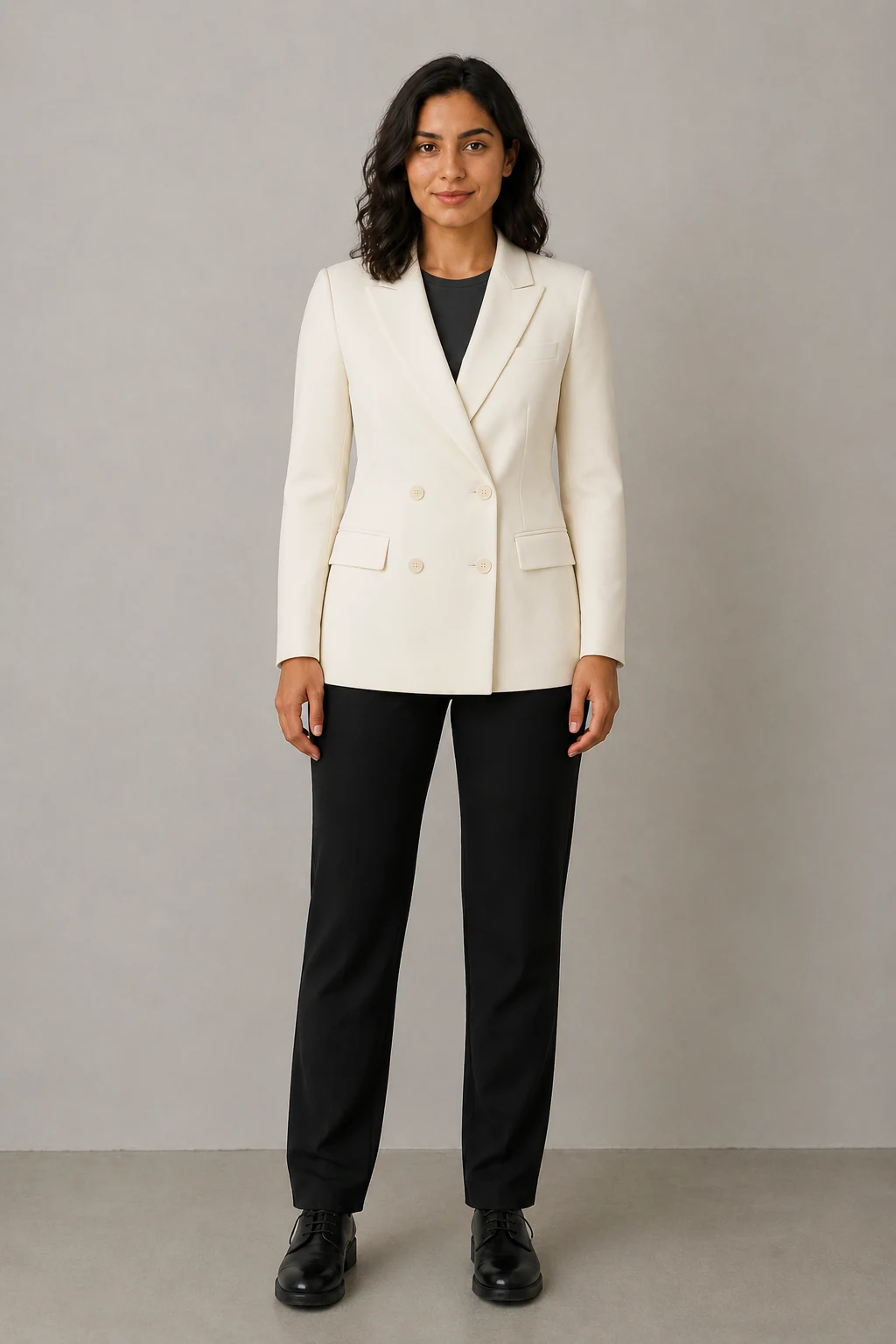
What is Virtual Try-On for clothes?
Virtual Try-On combines a chosen adult identity source with a separate garment image to make a new clothing visualization. It is designed for outfit review and creative planning, not for confirming physical fit, size, comfort, or inventory.
Use a person, a garment, and a direction
Choose exactly one identity source: an authorized adult photo or a saved adult character. Add one garment reference, then describe the setting or crop. Studio sends the identity first and the garment second so the request stays understandable and reviewable.
- 01 · Identity
One adult photo or one saved character. - 02 · Garment
One clear clothing reference with visible details. - 03 · Direction
A scene, crop, or presentation note—not a conflicting second outfit.
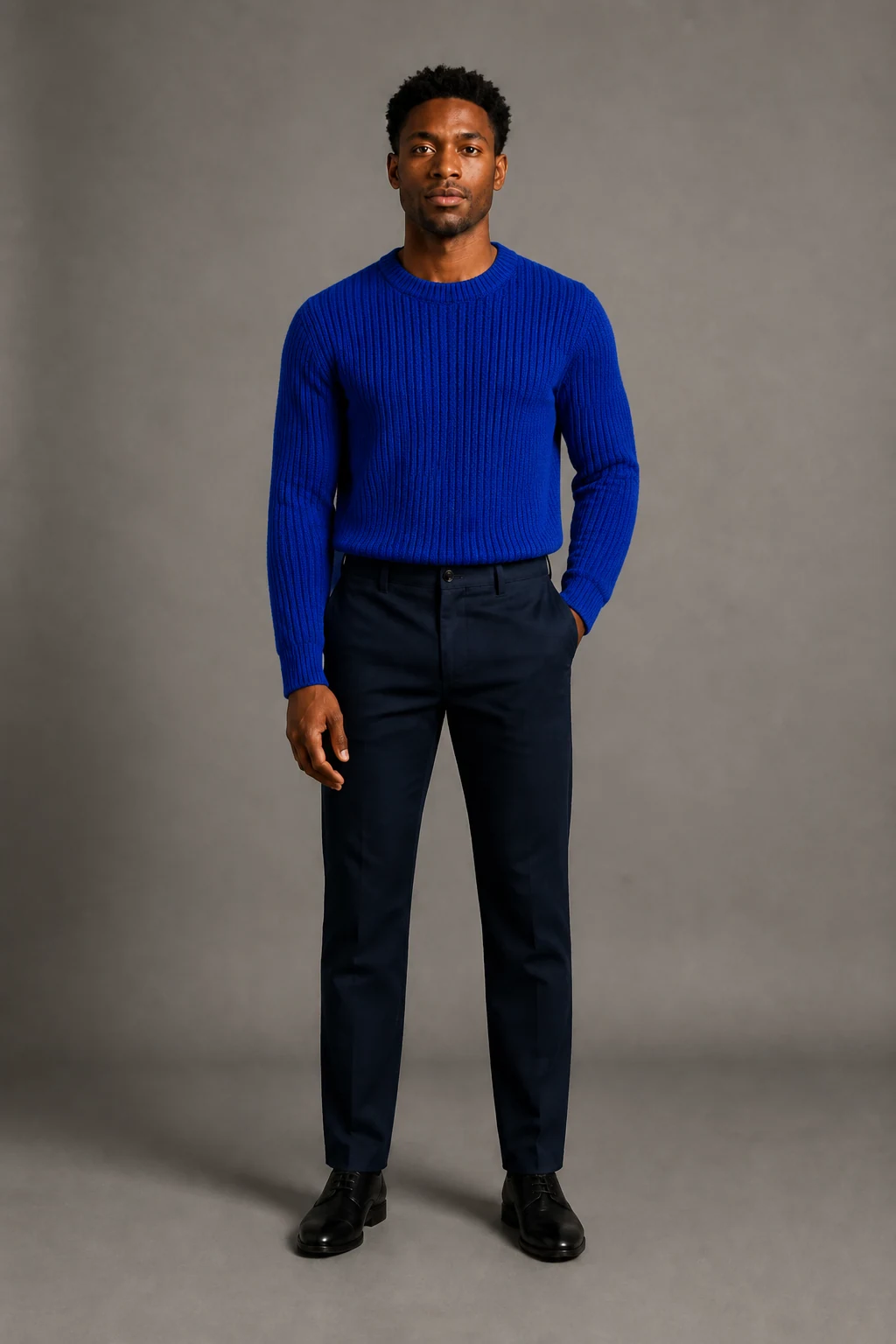
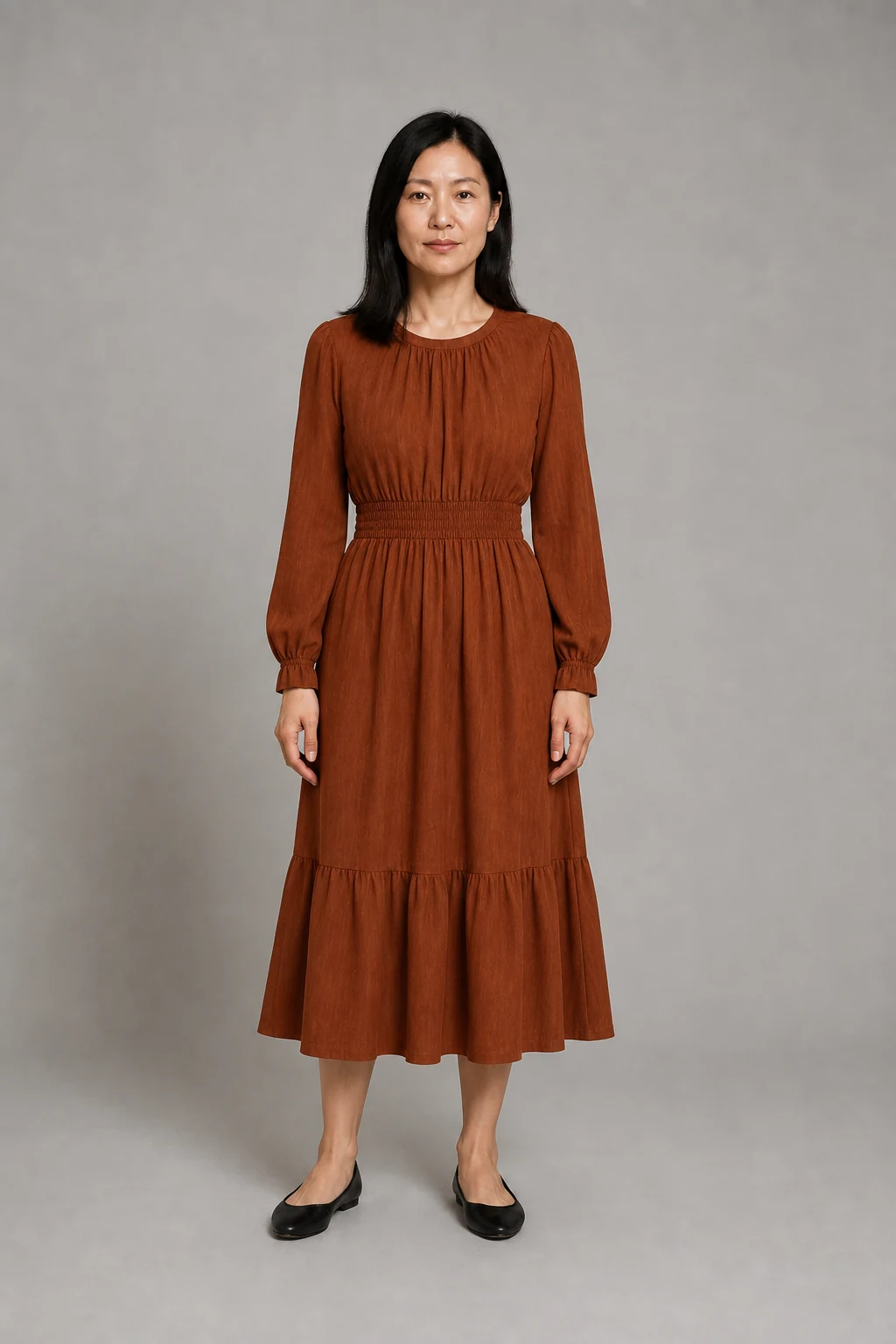
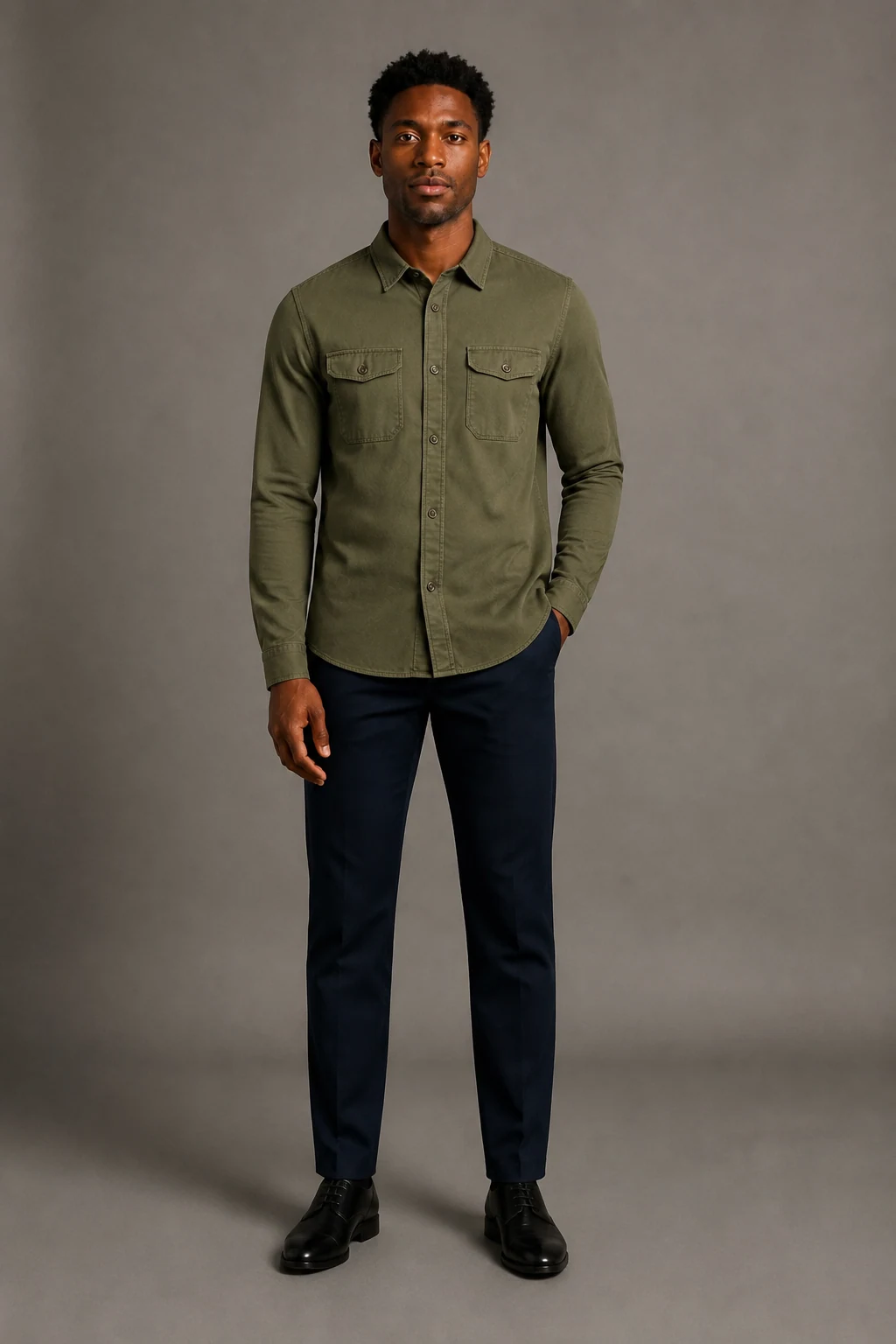
Review real product outputs before you rely on them
These six examples were generated through the same KIE image workflow used by Studio from fictional adult inputs and unbranded garment references. They are examples, not customer photos, fit studies, or product claims.
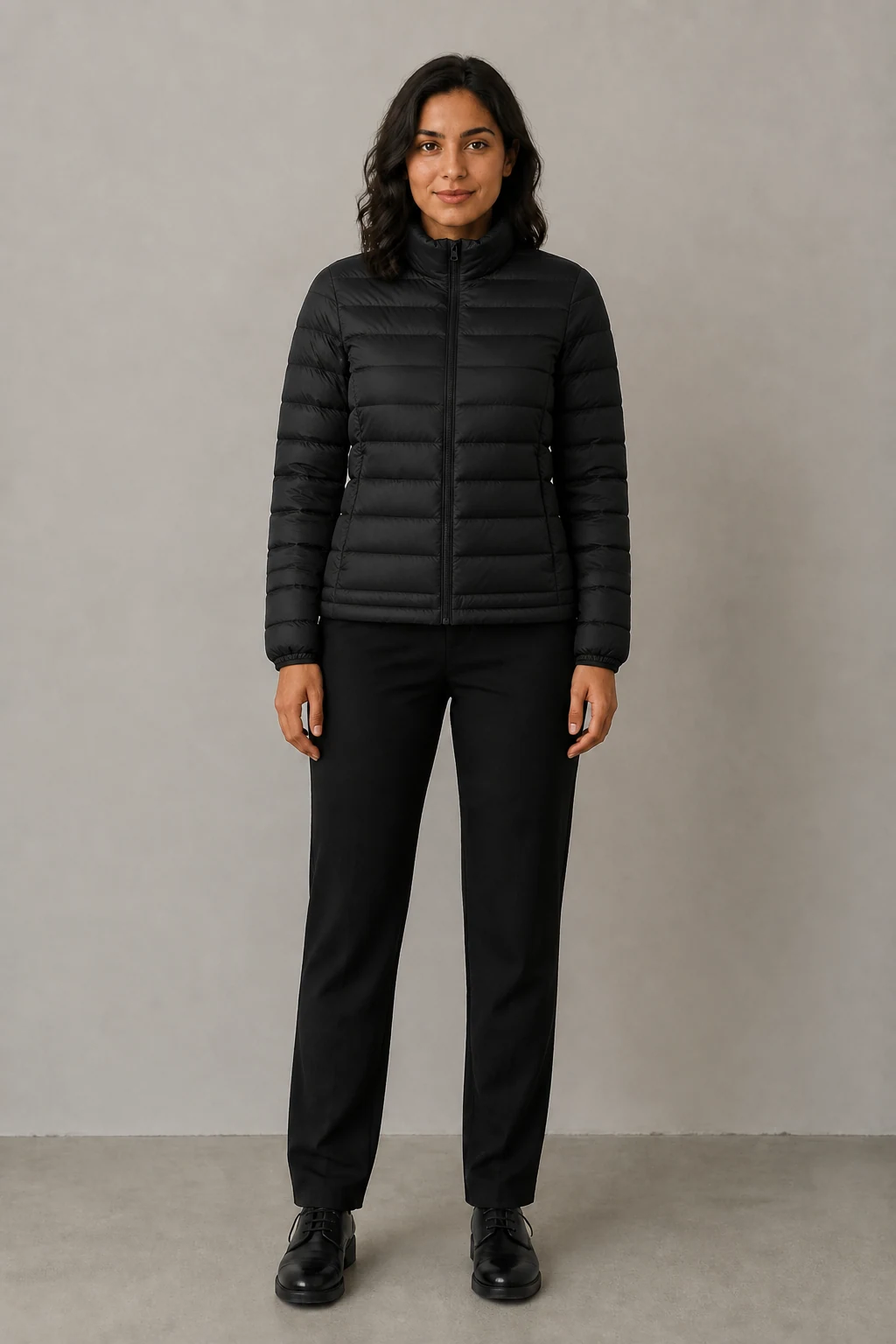
Who uses clothing try-on visuals?
Ecommerce teams, independent designers, resale sellers, stylists, social creators, agencies, and product marketers use them to review an outfit direction before a shoot or publishable asset is approved.
Merchandising teams
Compare a garment presentation without treating it as a catalog truth.
Creative teams
Plan lookbook, social, and campaign directions around a known item.
Independent sellers
Prepare reviewable concepts for owned garments and authorized identities.
Where a clothing visualization is useful
Use the output as a creative preview for a product-page concept, an editorial lookbook route, a social post idea, a seasonal assortment discussion, or a pre-production brief. Keep a human review step before publishing.
Which garments work best as references?
Single, clearly visible tops, jackets, shirts, knitwear, and dresses are the most straightforward starting point. The system can interpret different categories, but layered looks, hidden backs, high-gloss fabrics, and tiny details need closer review.
How the Studio workflow stays valid
The workflow exposes only the identity control that applies to your selected mode and keeps the required garment reference visible in both modes.
- Choose Upload photo or Saved character.
The hidden identity source is cleared immediately. - Add one garment image.
This is required in both modes. - Set direction, quality, output count, and frame.
Studio only offers compatible settings. - Review the quote, generate, and inspect the result.
Failed tasks follow the existing refund flow.
Prepare an adult source photo that the workflow can read
Use one authorized adult in a clear, well-lit image. A front-facing or lightly turned full-body photo with visible torso and hands gives the model more useful context than a heavily filtered, crowded, cropped, or dark image.
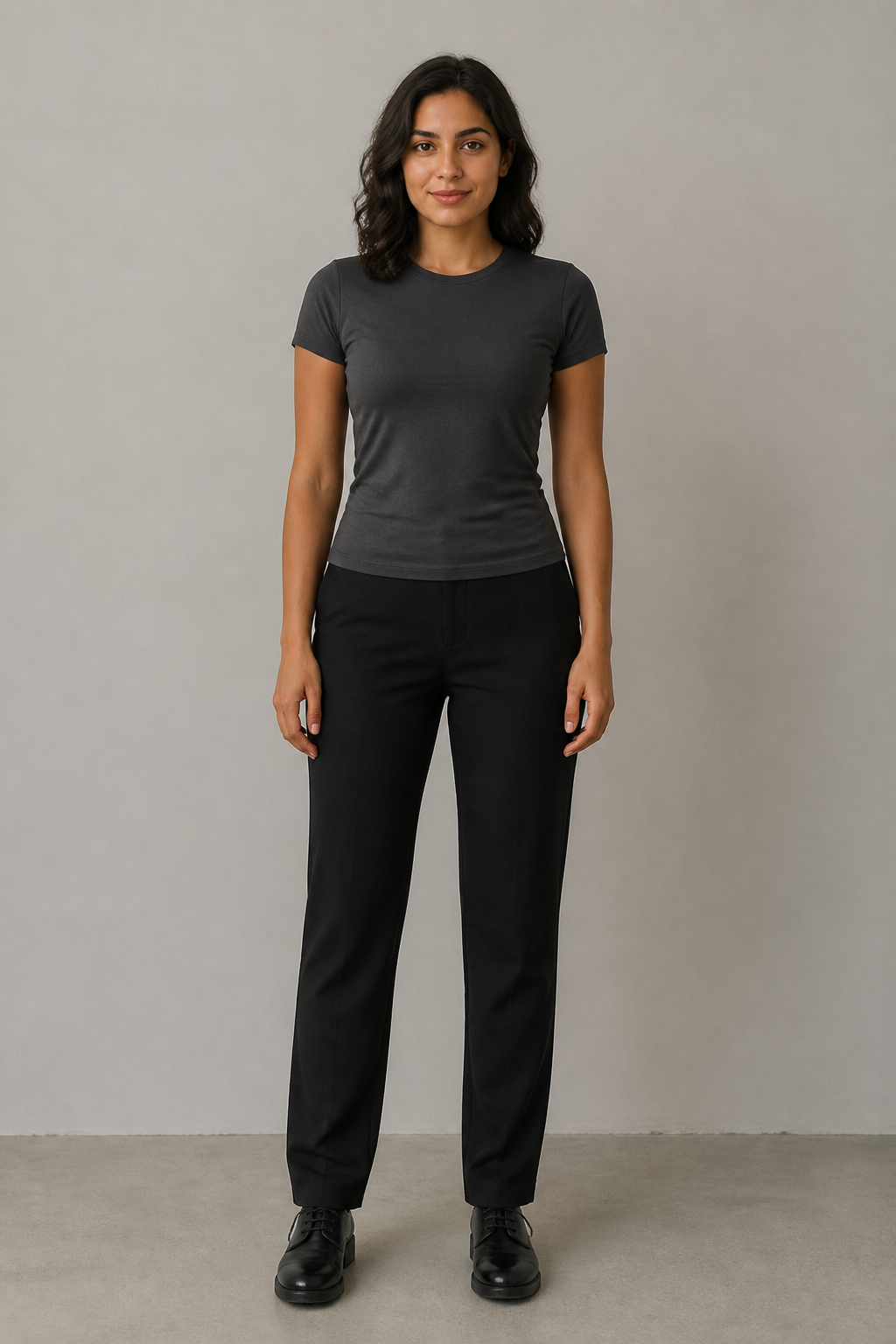
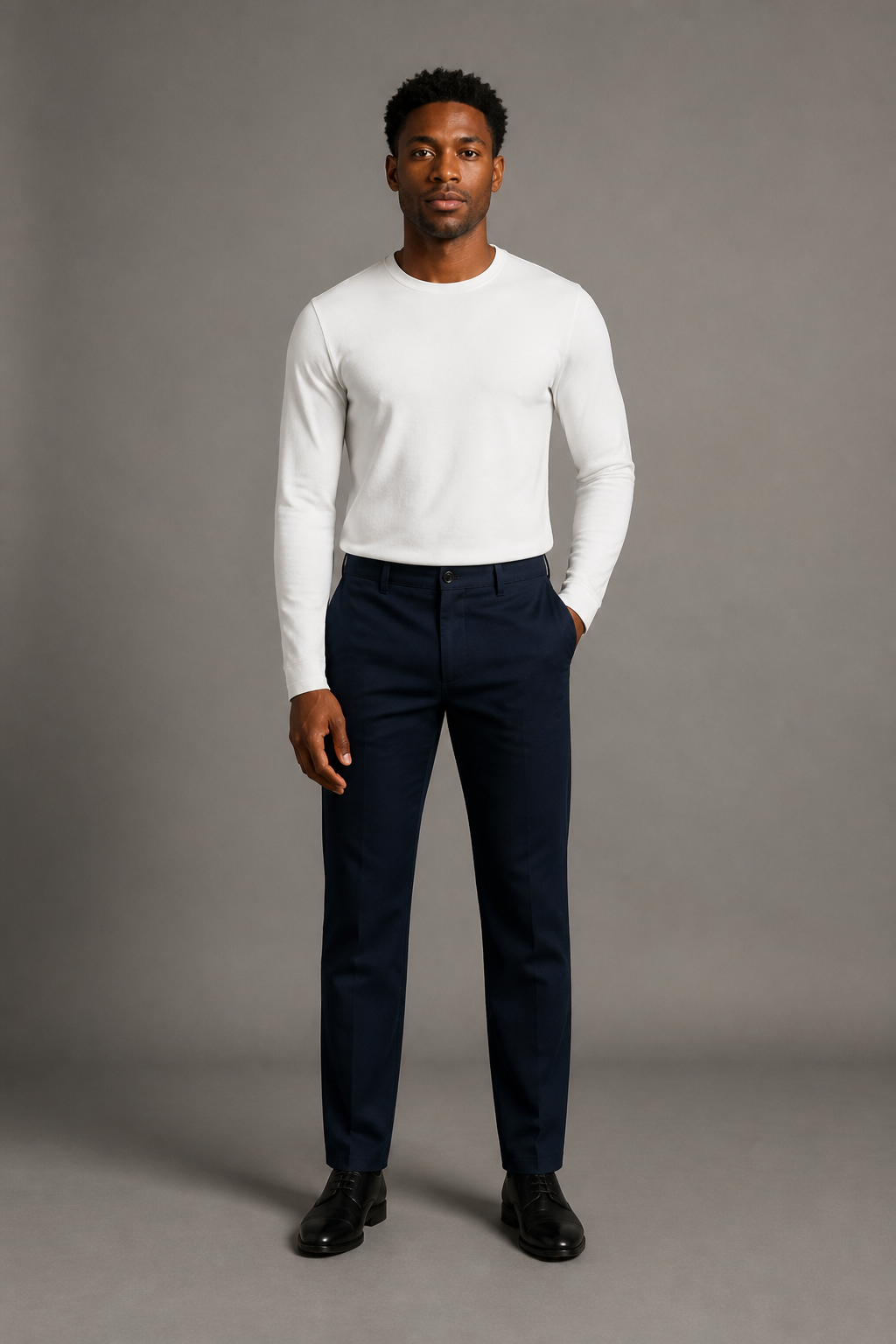
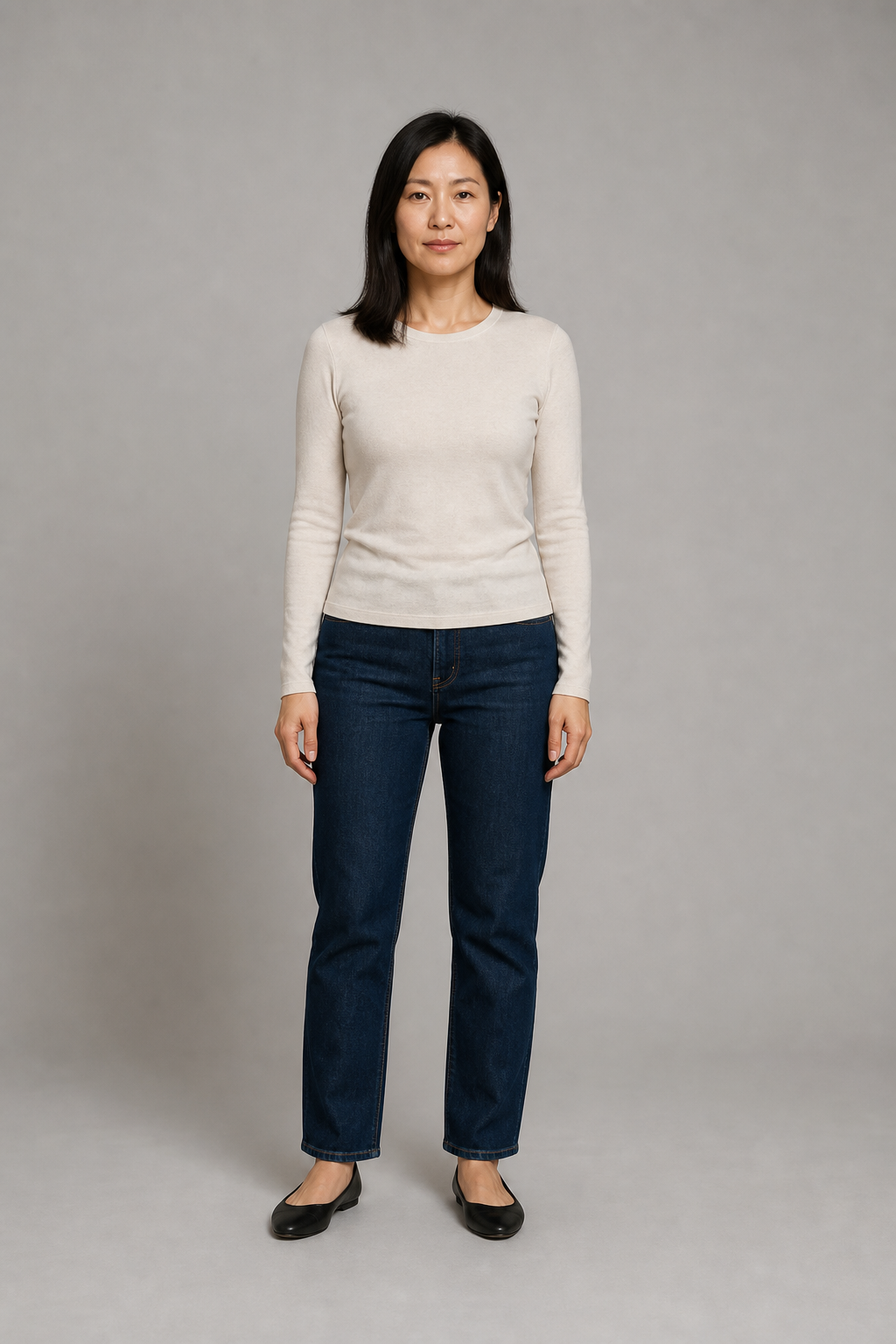
Prepare one garment reference with details in view
Show a single item against a simple surface. Keep the full outline, neckline or collar, sleeves, closures, texture, and color visible. Avoid a model wearing the garment, busy scenes, multiple items, unreadable labels, or watermarked source images.
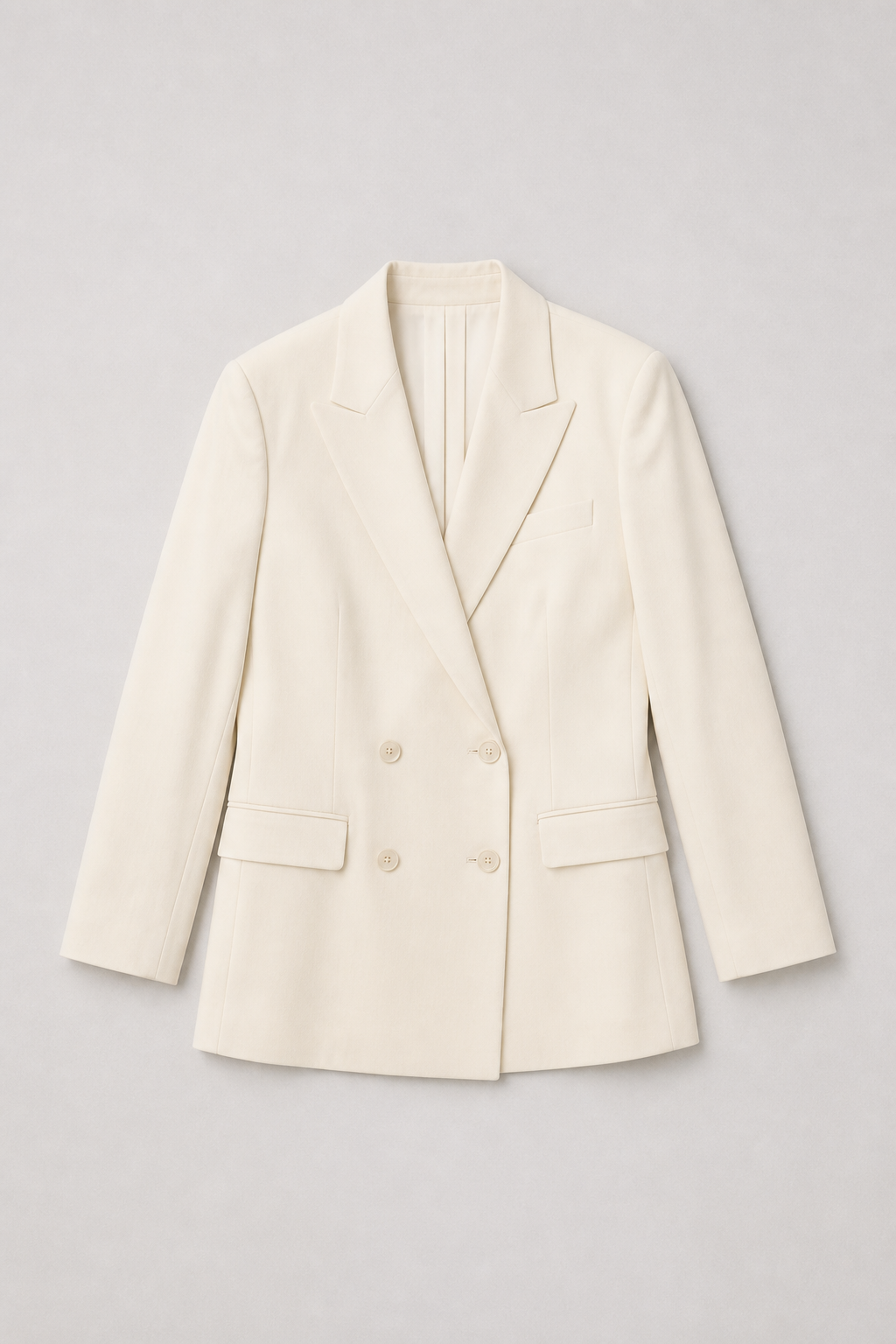
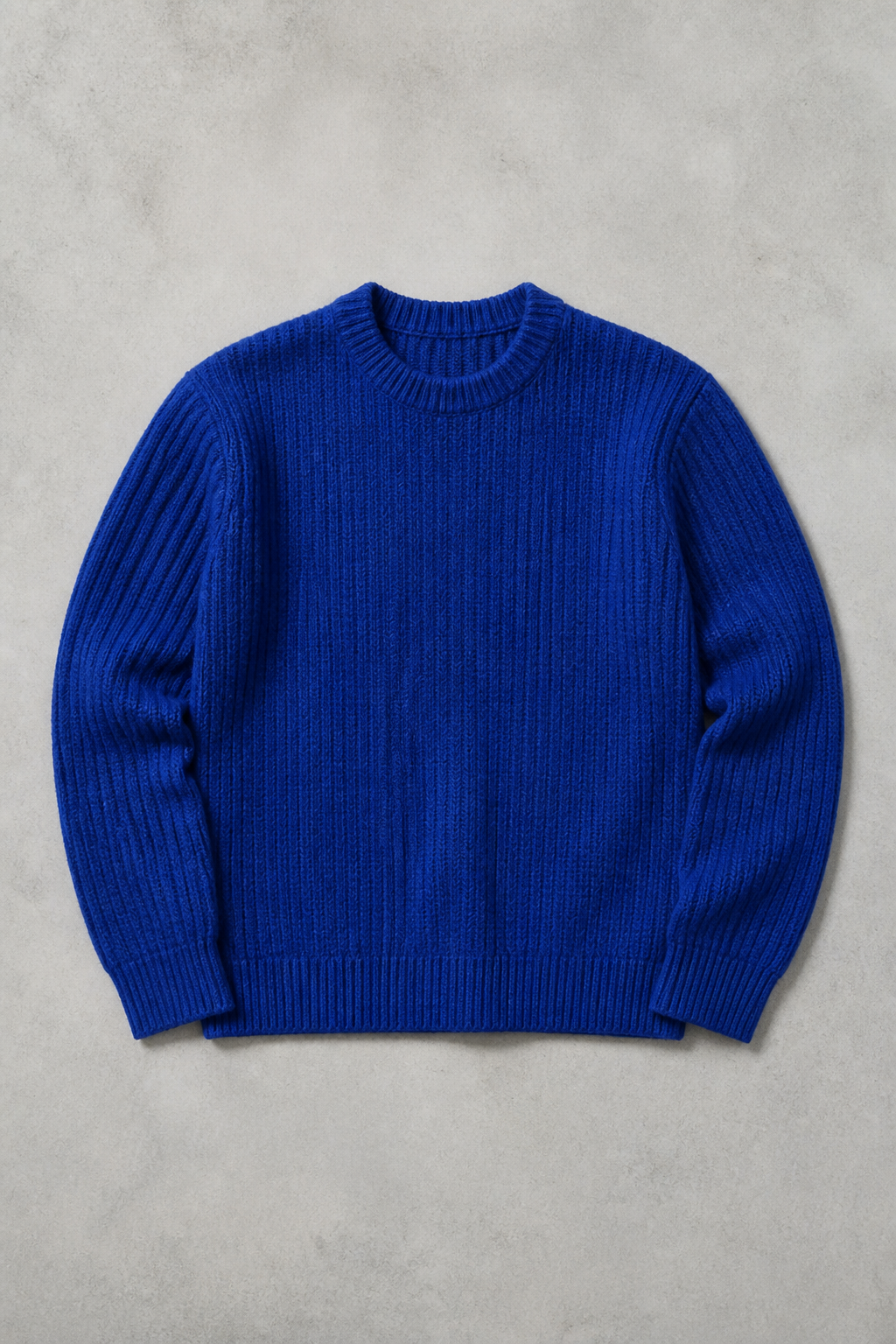
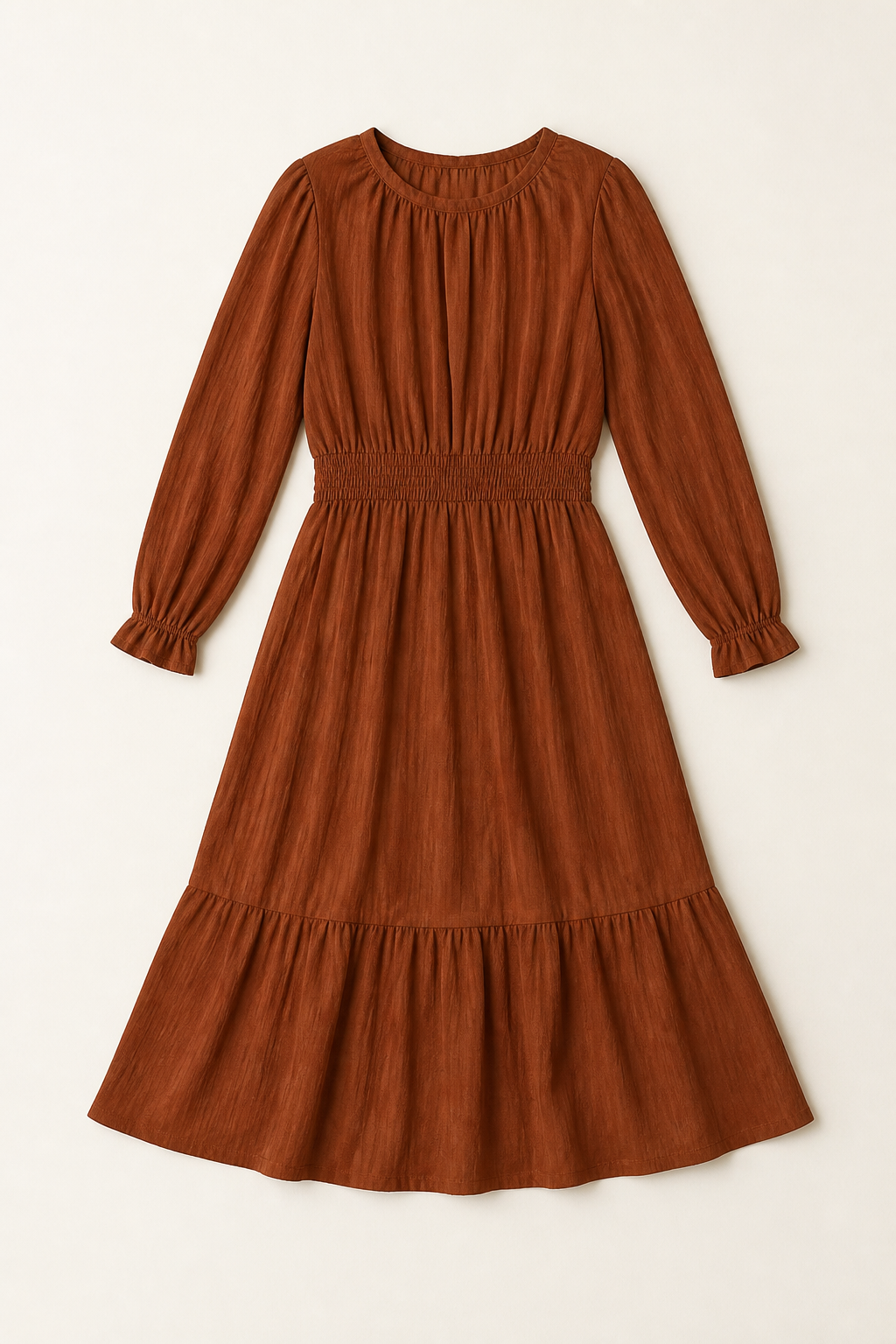
Choose Upload photo or Saved character—never both
Upload photo is useful when you are working from one authorized portrait. Saved character is useful when your private Studio library already has a reusable adult identity. Switching mode clears the other source, while your garment image remains selected.
Upload photo
Use a clear PNG, JPG, or WebP adult photo you are allowed to use.
Saved character
Reuse an existing adult identity and add the same required garment reference.
Write a prompt that supports the garment reference
Let the images carry identity and garment specificity. Use the prompt for a compatible setting, crop, pose, or styling context instead of trying to overwrite the supplied garment with a second outfit.
“Full-body daylight studio image. Keep the adult identity and body proportions from the first image. Wear the supplied garment with natural drape; preserve the visible color, cut, and material texture. Relaxed stance, visible hands, clean unbranded background, no text or watermark.”
See a real identity-plus-garment result
This output used a fictional adult reference first and a fictional sand linen shirt reference second. The order is recorded in the asset provenance and mirrors the Studio request order.
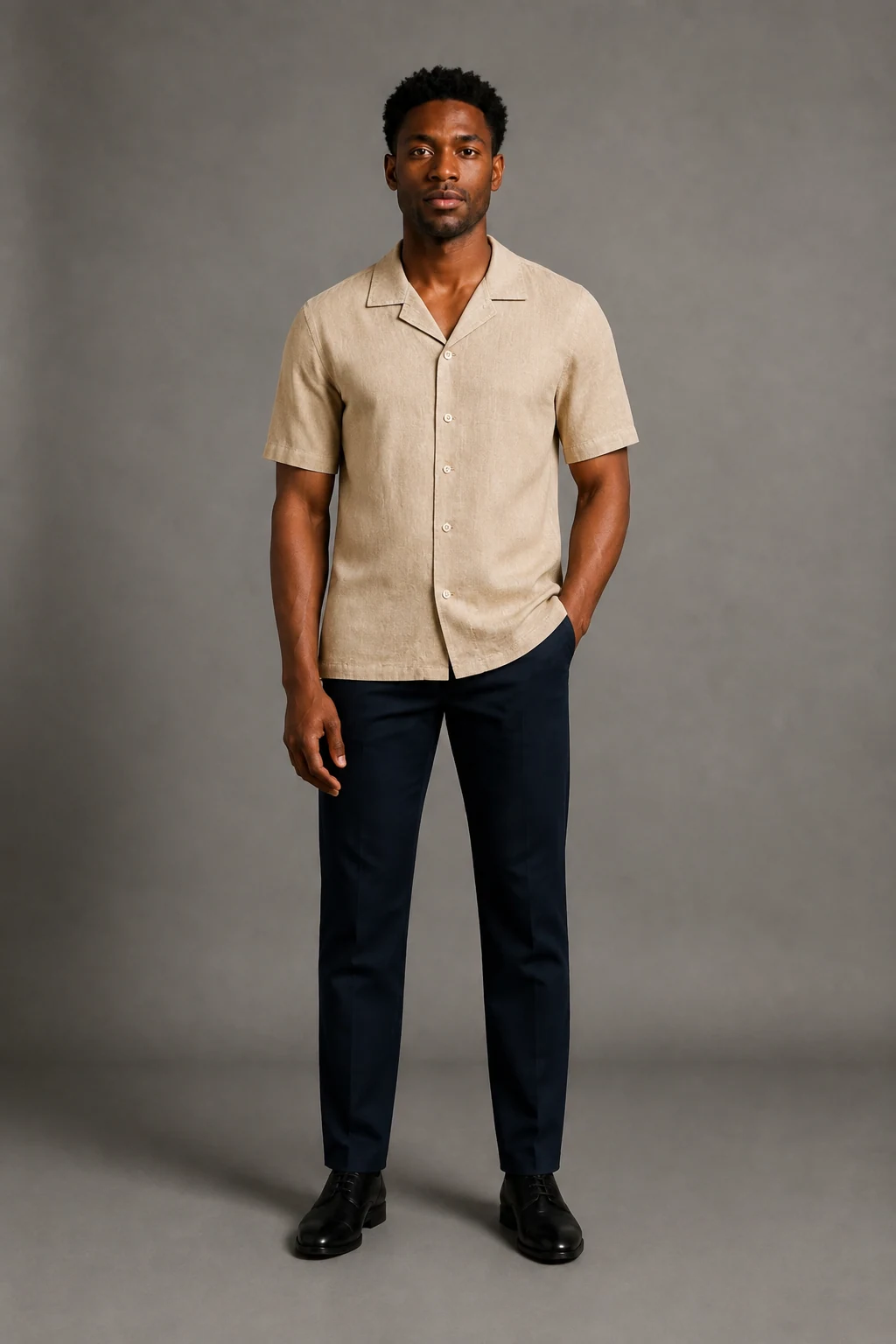
Control identity, color, cut, texture, and proportion
The image pair anchors the identity and garment. A concise prompt can request a crop, scene, light direction, or pose. Results vary, so retain your source files and review visible face, body, garment, and edge details rather than assuming any one field is locked.
Choose composition, quality, and output count before generating
Studio presents the active model, compatible quality, frame, and output options before you submit. Image workflows do not show video duration. When you change a model, incompatible settings normalize before submission instead of producing a late availability error.
Compare Virtual Try-On with nearby workflows
Each workflow answers a different job. Using the narrower tool avoids a confusing prompt and makes the input contract clear.
Virtual Try-On
Specific identity source plus a specific garment reference.
Outfit Changer
Written clothing direction for an existing saved character.
Fashion Model Generator
Broader fashion campaign and editorial imagery.
3D or AR try-on
A separate product category; this page does not claim body measurement or live fit simulation.
Know the visual limits before publishing
Occluded hands, shiny materials, fine prints, tiny text, brand marks, back details, unusual poses, multi-layer looks, and difficult silhouettes can drift. Treat each image as a generated visualization and do not represent it as verified product photography or fit evidence.
Review the output with a specific checklist
Inspect details at the size and crop where you intend to use the image. Regenerate when an important visual fact is not intact.
- Adult identity and age presentation
- Garment color, cut, and neckline
- Fabric texture, seams, and closures
- Body proportions and garment drape
- Hands, wrists, and garment edges
- Background, text, logos, and watermarks
Use authorized sources and disclose AI when required
You are responsible for rights to the adult likeness, source photo, garment image, claims, commercial use, platform rules, and any required AI disclosure. The page examples use fictional adults and unbranded fictional garments; they are not customer proof.
See credits and generation status before you commit
Studio quotes the currently selected model, quality, output count, and total credits before submission. It reserves credits for the task, reports progress in History, makes completed outputs available to download, and applies the existing failure-refund rules when a task fails.
Virtual Try-On questions
These answers describe the visible Studio workflow and its boundaries.
Continue with the tool that matches the next job
Use a specific garment reference here, then move to a broader image workflow only when the creative job changes.
Start with one clear person and one clear garment
Choose your identity source, add an owned clothing reference, and inspect the completed image before it reaches a product or campaign surface.