
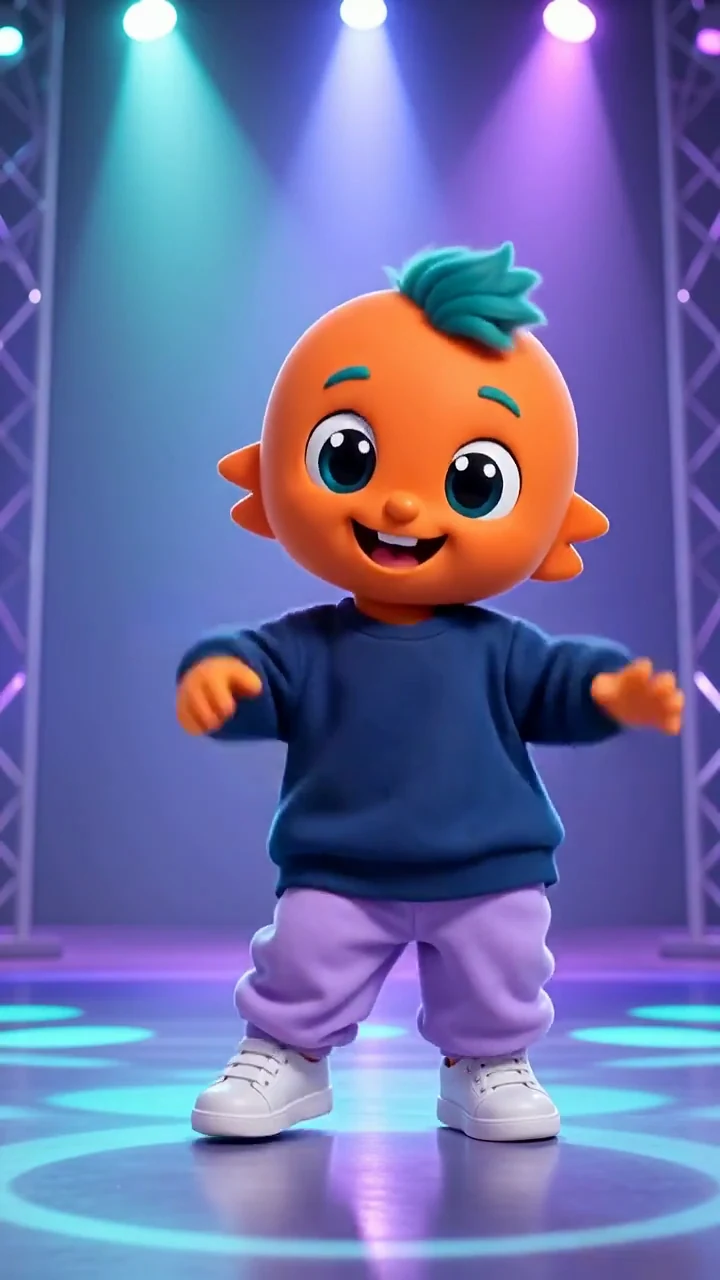
Simple dance or reaction
A fictional baby-style character doing one playful, easy-to-read action.
Turn one clearly fictional baby-character image and one simple motion prompt into a short social-video concept. Review the clip before you invest in an external edit or publishing plan.
Create a baby-style video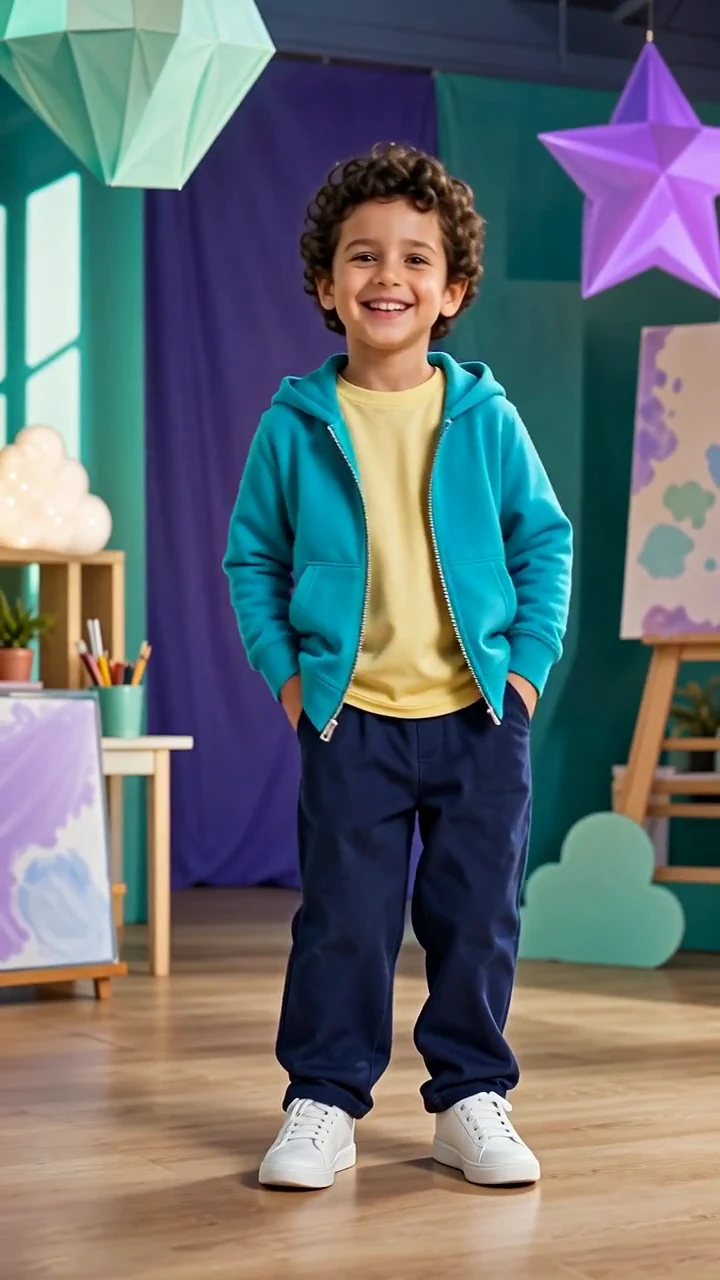
Create playful, fictional baby-style videos without building every scene from scratch. AI Influencer Generator helps creators turn character ideas, prompts, an approved source image, and Studio formats into short-form social content designed for today’s visual feeds. Whether you are experimenting with an ai-generated baby character, a cute dance concept, or a themed mini-scene, this page points you toward a simpler creative workflow.
An AI baby video generator helps you design fictional baby-style characters and turn them into short videos for entertainment, social media, creative testing, and campaign concepts. Instead of relying only on live shoots, stock clips, or manual animation, start from a prepared fictional source image, write one motion prompt, and generate a short-form variation that matches the mood of your idea.
Source image

Generated clip
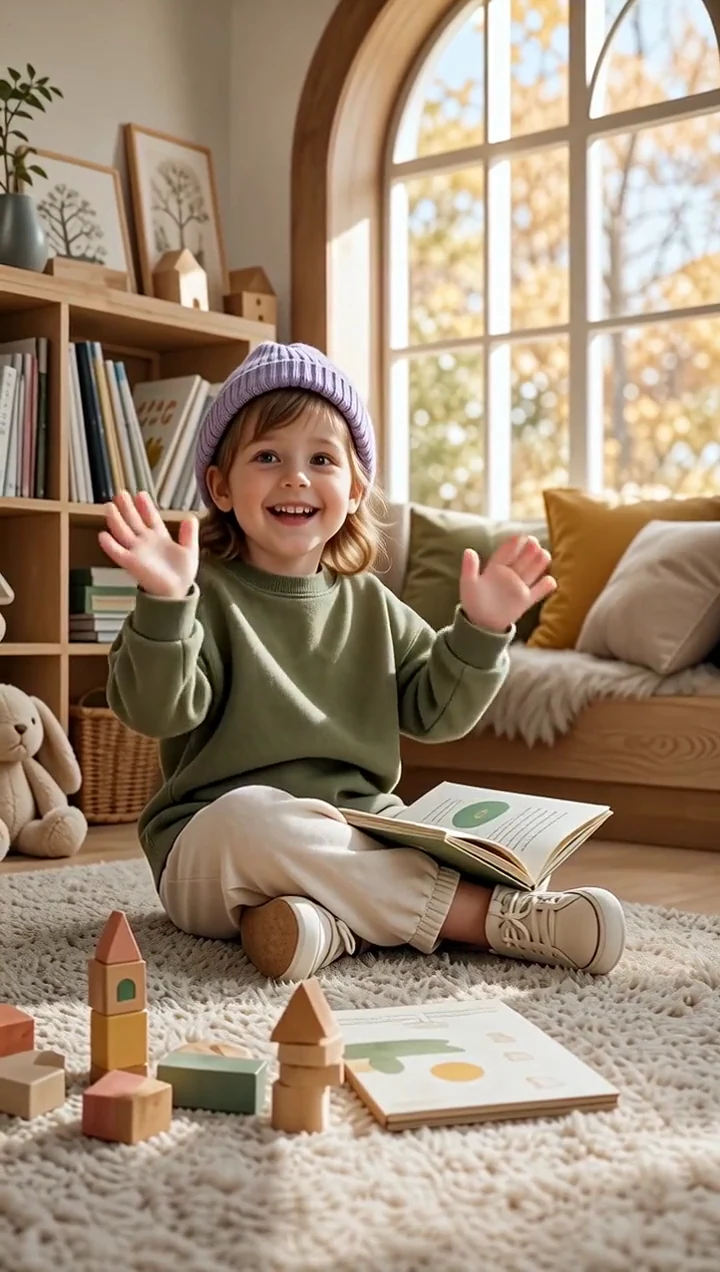
From source to motion
A fictional character image
One simple playful action
Age-appropriate styling and motion
AI Influencer Generator is an image and video creation platform for fictional characters, images, and short-form videos. For creators exploring ai baby videos, that means you can move from a simple concept—such as a tiny character dancing, waving, reacting, or appearing in a themed scene—into a visual asset ready for social-content planning.
Fictional child-character concepts, meme-ready dance clips, product-adjacent scenes, seasonal greetings, and creator experiments that build a recognizable visual style without filming real children.
Future-baby prediction, real-child photos or likenesses, talking baby clips, voice generation, or exact dance choreography transfer.
Trends move quickly, and short-form video rewards creators who can test concepts without slowing down production. A baby ai video generator can help you explore multiple directions before deciding which one deserves editing time, caption work, or a full campaign rollout.
The decision is simple: keep the strongest visual hook, then invest in the external edit.
This is especially useful if you want to create social concepts such as:
A fictional baby-style character doing one playful, easy-to-read action.
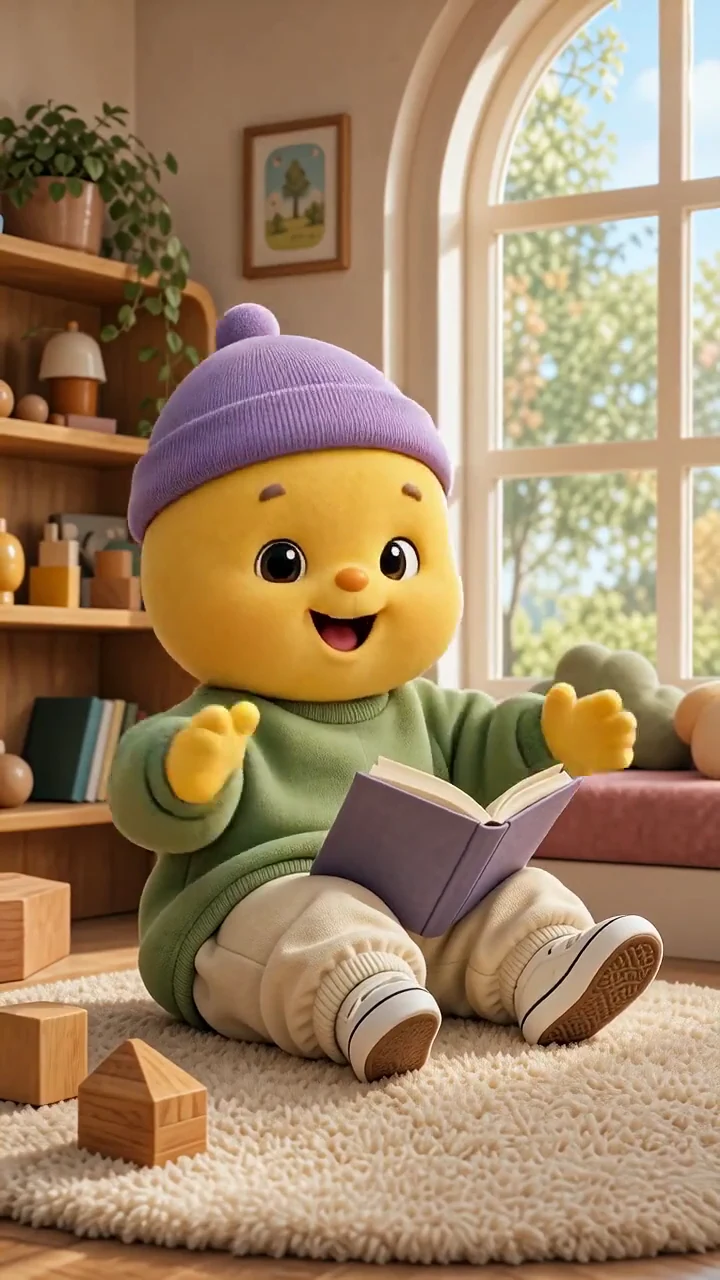
A cute introduction for a themed content series.
A short image-to-video transformation from a selected fictional source image.
A playful scene guided by a prompt and an approved source image.
A short concept adapted to a chosen social format or campaign direction.
Another action from the same approved source image; results can still vary.
If you have searched for an ai baby dance video generator free or a baby ai video generator free, you may already know the challenge: many quick tools produce isolated results, but not every tool supports visual references or a practical content workflow. AI Influencer Generator is built for creators who want more control over the concept, source image, and video direction.
Choose an approved fictional still that already carries the character, clothing, setting, and framing you want to test.
Describe one action and let the result answer a specific creative question.
Compare a short clip before putting time into captions, music, overlays, or a larger campaign.
AI baby videos work best when the character feels intentional. A prompt can describe the action, but a stronger workflow begins with a prepared source image and keeps the next decision focused.
A single cute clip can be fun, but a repeated source image can make a content theme easier to recognize. It does not promise the same character across outfits or scenes, and every new result needs review.
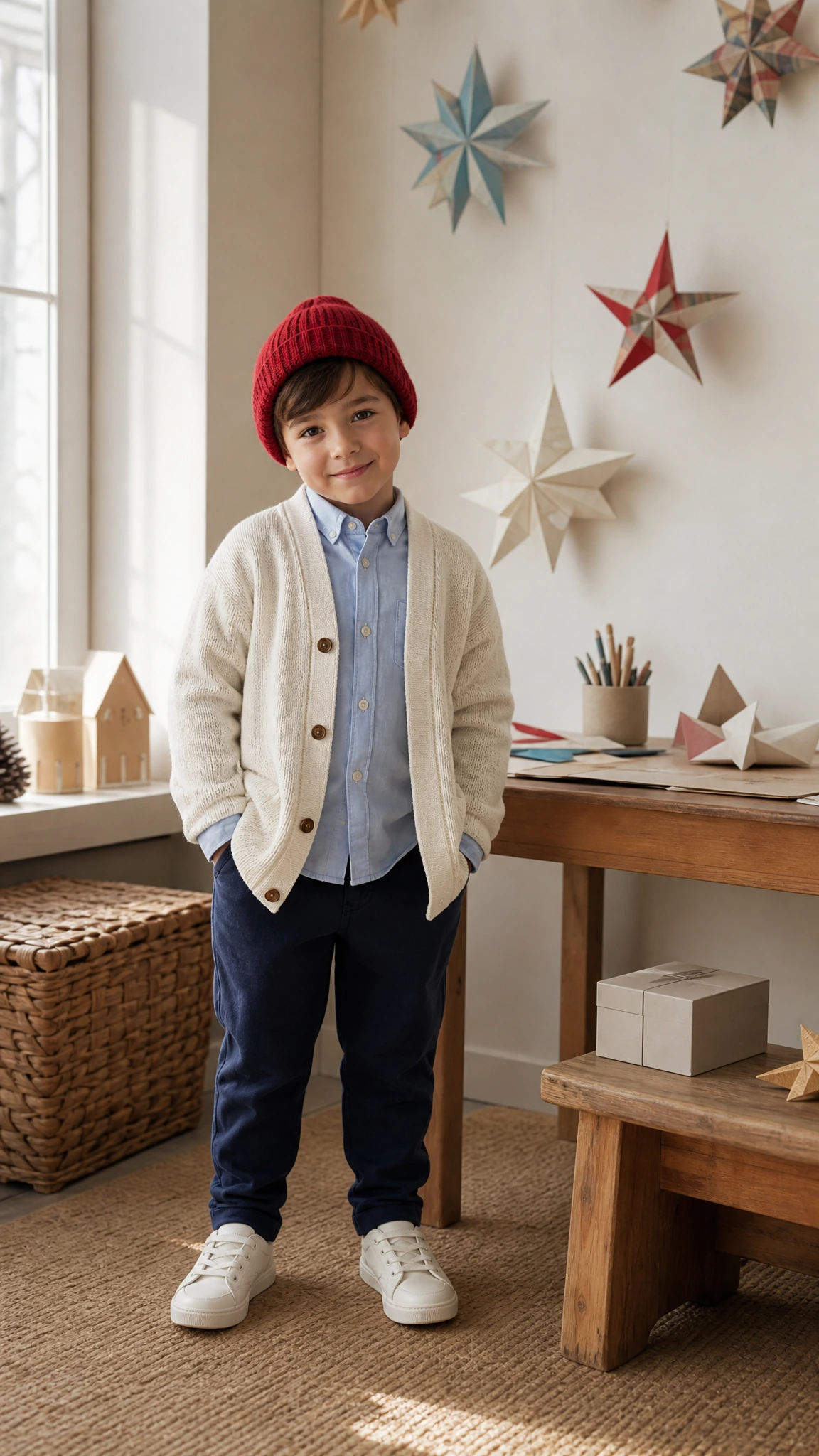
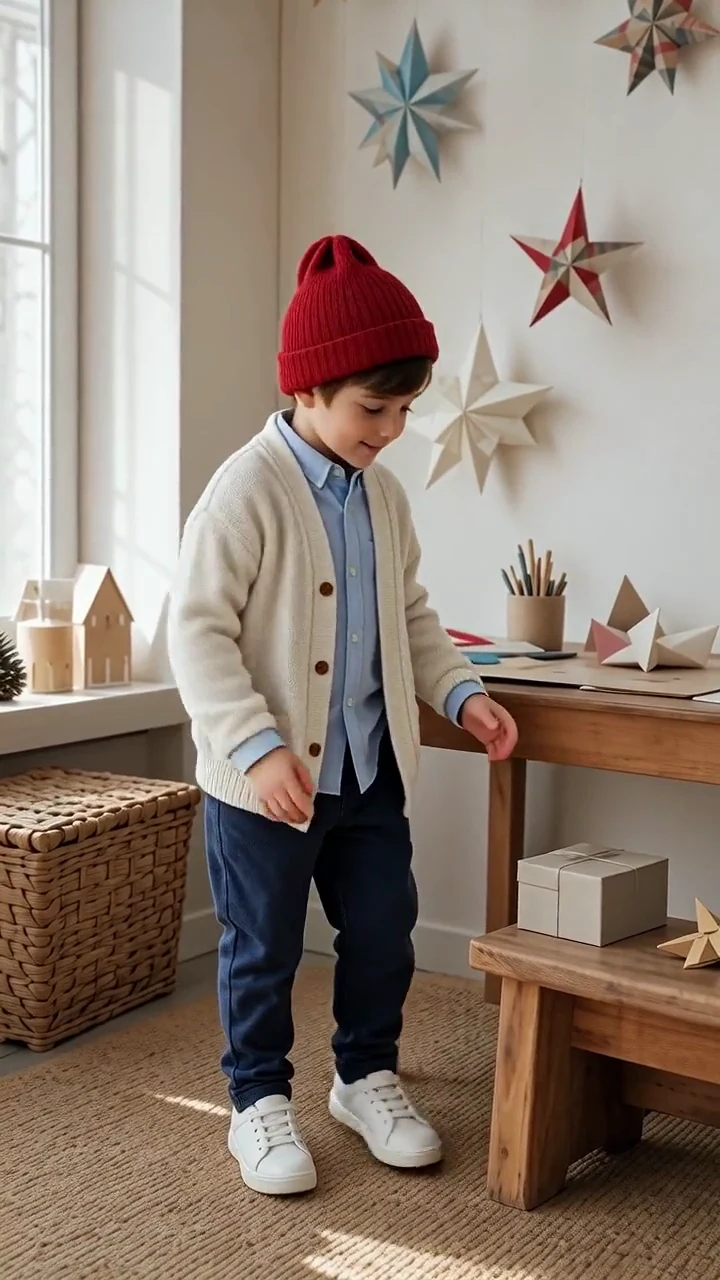
A practical workflow keeps the prompt, motion, and decision clear enough to review.
Decide whether the style is cartoon-like, realistic-fantasy, glossy, cozy, funny, or brand-adjacent—always clearly fictional.
Generate or upload one approved fictional image to guide the starting look before moving into video.
Describe one safe action, setting, camera feel, outfit, expression, and mood.
Use the image-to-video path and available settings to create the short clip.
Adjust the prompt or make one alternate version for another social format; review every result.
Add captions, music, text overlays, or platform-specific edits in your preferred editing process.
Creators, marketers, meme page owners, and social media teams can use this kind of workflow to explore ai baby videos for a focused content decision.
Short-form content often needs speed, but speed without direction can create forgettable videos. AI Influencer Generator helps you combine fast generation with clearer creative inputs: a fictional source image, a focused prompt, Image to Video options, and Studio formats.

Before you begin
Use this workflow for fictional child-character concepts and short social-video review—not real-child likenesses or a promise of free generation.
It is a creative workflow for turning a clearly fictional child-character image and a simple motion prompt into a short video concept. It is not a tool for real-child likenesses or future-baby prediction.
Prepare an owned, clearly fictional source image, then describe one safe and simple action. Studio lets you review the available settings before you submit the short video task.
You can use Image to Video for a simple fictional dance-style action from one approved source image. It does not offer exact choreography transfer or a dedicated baby dance template.
No. For this workflow, reuse the same approved fictional source image when you want to explore another action. Each generated result can still vary.
Studio shows the current credit estimate before you submit. This page does not promise free generation.
No. This page is for clearly fictional child characters, not real children or real-child likenesses.
Use Studio to create the short clip, then make the publishing decision with a human review.
Plan Content
Measure Engagement
Build Your Profile
Price Your Work
Write Post Copy
Brand Partnerships