
Your first 5-second Fast Video is free. Try it free

From one portrait to one speaking clip

AI Talking Photo Generator

Turn one authorized portrait into a 720p talking video. Add spoken text with a built-in or saved voice, or supply audio you are allowed to use, then review the complete result in Studio.

Make a photo talk

One portrait · one result · 66 credits shown before submission

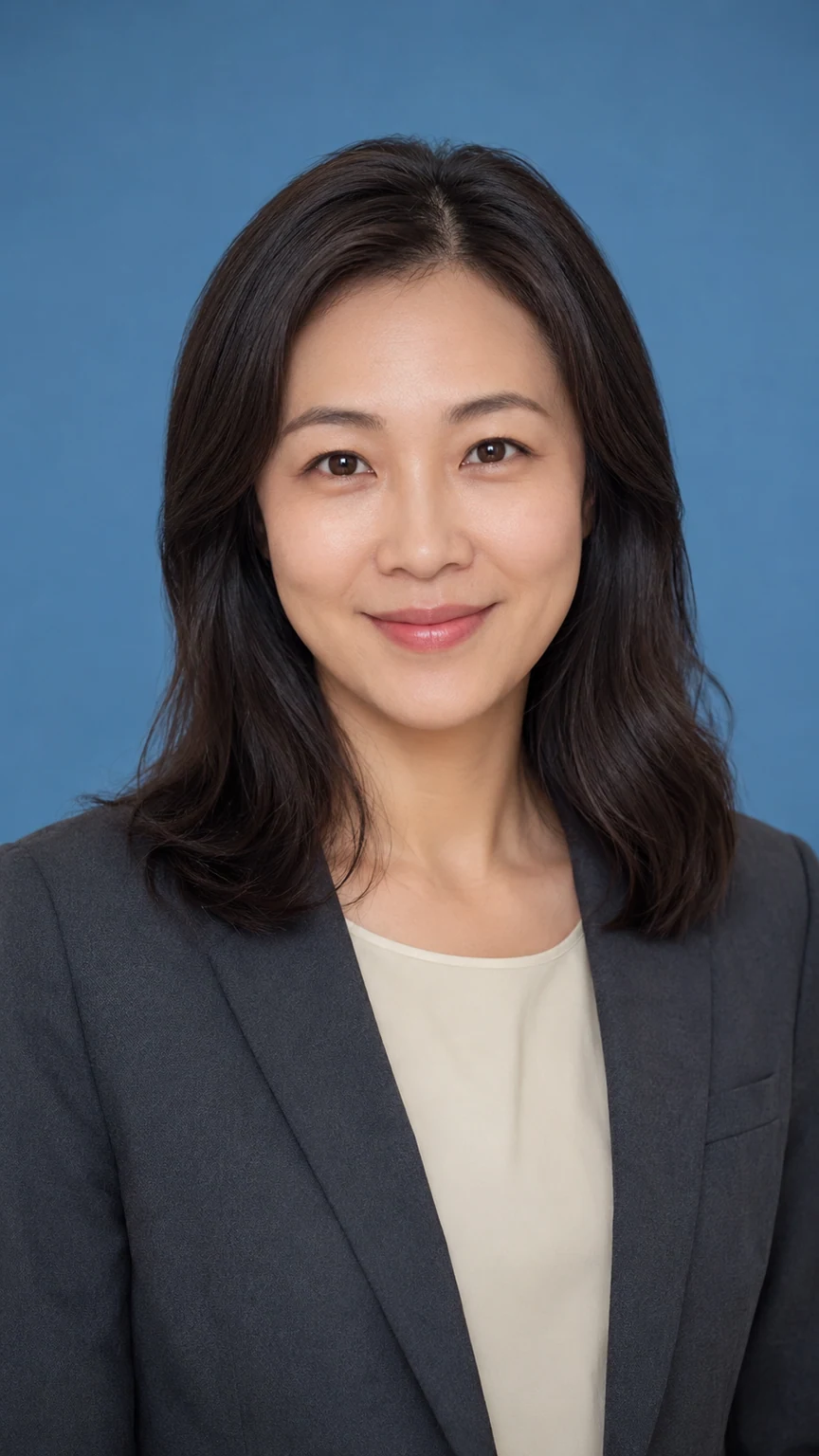
Source portraitA fictional adult woman with a clear front-facing portrait.
Talking result

A talking photo is a new speaking video, not a moving filter

The source is one still face. The spoken words or authorized audio supply the delivery. Studio returns one new video that you can play from beginning to end before deciding whether it is ready to share.

01

Portrait

A single adult face gives the video its identity and framing.

02

Speech

A short script or audio track supplies the words, pace, and pauses.

03

Talking result

Review mouth motion, eyes, facial edges, and audio as one clip.

Check the same face while it is speaking

A poster only proves that the image loaded. Play the clip to inspect the moments that matter: the first open mouth, faster syllables, blinks, skin around the lips, and the final frame.

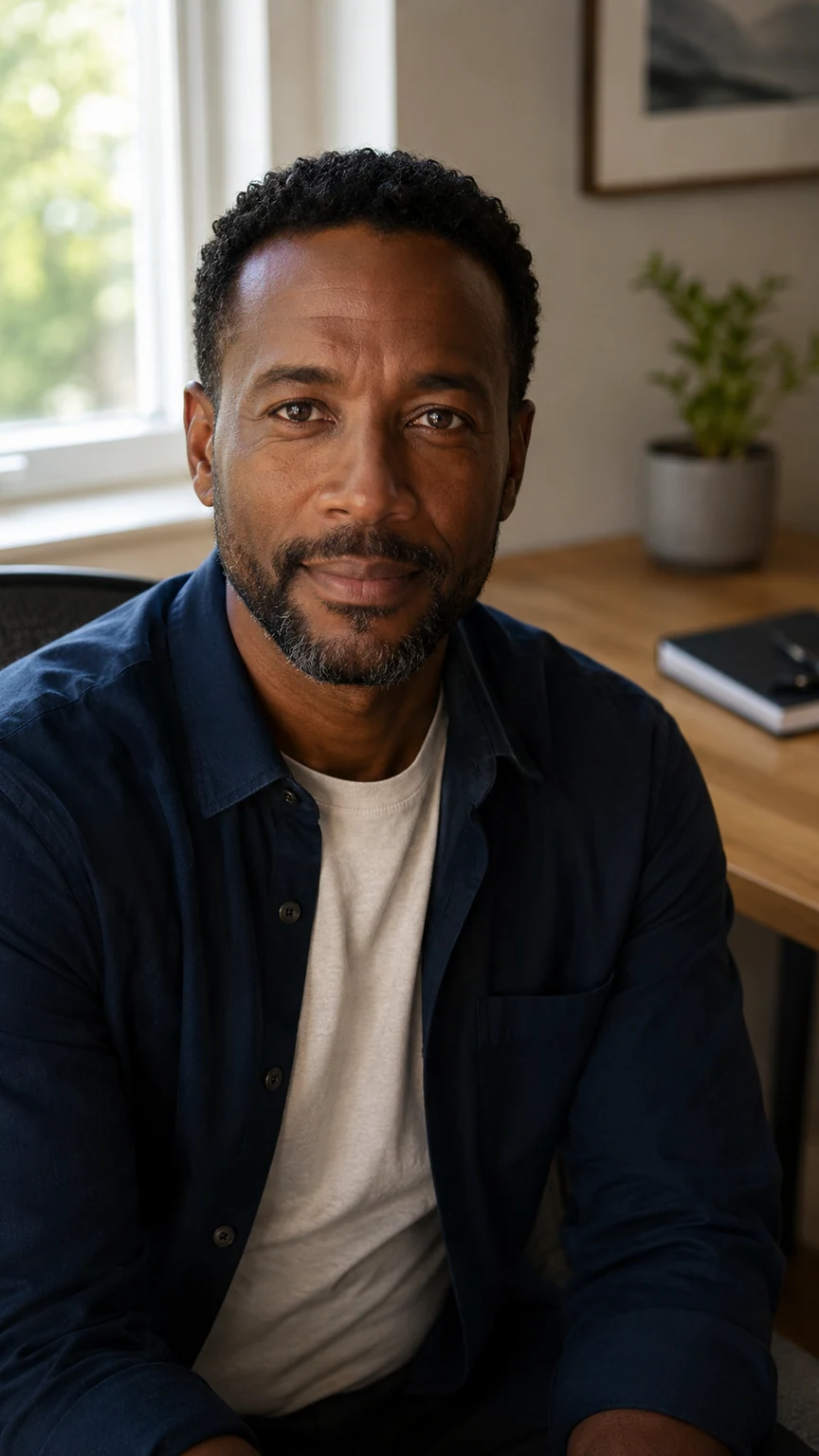
Portrait usedA fictional adult man in a home-office portrait with his mouth visible.
Play to inspect
  1. 01First words
  2. 02Fast sounds
  3. 03Blinking
  4. 04Face edge
  5. 05Ending

Choose a portrait that gives the mouth room to work

Good input is practical, not glamorous. Use one adult facing the camera with enough face detail to review, a mouth that is fully visible, simple lighting, and some room around the shoulders.

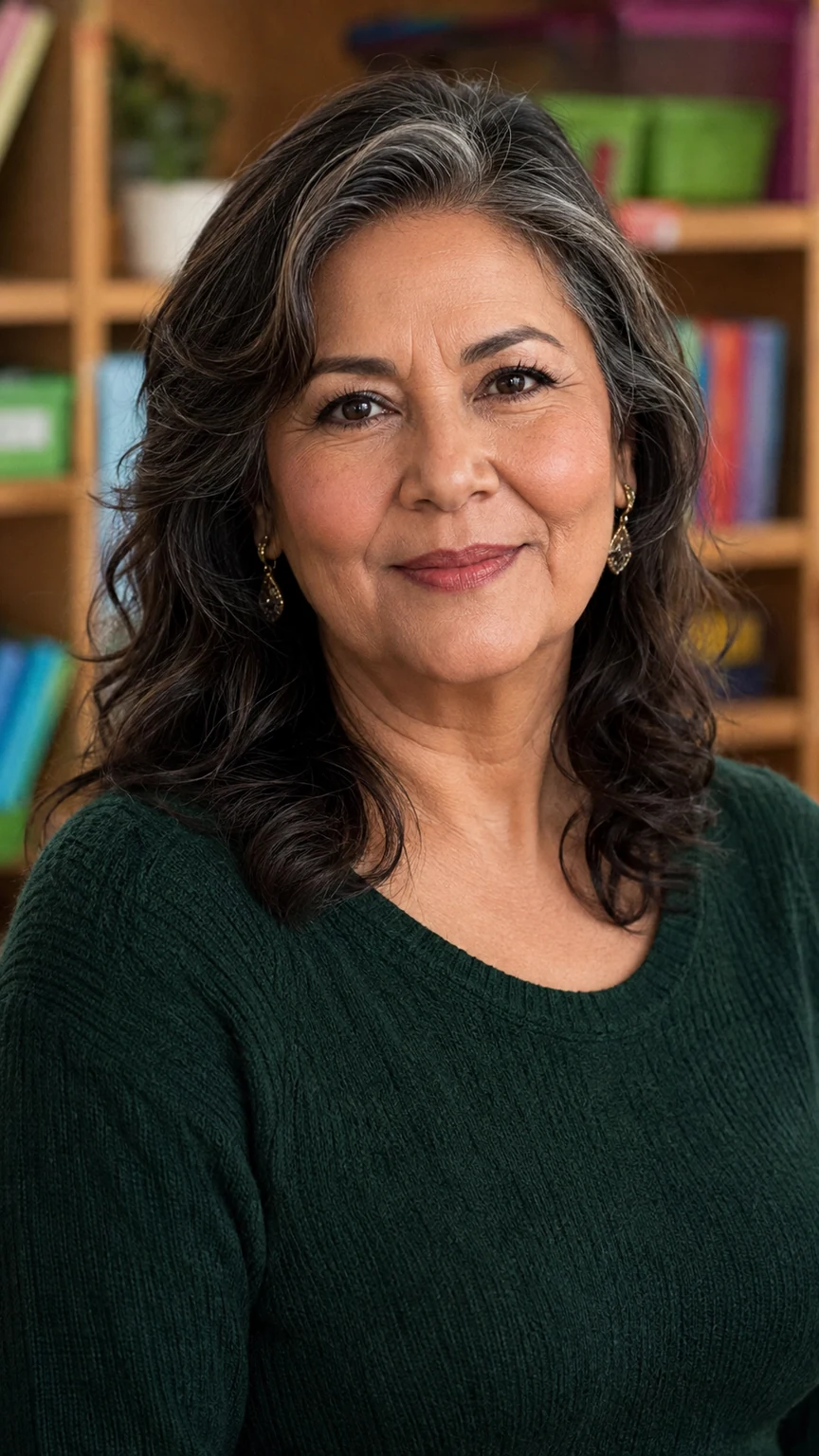
Suitable sourceA fictional adult woman in a calm classroom portrait with a visible mouth.
  • One adult subject, not a group photo.
  • Front-facing or gently angled, with lips unobstructed.
  • Enough sharp detail around the face and jaw.
  • Even light instead of strong shadow across the mouth.
  • No expectation that a damaged, tiny, or hidden face can be restored.

Choose spoken text or an audio track you control

Use the script path when you need Studio to create the spoken delivery. Use an audio file when the exact recording is already part of the approved message. Both paths still need a close review of the finished video.

SCRIPT PATH

Write the words, then choose the voice

Enter only what should be spoken. Keep production direction out of the line so the message has a natural rhythm and a clear close.

“Welcome. Here is the next step. Take a moment to review it before you continue.”
AUTHORIZED AUDIO PATH

Use a recording you have the right to use

Upload a clean MP3, WAV, or M4A when the wording, pace, and voice are already approved. This demonstration uses a project-owned audio track as the input.

The real Studio path

The public page explains the decision. Uploading, the 66-credit quote, consent, task status, result preview, and download all happen in Studio.

The Studio interface where a portrait is prepared for a speaking video workflow.
Current Studio workflow preview, not an output claim.
  1. 01

    Upload one photo

    Choose a JPG, PNG, or WebP portrait you are authorized to animate.

  2. 02

    Add speech

    Write a short script with a voice choice, or attach audio you are authorized to use.

  3. 03

    Confirm and submit

    Studio displays 66 credits and asks you to confirm rights before the task starts.

  4. 04

    Review one result

    Play the 720p output, then download only after a complete check.

Open Talking Photo in Studio

Write for a face, not a document

Talking photos work best when the message sounds like a person speaking it. Short sentences, punctuation that creates a pause, and an ending with a little room make the delivery easier to review.

Keep each line easy to say

Spell out unusual pronunciations when necessary, separate numbers that could be read more than one way, and place a period where you would want a real pause. Save visual direction for a different field or a separate note.

Do:
One message, one supporting detail, one close.

Avoid:
Dense paragraphs, claim-heavy scripts, and last-second tongue twisters.

Review the result at speaking speed before you publish

The last step is not a thumbnail check. Play the whole result once with sound, then revisit the moment where the message starts, the fastest phrase, and the final pause.

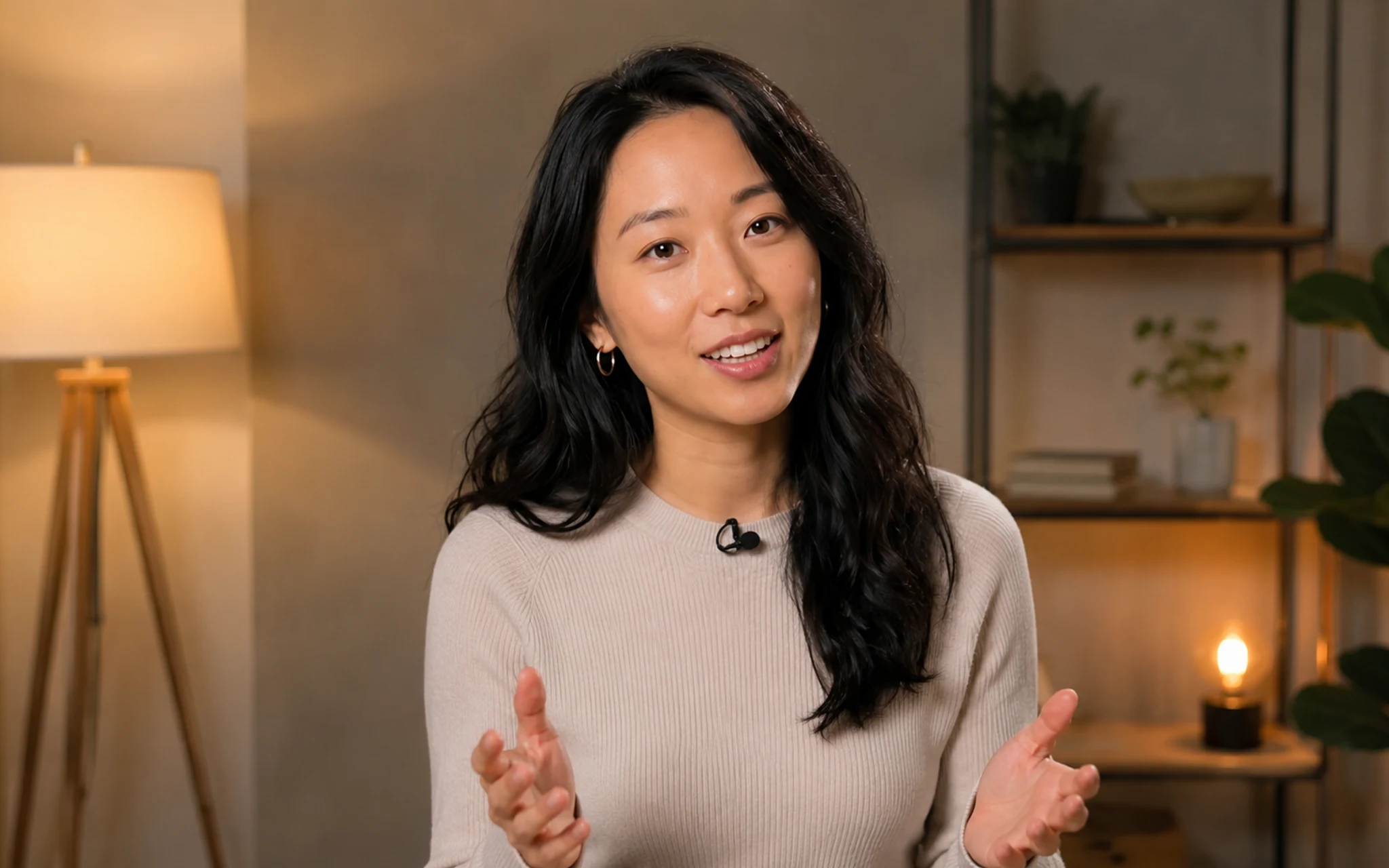
Full result

A focused review pass

  • Does the opening mouth movement match the first word?
  • Do quick syllables stay readable without strange teeth or lips?
  • Do the eyes, cheeks, and jawline remain steady?
  • Does the audio end cleanly before you publish or hand off the file?

Three practical jobs for one talking photo

Use a talking photo when a static identity is already right, but the next message needs a face and a voice. The choice is about a focused speaking moment, not replacing a full video production.

01

Creator product introduction

Give a clear creator portrait one concise product explanation, then review every statement before it reaches an audience.

02

Course or team welcome

Turn an approved educator or host portrait into a short welcome that points learners toward the next step.

03

Social update or event reminder

Use a direct message with an explicit date, time, and close when the audience needs an update rather than a new scene.

Choose the workflow that starts with the file you already have

Talking tasks look similar after they are finished. The important difference is the starting material, because that determines what the workflow is allowed to preserve or create.

Talking Photo
Start with: One still portrait
Use it when: Create one new speaking video from the uploaded photo.
Talking Avatar
Start with: A saved character
Use it when: Use a reusable identity for a series of speaking videos.
Lip Sync
Start with: An existing video
Use it when: Keep the finished footage and change its speaking layer.

Where a talking photo stops helping

A talking photo cannot guarantee a perfect result from every source. It is the wrong first choice when the face is hidden, the image contains multiple people, the original video already has motion worth keeping, or the task really needs a new scene.

Hidden mouth

Choose a clearer source before you start.

Several faces

Use a single adult portrait for a focused result.

Finished footage

Use Lip Sync when existing motion must remain.

Missing detail

Do not expect the workflow to restore an unusable face.

Current Talking Photo workflow facts

Keep the decision grounded in the live Studio workflow rather than a generic video promise.

Input
One JPG, PNG, or WebP portrait
Speech
Script with a saved voice, or owned audio
Result
One 720p talking video
Credits
66 shown before submission
Rights
Confirm permission for likeness and audio

Questions before you continue

AI Talking Photo Generator questions

These answers describe the current workflow and its limits. They do not promise identical outputs or automatic publishing.

Make one approved portrait speak

Open Studio when a single portrait, a focused message, and one reviewable 720p talking result are the right next step.

Make a photo talk