
Wan 2.6 Flash Image to Video
Start with the image you want to keep. Add a small action, a camera direction and a short duration to make your next video draft.
Open in Studio →Model selected for you. Review the credit quote before generating.
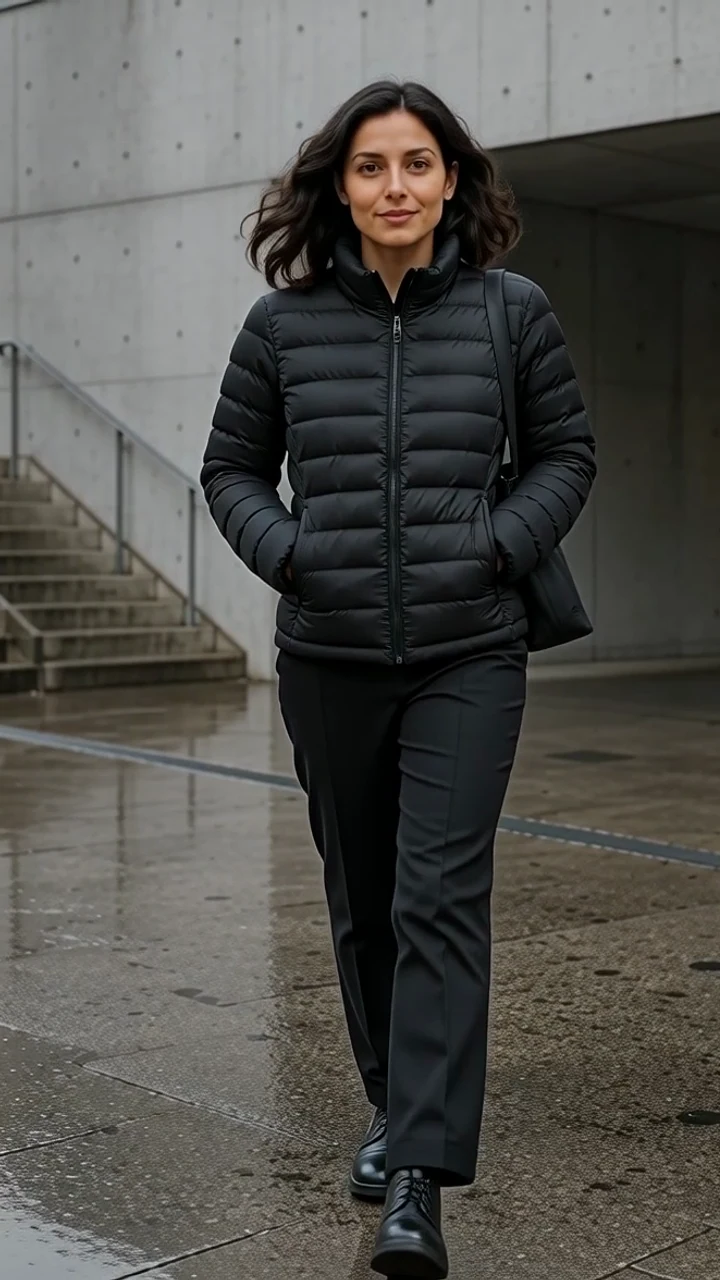
From fashion still to walking shot
Continue an approved frame
The starting image supplies the creator, clothing and setting. Your prompt describes what happens next.
Make a short draft
Choose a supported duration and resolution in Studio before committing credits.
Keep the action simple
A controlled walk or small gesture is easier to review than several scene changes.
Settings at a glance
- Workflow
- Image-to-video
The starting image supplies the creator, clothing and setting. Your prompt describes what happens next.
- Inputs
- A starting image and a motion brief
Example references are not attached automatically.
- Resolution
- 720p
Review supported combinations in Studio.
- Duration
- 5 seconds
The selected workflow controls the final output settings.
- Starting quote
- 15 Credits
Catalog minimum; selected settings determine the actual quote.
- Example provenance
- 1 recorded example
Flash and standard Wan 2.6 are separate model choices with different quotes; do not assume identical results or features.
Make the idea your own
Adapt this example prompt in Studio. References are not attached automatically.
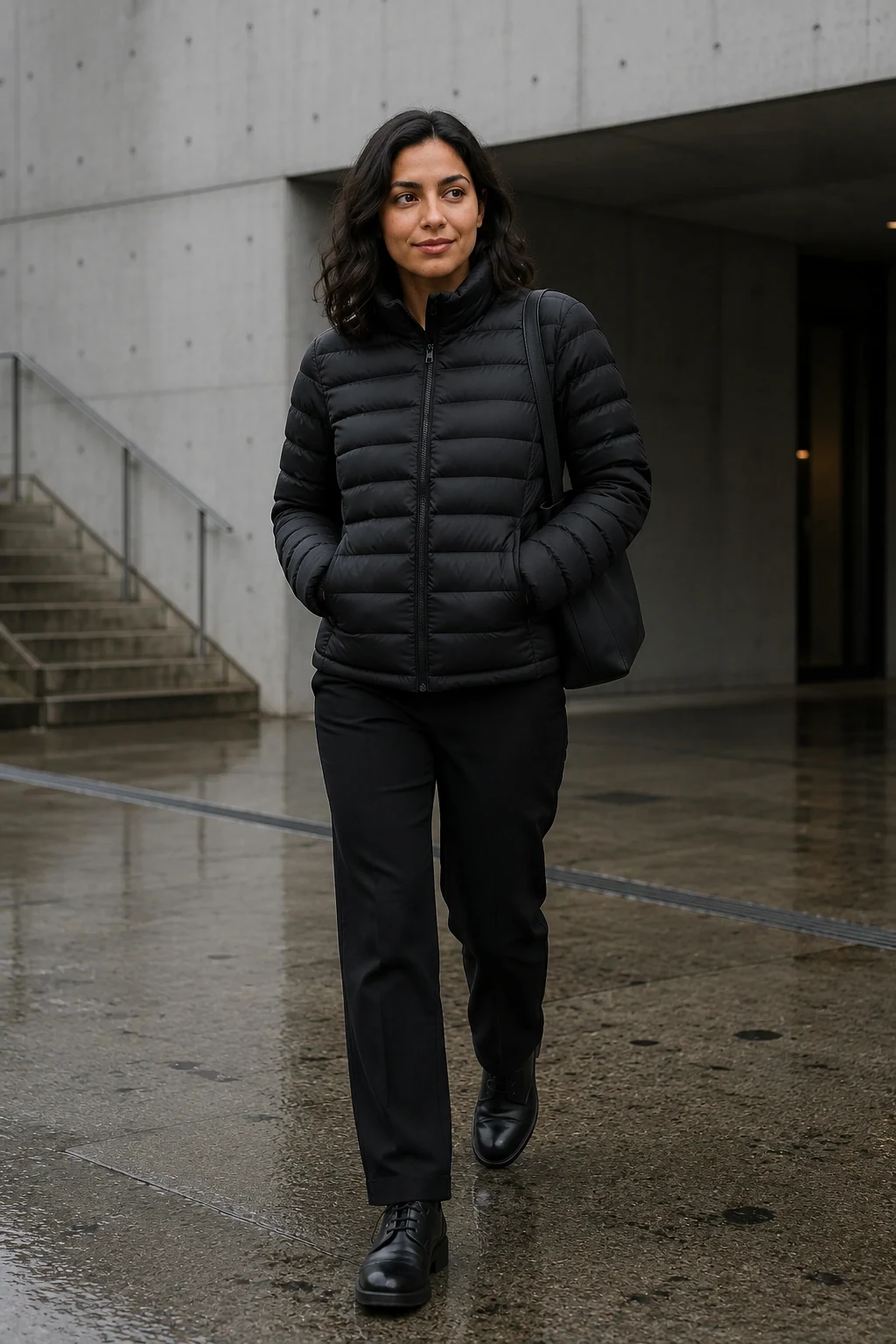
How to brief Wan 2.6 Flash
Starting identity
Use an approved starting image with a clearly visible subject.
Preserve the face, jacket and background from the starting image.
One action
Describe one readable action the subject can finish.
Take two slow natural steps forward.
Camera
Choose stable framing or one modest camera movement.
One continuous full-body shot with a stable camera.
Continuity
State the details to retain and inspect the full result.
Keep the clothing, lighting and body proportions stable.
Where it fits
Fashion movement
Show the way an outfit moves in a short walking shot.
Creator moments
Add a glance, turn or simple gesture to a portrait.
Video planning
Test one scene before assembling a longer social edit.
Before you generate
- Flash and standard Wan 2.6 are separate model choices with different quotes; do not assume identical results or features.
- Generation time varies. Flash is a model name, not a guaranteed completion time.
- Use the current Studio controls as the source of truth for available audio and output settings.
Questions, answered
What is the difference between Wan 2.6 Flash and standard?
They are separate provider routes in Studio. Compare the resolution, duration and credit quote for your selected settings. This page shows an actual Flash result, not a side-by-side quality benchmark.
Do I need a starting image?
The workflow linked here is image-to-video. Upload an image you can use or select a saved creator before generating.
What inputs does Wan 2.6 Flash need?
A starting image and a motion brief. The example prompt does not attach its source images or audio automatically. Add your own permitted inputs in Studio.
Which outputs can I choose with Wan 2.6 Flash?
The current model catalog offers 720p, with duration choices of 5 seconds where supported. Available combinations depend on the workflow; check Studio before submitting.
Can Wan 2.6 Flash keep my creator consistent?
Use an approved source or saved identity, then review every result. Flash and standard Wan 2.6 are separate model choices with different quotes; do not assume identical results or features.
Can I try Wan 2.6 Flash for free?
Browsing examples and preparing a prompt uses no generation credits. The catalog starts at 15 Credits for its lowest listed variant; the selected settings determine your actual quote. Generation requires an account and sufficient credits.
Where do I review a completed Wan 2.6 Flash task?
Return to the saved task in Studio History to inspect the result and download it. If the task is still running, check its status before submitting another generation.
Plan Content
Measure Engagement
Build Your Profile
Price Your Work
Write Post Copy
Brand Partnerships