
Preserve the starting frame
Use a clear, high-quality source with the subject, clothing, and objects already visible.
Start with a portrait, product shot, full-body photo, or illustration you can use. Describe one subject action and one camera move, then continue in the image-first Studio workflow.
Upload one image you own or may use, then describe one movement. Generation requires a subscription or Professional access from a credit pack, plus enough credits for the quoted model. If you have no active subscription, a credit pack unlocks ongoing Professional features; existing subscribers keep their current permissions.
Input image
One approved portrait · 9:16
Video output
Reviewed animation · 9:16
One image in
Start from a portrait, product frame, or creator scene you own or are authorized to animate.
One motion idea
Describe a small visible action, subject movement, and simple camera behavior.
Short video out
Studio returns an animated draft that should be checked for face, hands, objects, and background stability.
An AI image to video generator adds motion to the composition already present in your source. The image supplies the subject and framing; your prompt tells the workflow what should move.
Use a clear, high-quality source with the subject, clothing, and objects already visible.
Blinking, breathing, a small turn, fabric movement, or a gentle camera push are easy to evaluate.
A simple hold, point, reveal, or turn can make a static campaign image usable as a short clip.
Use a standard vertical source for social video and avoid forcing portraits into unusual stretched containers.
An authorized still image
One motion direction
Face, objects, and framing
Image-to-video starts with the composition you approve. The source frame carries the visible person, product, clothing, and setting; the motion brief tells the model what should change over time without asking it to rebuild the whole image.
A sharp source with a readable subject, stable framing, and visible details gives the workflow more to preserve. This is why a campaign portrait or product scene can be a useful starting point.
Specify the small action, what stays still, and the camera behavior. A blink, turn, fabric movement, product reveal, or gentle camera push is easier to assess than a crowded sequence of events.
Social teams, product marketers, creators, and agencies can turn an authorized photo into a short vertical motion asset when a full video shoot is unnecessary for the concept.
Use image to video when you want the output to begin from a specific approved visual. Use Motion Transfer instead when a separate reference performance defines the body timing and pose sequence.
The workflow is intentionally narrow: source image, motion prompt, generation, review.
Choose a sharp frame with a readable subject and enough space for the motion you want.
Say what the subject does, what stays still, and how the camera should behave.
Review the face, hands, product, edges, and final frame before downloading or iterating.
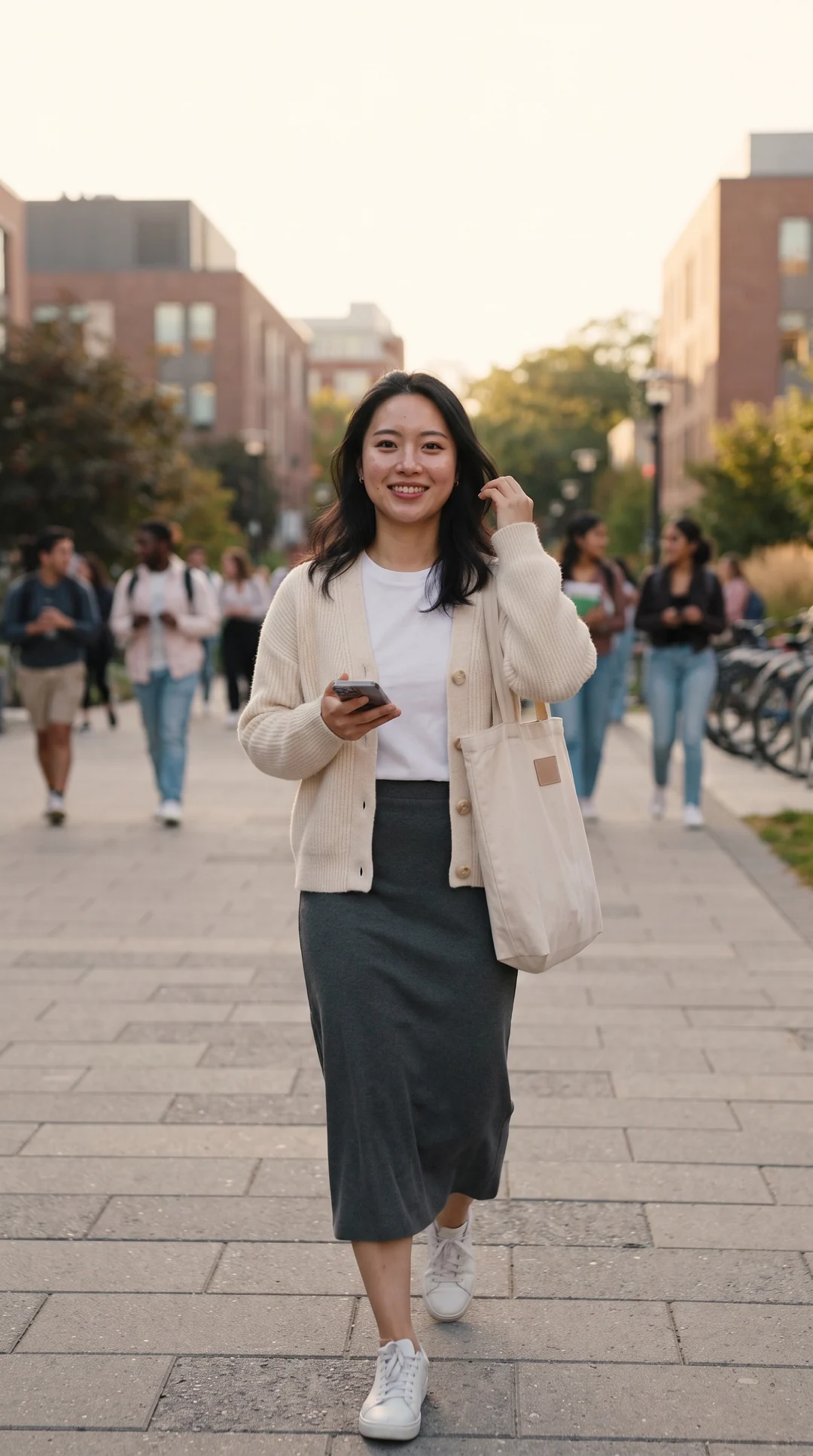
The comparison matters: it shows what the workflow preserved and what it animated.
Campus source
Static outdoor creator frame
Campus result
Controlled body and camera motion
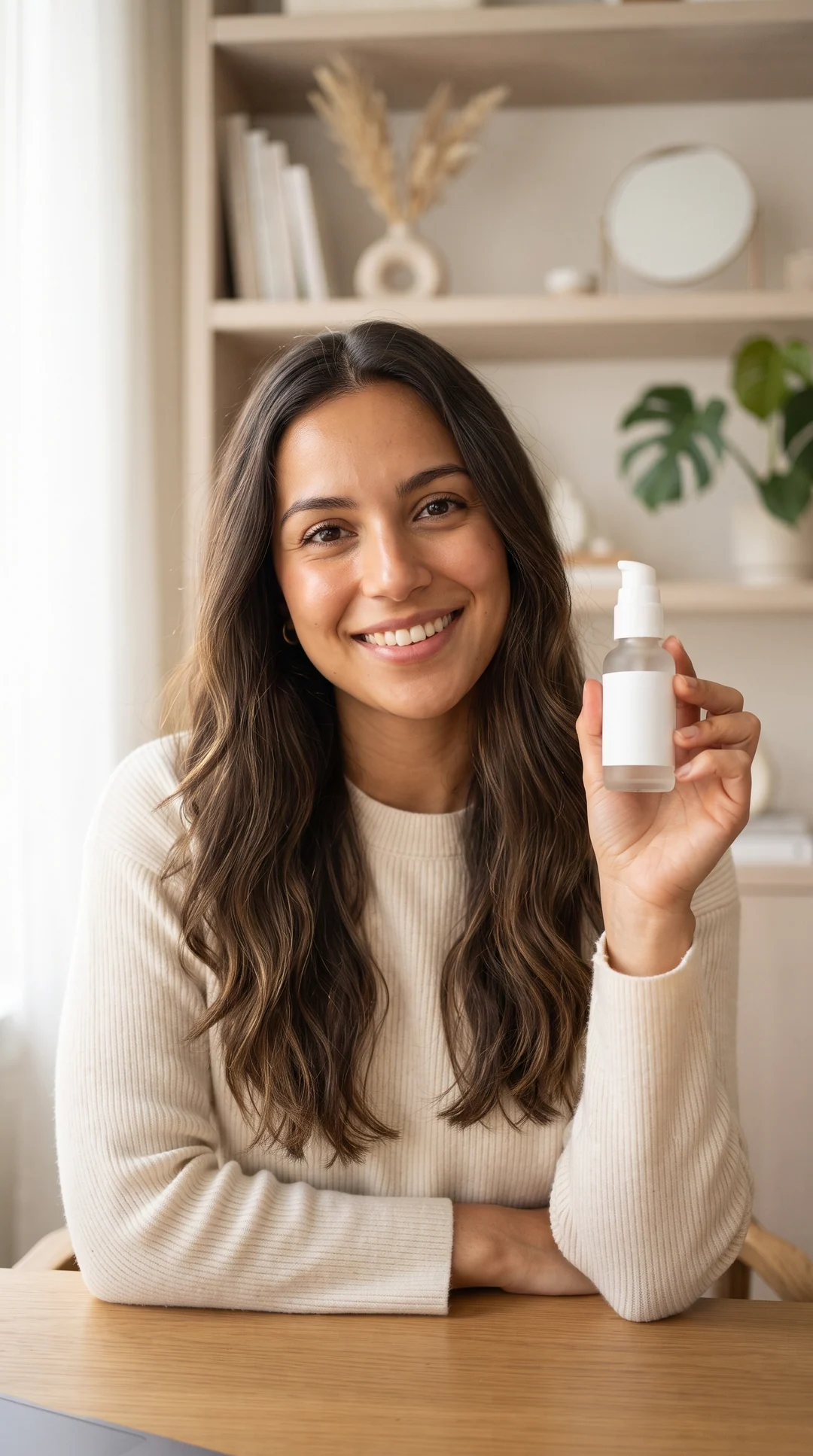
Beauty source
Static live-commerce frame
Beauty result
Product presentation in motion
The source already defines appearance and composition. Use the prompt to describe time: movement, pace, camera, and what should remain stable.
Both create motion, but the input that controls the movement is different.
When you have one still image and can describe a simple action in words.
When you have a reference performance and need the character to follow its visible movement.
When you want a saved reusable character to anchor a new creator-led video.
No. This route is for animating an owned image directly. Saving a character is useful only when you want to reuse the same identity in later generations.
Use a sharp image with one clear subject, readable hands and face when relevant, enough space for the intended movement, and no important details cropped at the edge.
No. A short clip is easier to control when the prompt contains one subject action and one camera direction.
No. Image to Video follows a text motion prompt. Motion Transfer follows movement from a separate reference video.
Each route starts from a different input or solves a different production task.
Explore a model for text, frames and video references.
Use a reference clip when text cannot describe the action precisely.
Create a new scene from words when no source image should lead the result.
Continue a saved identity with a written action instead of a source-image animation.
Use a choreography reference when the result is specifically a dance performance.
Reuse a saved character across a complete video series.
Create and save a reusable identity first.
Bring one authorized source image and one clear movement idea. Studio handles the generation; you keep the review decision.
Animate an image
Plan Content
Measure Engagement
Build Your Profile
Price Your Work
Write Post Copy
Brand Partnerships