
What should you check first?
Start with the untouched render and isolate the symptom before spending time on another generation.
- Play the original generated file with sound. Check a clear consonant near the start and another near the end.
- Compare that file with the timeline and exported video. Note whether the offset stays the same or grows.
- Listen to the exact uploaded voice alone: one speaker, intelligible words, no competing music and no accidental leading silence.
- Pause the source footage: can you see a sharp, unobstructed mouth through the whole line?
- For a fixed offset, adjust the tracks. For changing mouth shapes or poor input, correct the source and test a short segment again.
- Re-export a short section and review it in another player before finishing the full video.
Which lip sync problem are you seeing?
Match the symptom to a check, then make one change at a time. The causes below are possibilities, not a diagnosis from the symptom alone.
| Symptom | Possible cause | How to verify | What to do |
|---|---|---|---|
| Mouth consistently late or early | A track was shifted, trimmed or delayed | Compare the untouched render and the edited timeline at the beginning and end | If the offset is constant, move the audio or video by that amount and link the tracks. |
| Words feel too fast for the mouth | Dense delivery, time-stretching or mismatched audio | Compare the exact uploaded voice with the render at difficult phrases | Use a natural-paced take with pauses; sync again using that final audio. |
| Mouth is indistinct; face is small | Too few visible facial details | Pause at native size and check whether lips are clearly resolved | Start with a closer, sharp source shot; cropping a tiny face cannot restore missing detail. |
| Breaks on a side turn | Mouth landmarks become less visible | Scrub through the turn and compare with a frontal segment | Use a front-facing or near-frontal take, or choose a model that supports profile angles. |
| Breaks when something covers the mouth | Hair, hand, microphone or an object hides the lips | Find the first covered frame and check whether artifacts begin there | Uncover the mouth or replace that shot; use an occlusion-aware model if available. |
| Teeth flicker or lips deform | Unstable mouth detail, difficult footage or a generation artifact | Step through several frames around the affected syllable | Try cleaner, sharper footage and regenerate the affected segment; a track shift will not repair teeth. |
| Export starts aligned, then drifts | Timing, speed, variable-frame-rate footage or export interpretation changed | Compare start, middle and end in both timeline and exported file | Check actual frame rates and speed settings; test a constant-frame-rate transcode and re-export. |
How do you fix the seven most common problems?
1. The mouth is consistently behind the voice
Measure the offset before moving anything. On the timeline, find a visible lip closure for a “p” or “b” sound and compare it with the corresponding sound. Check another word near the end. If the difference is similar, nudge the late track toward the early one by a frame at a time. If the original render is already wrong, a shift may help only when the error is uniform; otherwise regenerate.
2. The speech is too fast
Use the final, naturally paced voice as the model input. Listen for rushed syllables and compare the uploaded track with the final mix. Remove accidental speed changes, record a slower take or rewrite a dense sentence. Generate from the new track rather than stretching only the finished audio. Slower delivery can help readability; it is not a guarantee of better sync.
3. The face is too small
Give the model a clear view of the mouth. A wide shot can leave too few pixels around the lips even when the overall file is high resolution. Check the original at full size, not just a zoomed preview. Use a closer camera shot or higher-detail original; enlarging an already tiny face does not recover detail.
4. The avatar turns into profile
Compare the affected turn with a near-frontal moment. If distortion begins as the mouth turns away, try a clearer angle or a model designed for profile footage. Sync Labs' input guidance distinguishes models that struggle with extreme profiles from newer models that support them; the best choice depends on the model you actually use.
5. The mouth is covered
Find the first obstructed frame. Hair, a hand, a cup or a microphone can hide the mouth while it is speaking. Replace or recapture the obstructed section, change the action, or use an occlusion-aware model. Check the whole line: an otherwise good portrait may become blocked during motion.
6. Teeth flicker or the lips warp
Step through the affected syllable frame by frame. If the mouth changes shape or teeth appear and disappear unnaturally, this is a visual artifact, not simply a late soundtrack. Start with a sharp, well-lit, unobstructed source and regenerate the smallest useful section. Cut to a different shot if the artifact remains. The Wav2Lip paper discusses the difficulty of matching speech to unconstrained talking-face footage; it does not establish the performance of this product.
7. Sync changes after export
Compare the beginning, middle and end of the original, timeline and export. A stable gap suggests an offset; a growing gap suggests a duration or timing mismatch. Check track edits, playback speed and frame-rate interpretation before applying the export steps below.
Ready to remake a difficult section? Try AI Lip Sync
What do better inputs look like?
Compare angle, framing and audio separately. These illustrations show what to inspect; they are not measured before-and-after results. For a controlled test, keep the character, source footage, voice, line, model and settings fixed except for the single input being compared.
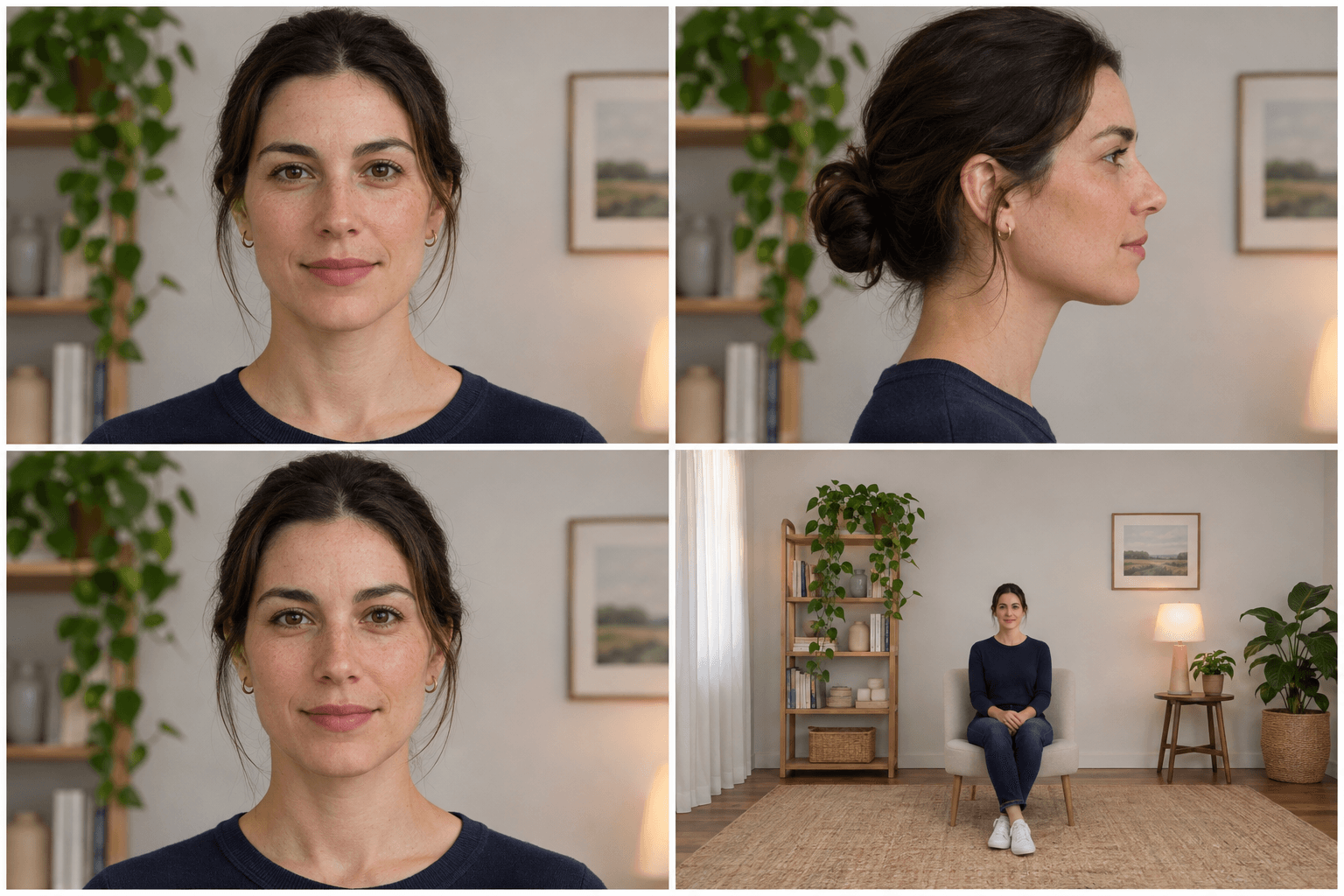
Front vs. profile
Keep the same line and lighting; compare the face angle. A frontal view exposes more of the mouth, while support for profile shots varies by model. Inspect the turn rather than assuming the entire take has failed.
Close vs. distant
Keep the same delivery and camera angle; change the source framing. Look at the actual mouth detail in the original footage. A close, sharp source gives you more visible information to inspect than a tiny face in a wide shot.
Clean voice vs. noisy voice
Keep the same character, line and timing; compare an isolated voice with the same recording mixed with noise. The diagrams below are conceptual, not recordings or measured waveforms. Listen for consonants and pauses; if noise masks the voice, provide the clean track and add the mix later. Sync Labs recommends clear speech and minimal background noise.
A suitable test sentence is “Today I'll show you a simple idea.” Use the exact same recorded line in each condition, change only one variable, and compare the whole result at normal speed and frame by frame.
Need a clearer reference for a new character? Create a Better AI Character
What does a real lip sync workflow look like?
This existing example pairs a source video with a new Spanish voice track. It illustrates a localization workflow, not the controlled angle, distance or noise comparisons above.
Should you edit the video or regenerate it?
Edit a consistent timeline offset; regenerate when the mouth itself is wrong. A timing correction moves the sound or picture together but cannot recreate missing lip detail.
The mouth shapes look right, but every word is equally early or late.
Measure the offset at multiple points, move the appropriate track, link the clips and export a short test.
Specific words deform, teeth flicker, or the error changes with a turn.
Fix the voice or video input and regenerate the affected portion. Review transitions back into the original edit.
If the original generated file is already out of sync, first check whether its error is constant. A uniform shift can be edited; inconsistent shapes or timing usually need a new pass.
How many milliseconds is a one-frame offset?
At 30 FPS, one frame is approximately 33.3 milliseconds. Frame counts are useful for nudging clips; milliseconds make the same delay comparable across frame rates.
Calculated values, rounded to one decimal: milliseconds = 1000 × offset frames / FPS. These are timing conversions, not experimental statistics. Fractional rates such as 29.97 FPS differ slightly.
How do you troubleshoot export drift?
A fixed offset stays roughly the same; drift grows or changes over time. Mark a clear sound near the beginning, middle and end. Compare the same moments in the original render, editor and exported file.
- Check the timeline. Undo independent trims or shifts. Align the tracks using a visible consonant and its corresponding sound. Adobe explains how linked clips move and trim together.
- Check speed and duration. Confirm that audio and video were not independently sped up, stretched or interpreted at different durations.
- Inspect the actual frame rates. Compare source, sequence and export settings, including 29.97 versus 30 FPS. A conversion does not automatically cause drift; incorrect interpretation or retiming can change duration.
- Investigate variable-frame-rate footage. If the editor handles a phone or screen recording inconsistently, make a constant-frame-rate copy with duration preserved, then relink or reimport and check sync again.
- Check the audio path. Disable duplicate tracks, confirm the correct voice is exported, and compare a short local export in another player. A device or wireless audio delay can affect playback without being baked into the file.
- Export a short test. Use appropriate sequence-matching settings, verify the start and end, then export the complete piece. If the untouched original already drifts, return to the input or generation step.
Frequently asked questions
How do I fix AI lip sync that is always a little late?
Check the untouched render first. If the same offset appears throughout an edited export, move the audio earlier or video later by the measured amount, then link them and check several words.
Why does my video go out of sync only after export?
The timeline, clip interpretation, speed, export settings or playback device may be responsible. Compare the source, timeline and exported file at the same three points; test the export in a second player before changing the project.
Can I fix flickering teeth by moving the audio?
No. Moving audio changes timing, not the pixels of the mouth. If the teeth change shape between frames, use clearer unobstructed footage and regenerate the affected segment.
Does changing from 30 FPS to 24 FPS always cause drift?
No. A correct frame-rate conversion can preserve duration and sync. Drift is a clue to inspect how footage was interpreted, retimed or exported, not proof that frame-rate conversion itself failed.
Should I remove music before AI lip sync?
Use a clean, isolated speech track when possible and add music after syncing. Keep a copy of the original mix so you can check timing against the final soundtrack.
Can I fix a side-profile AI avatar?
Sometimes. Try a model that explicitly supports profile views or replace the shot with a near-frontal view. Results vary by model and footage; test a short representative segment first.
What should you do next?
Fix the smallest cause you can verify. Start with the original file, check the voice and face, and use a short test to confirm your fix before producing the full video.
For a new speaking performance, explore the Talking Avatar Generator. To prepare separate language versions, see the multilingual AI influencer video guide. If the reference needs work, read how to keep an AI character consistent; for a broader workflow, see the AI Influencer Video Generator.
Sources
- Sync Labs: Improving lip sync quality — source composition, clean audio and model-specific limitations.
- Adobe: Link audio and video clips in Premiere — keeping timeline edits together.
- Adobe: Change the frame rate of a clip — clip interpretation and playback.
- Prajwal et al., A Lip Sync Expert Is All You Need for Speech to Lip Generation in the Wild — research on speech-to-mouth synchronization.
Plan Content
Measure Engagement
Build Your Profile
Price Your Work
Write Post Copy
Brand Partnerships