
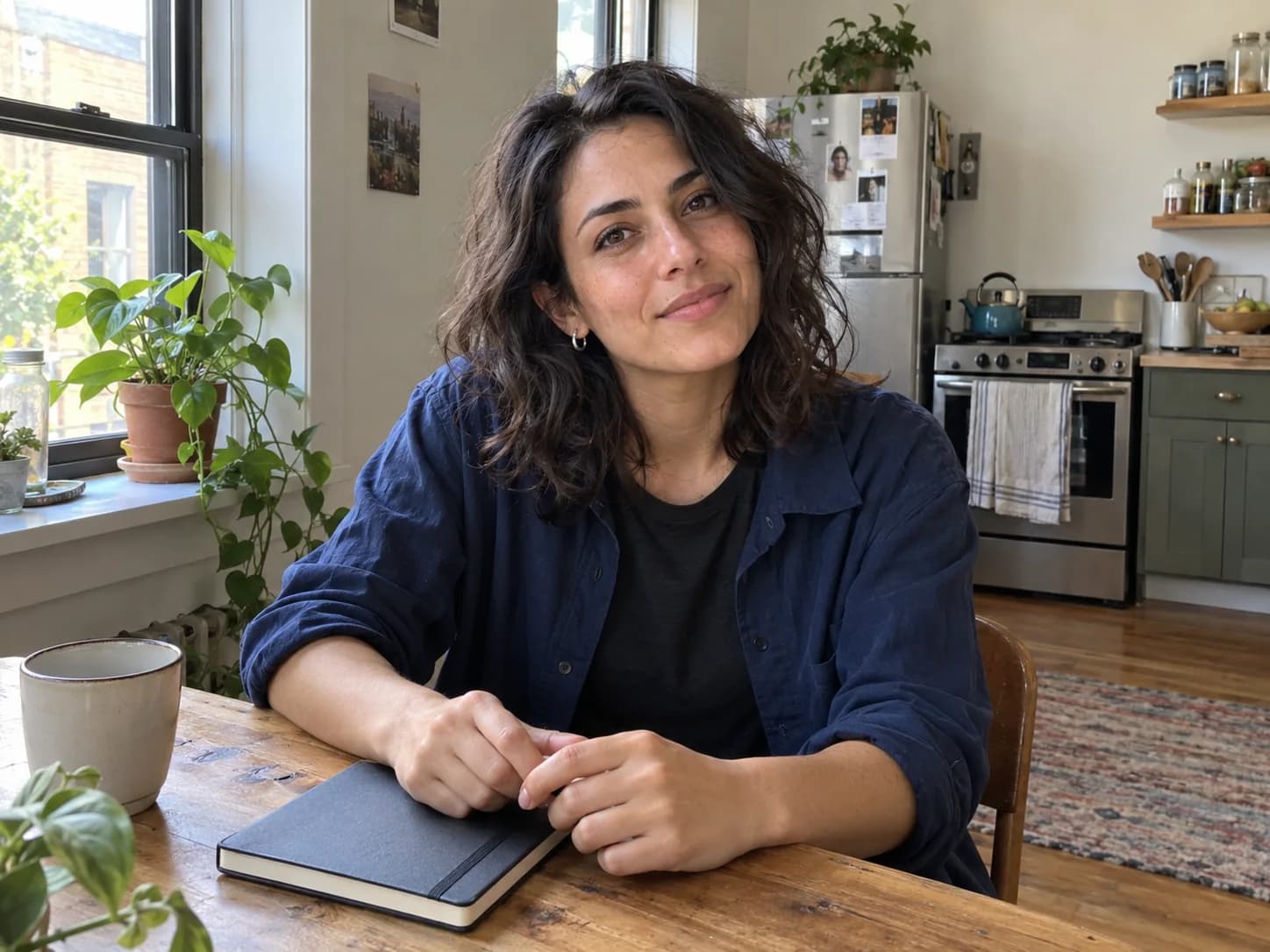
GPT Image 2.6 is OpenAI’s image generation and editing model, available in ChatGPT, Codex and the API. It adds GIF creation and more control for consistent visual edits; OpenAI says it generates images 50% faster than before. The API offers two models, Flare and Sunburst. Read OpenAI’s announcement.
Create a character you can recognize, save a clear reference image, then use ChatGPT Images 2.6 to explore a short animated reaction. Keep the joke simple enough to understand without sound.
Create an AI influencerWhat’s New in GPT 2.6?
ChatGPT Images 2.6 gives creators a quicker way to move from a visual idea to an editable image or a looping animation. The changes that matter most for a recurring character are:
- GIF creation: turn an idea into a short animated loop for a reaction, mascot or visual joke.
- Reference images: start from a saved visual instead of describing your creator from scratch each time.
- More consistent edits: OpenAI says the model is better at preserving character, product and brand details as you refine an image. Review each result for drift.
- Faster still images: OpenAI reports a 50% image-generation speed improvement. Actual timing depends on the task and settings.
The short form “GPT2.6” is useful as a search term, but GPT Image 2.6 is the clearer name for the image model family.

GPT 2.6 Flare vs Sunburst
Both GPT-Image-2.6 Flare and GPT-Image-2.6 Sunburst are available through OpenAI’s API. Choose the model around the job: quick exploration or a more detailed visual that needs close editing.
| Model | Best fit | What to know |
|---|---|---|
| Flare | Fast concepts, simple reactions and iterations | OpenAI says a low-quality still image can take as little as six seconds. That is not a GIF generation time. |
| Sunburst | More detailed work and careful revisions | Designed for higher visual quality and stronger consistency across edits at medium or high quality. |
For developers, both models support animated GIF output through the Image API’s generation endpoint. OpenAI’s documented output_format: "gif" option is for image generation; the image edit endpoint does not output GIFs. See the Image API guide and current API pricing.
What Early GPT Image 2.6 Comparisons Show
These DesignArena examples, shared in an X thread, show how the models handled individual prompts. They are useful starting points for your own tests, rather than a measure of how often either model wins.
- Unrequested text: In a birthday-cake comparison, Flare at high quality avoided the extra background slogans that appeared in the GPT Image 2.5 Sunburst result. Both cakes still included birthday lettering. For social graphics, say whether you want text and inspect the background before posting.
- Changing the light: In a shared illustration edit, the reviewer observed that Flare changed a daytime scene to dusk while retaining the character and main composition. When editing your own creator image, name the features, framing and background elements you want to keep.
- Following small details: In a warehouse comparison, the reviewer noted that Sunburst included a requested thin haze of dust, while the MAI-Image-2.6 Flash result added unrequested text. Specific details such as light, atmosphere and texture are worth stating explicitly—and checking in the result.
Create Viral AI Influencer GIFs & Memes
A memorable GIF usually captures one recognizable emotion in one beat. Rather than asking for a whole story, choose an expression, a small gesture and a moment that returns naturally to its starting point. These ideas are starting points for X, Instagram, Reddit and other communities—not a promise of reach.
The knowing look
Your creator glances at a notification, raises an eyebrow and looks back at the camera. Pair it with a question or a familiar moment in an X reply.
The deadline sip
A calm coffee sip after a sudden realization makes a simple reaction for a creator-workflow joke. Add the caption outside the image so you can adapt it to different posts.
The tiny celebration
A mascot notices a star and gives a small bounce. Reuse the reaction for a launch update, community milestone or recurring series.
Match the format to the destination. A GIF can work for a reply or community post where supported; for an Instagram Reel or Story, prepare a compatible short video export. Check the destination’s current upload rules and preview the result before posting.
For a recurring person, start with the Consistent Character Generator. For a non-human character, build an original reference with the AI Mascot Generator.
Step-by-Step: Turn an AI Influencer Into a GIF
- Create your character. Start with AI Influencer Generator and define an adult fictional creator’s face, hair, style and niche. Give them a recognizable detail, such as glasses, freckles or a favorite accessory.
- Save a clear reference. Choose a well-lit image with an unobstructed face and the clothing or accessories you want to carry into the GIF. Keep the original so you can return to it for future posts.
- Upload the image in ChatGPT. Attach the saved reference and ask ChatGPT Images 2.6 for a short looping GIF. Specify the subject, one action, the expression, camera position and how the last moment connects to the first.
- Review the loop. Check that the face, hair and signature details remain recognizable. Watch the hands and object contact, adjust the motion or pacing, and regenerate if the character changes between frames.
- Prepare the post. Download the result, add any caption in your editor, and preview the file on its intended platform. Export a suitable video version if the placement needs one.
3 Copy-and-Paste GPT 2.6 GIF Prompts
Upload your own reference first. Replace the visual details in each prompt with the features that actually define your character.
The ‘I saw the notification’ reaction
A reaction GIF for replies and community posts
Using my uploaded fictional creator as the reference, make a short looping GIF. She is at her desk, checking her phone. She notices a surprising notification, slowly raises one eyebrow, then gives the camera a knowing side-eye before returning to the starting pose. Keep her face shape, freckles, dark wavy hair, hoop earrings, outfit, and room consistent with the reference. Fixed camera, natural window light, small expressive movements, seamless loop. No captions, logos, or extra people.
The deadline meme
A relatable creator-workflow meme
Turn my uploaded fictional creator reference into a short, funny looping GIF. At a kitchen table, she looks calmly at her laptop, spots an imaginary deadline, freezes for a beat, then slowly takes a sip of coffee while maintaining eye contact with the camera. Return to the first pose for a seamless loop. Preserve the reference face, hair, skin texture, earrings, and clothing. Keep the cup in one hand with believable contact and the camera still. Leave any meme caption for me to add afterward; do not generate text or logos.
A mascot’s tiny celebration
A reusable brand-mascot reaction
Using my uploaded original mascot as the visual reference, create a short looping GIF. The mascot notices a small paper star, picks it up, does a quick happy bounce, then places the star back and returns to the opening pose. Keep its face, colors, silhouette, markings, and proportions consistent throughout. Use a fixed camera, a simple background, and one clear action. Make the first and last poses connect smoothly. No text, logos, new characters, or product claims.
Frequently Asked Questions
Is GPT 2.6 free?
OpenAI says Images 2.6 is available across ChatGPT subscription tiers. Free-tier image creation and uploads have usage limits; API use is separately billed. See the announcement, Free Tier FAQ and API pricing.
How do I create a GIF with GPT 2.6?
In ChatGPT, describe a short loop or attach a reference image and ask for it to be animated. Describe the movement, expression and starting and ending poses, then review the result before sharing.
Is the GPT Image 2.6 API available?
Yes. OpenAI lists GPT-Image-2.6 Flare and Sunburst in its API. Both support GIF output through the image generation endpoint; the edit endpoint does not output GIFs. See the API guide.
Is Flare or Sunburst faster?
Flare is the speed-focused choice. OpenAI’s as-little-as-six-seconds figure refers to low-quality still images, not animated GIFs. Sunburst prioritizes detail and editing consistency.
Can GPT 2.6 keep my AI influencer consistent?
A clear reference and explicit identity details can help preserve a recognizable character, but consistency is not guaranteed. Inspect the face, hair, clothing and hands in each result and refine the prompt when needed.
Can I make a GIF from an AI mascot?
Yes. Create an original mascot, save a clear reference and ask for one simple action that loops back to the starting pose. Check that its colors and shape remain recognizable.
Make a creator worth recognizing.
Build your AI influencer, save a visual reference and give your next social idea a face.
Create my AI influencer
Plan Content
Measure Engagement
Build Your Profile
Price Your Work
Write Post Copy
Brand Partnerships