
To post AI influencers on TikTok, create a consistent fictional character, generate and review a vertical video, then connect your TikTok account in AI Influencer Generator's Publish workspace. Select the finished video, add a relevant caption and hashtags, choose visibility, and either publish now or schedule a date and timezone. Review the confirmation, submit once, and check the delivery status before assuming the post is live. TikTok allows compliant AI content, but realistic synthetic media requires disclosure. Verify AI labeling, rights and any commercial disclosures; the current publisher does not expose every TikTok disclosure control.
 Create → schedule → verify
One character.
A deliberate publishing routine.
Can You Post AI Influencers on TikTok?
Yes—TikTok permits AI-generated content that follows its rules. An AI influencer is a character in content; a real operator still controls the account and remains responsible for what it publishes. A realistic fictional face does not turn that operator into the person depicted.
| Category | Example | What to do |
|---|---|---|
| Allowed, subject to the rules | An original fictional host explaining a harmless everyday routine. | Use authorized assets and accurate claims; review the complete edit. |
| Requires AI disclosure | Realistic AI-generated images, audio or video, including a lifelike fictional creator. | Disclose the synthetic content and verify the applicable post label. |
| Requires commercial disclosure | A paid promotion or a post promoting your own business. | Use the required commercial-content setting as well as any AI disclosure. |
| Prohibited even if labeled | Certain fake public-figure endorsements/crisis depictions, under-18 likenesses, or unauthorized adult private-person likenesses. | Do not publish. A label is not permission. |
These categories overlap. Read TikTok's AI-generated content policy and commercial-content rules before posting.
What You Need Before Posting an AI Influencer
Prepare the account, identity, final media and disclosures before opening the composer. You need a TikTok account you can authorize, an AI Influencer Generator account with an active publishing subscription, and a reviewed video.
- A recognizable character: save an original adult identity; use the TikTok character-creation tutorial for production details.
- An eligible file: this TikTok publishing integration requires a video. TikTok itself also supports photos, but that does not mean this connector publishes photo carousels.
- Post copy and first frame: prepare a caption, relevant hashtags and a clear opening image. The current composer has no separate TikTok cover picker.
- Permissions: check character likeness, voice, music, footage, trademarks and any required commercial controls.
How to Post an AI Influencer on TikTok Using AI Influencer Generator
Use Publish to connect the account and send eligible videos directly, immediately or at a scheduled time. Downloading and uploading manually is an alternative when you need controls the integration does not expose.
- 01Create AI influencer
- 02Generate content
- 03Connect TikTok
- 04Schedule / publish
- 05Verify status
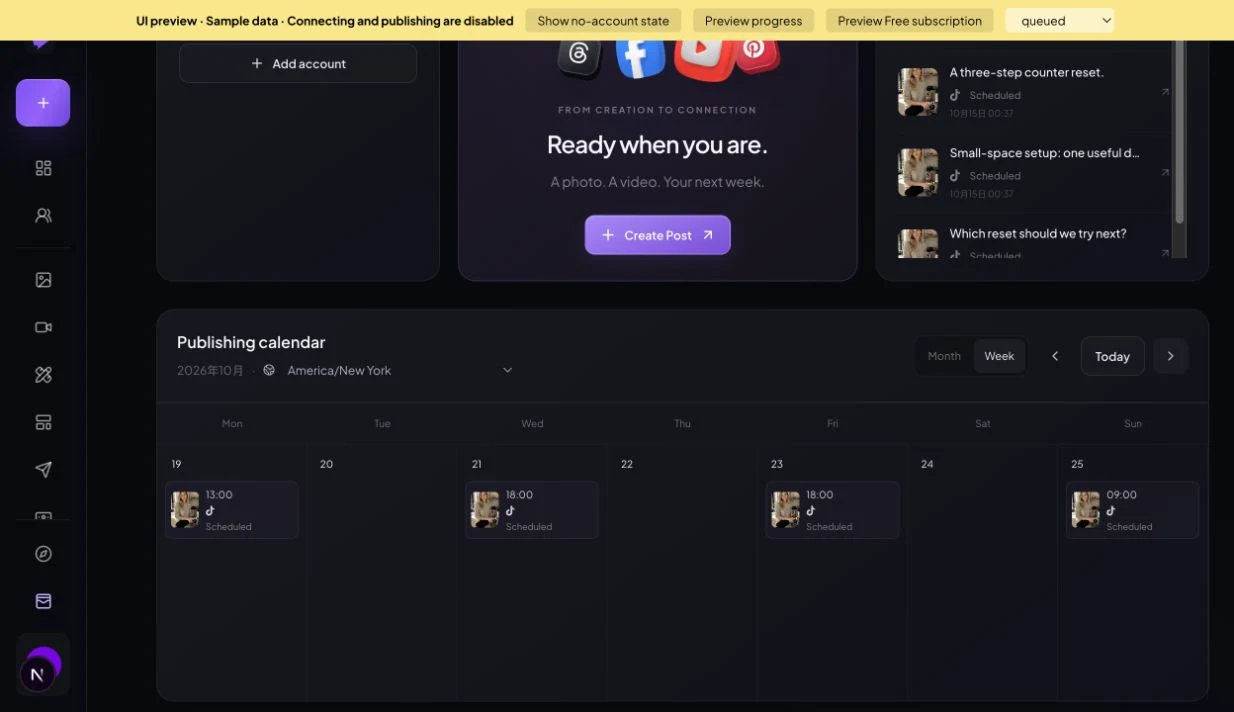
Screenshots below capture the actual workspace components locally on October 15, 2026. The account, captions and queued items are labeled tutorial samples; authorization, imports and submission are disabled in the preview. No live account was connected or post published for this guide.
Step 1. Create or Select Your AI Influencer
Open Guided Character Builder, or reuse a saved character. Keep face, hair and signature details stable. Use Content Strategy from your character's workspace to organize repeatable topics. An account about small-space routines needs a different publishing plan from an outfit-styling account.
Step 2. Generate a TikTok-Ready Video
Use Create Video for a reviewed character image, or Video Remake with an authorized reference. Start with 9:16 framing; check the first frame, face continuity, hands, subtitles and audio. Export a finished edit if you assembled multiple shots elsewhere.
The publisher's upload interface accepts H.264 MP4 up to 100 MB. Its current TikTok path supports one video per post. A five-second generated source shot may need editing before it fulfills a useful story; no particular duration guarantees reach.
Step 3. Open Publish in AI Influencer Generator
Choose Publish in the Studio sidebar. Sign in if prompted. With no connected accounts, the workspace shows Connect Social Accounts; after connecting, you can use Create Post and the publishing calendar. Generation credits and publishing subscription eligibility are different checks.
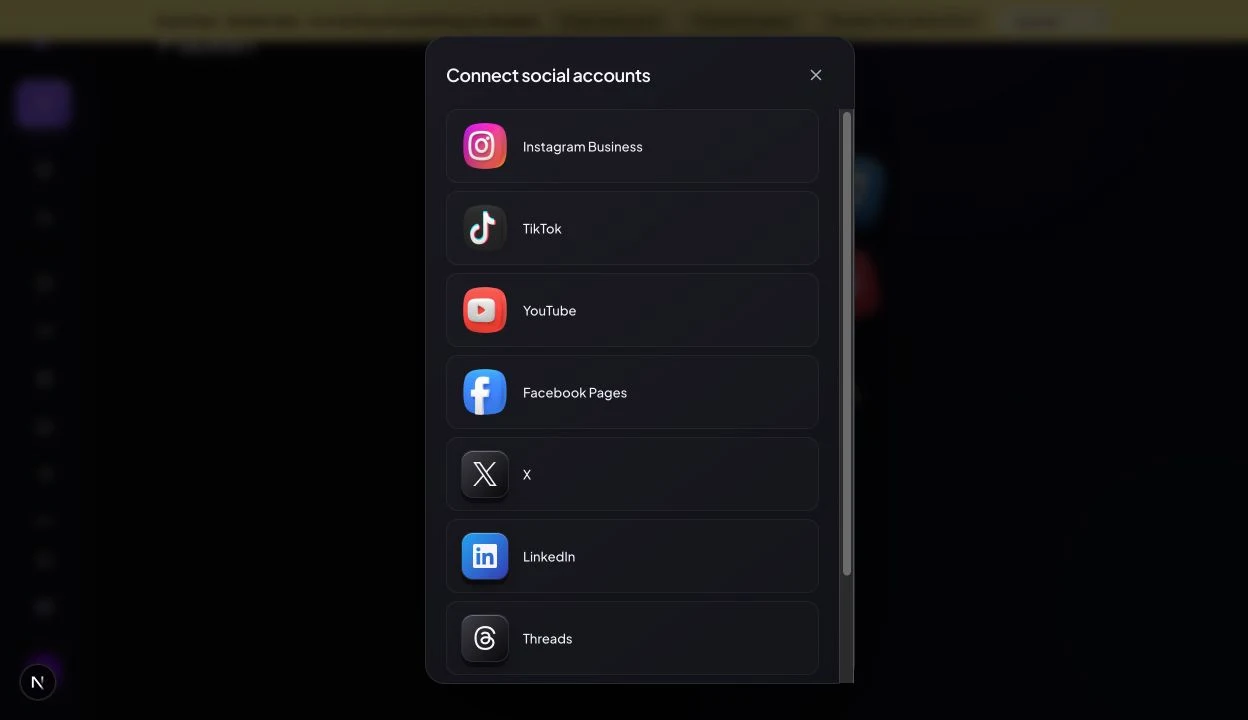
Step 4. Connect Your TikTok Account
Click Connect Social Accounts or Add account, then choose TikTok. Complete the provider-hosted authorization flow with the intended TikTok account. Return to Publish and confirm that the correct account appears as Connected. If authorization does not finish, reconnect rather than assuming the account was linked.
Step 5. Select Your AI-Generated Content
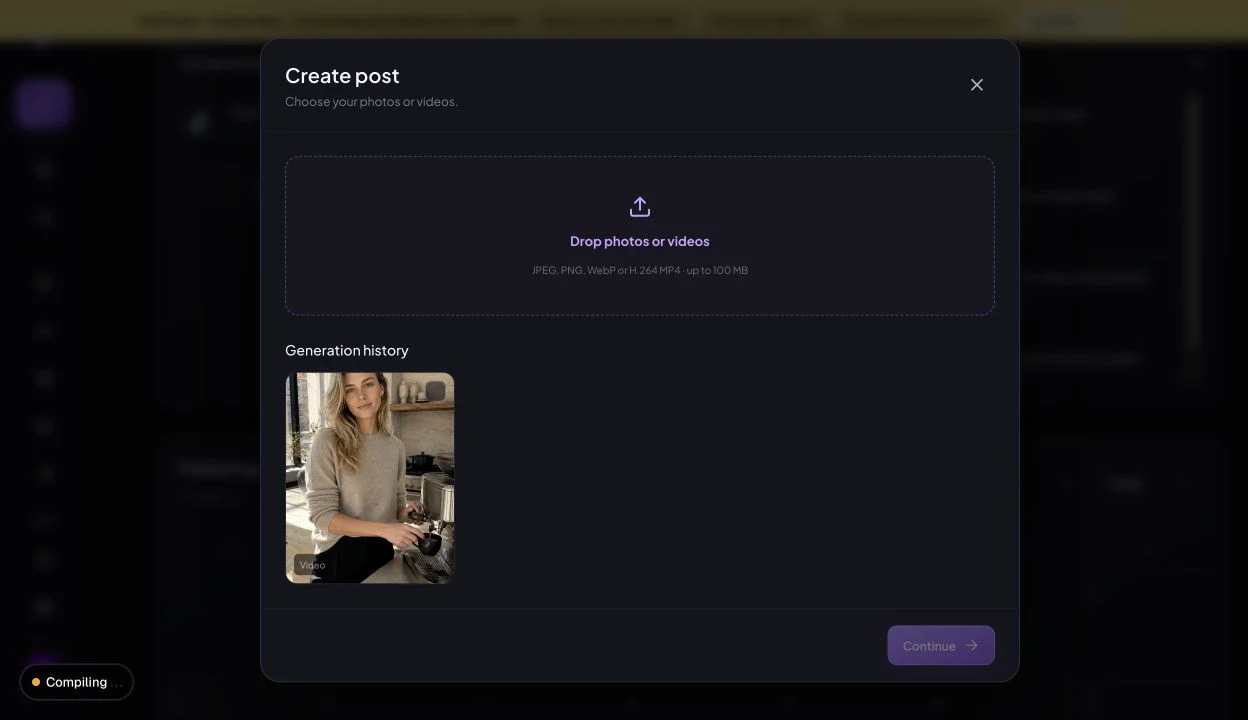
Use Create Post, select a finished video in Generation history, then choose Continue. You can also start from saved publishing media. If your final edit lives outside the product, use Drop photos or videos to upload the eligible MP4. Review the actual selected clip instead of relying on its thumbnail.
Step 6. Add a Caption, Hashtags and Publishing Settings
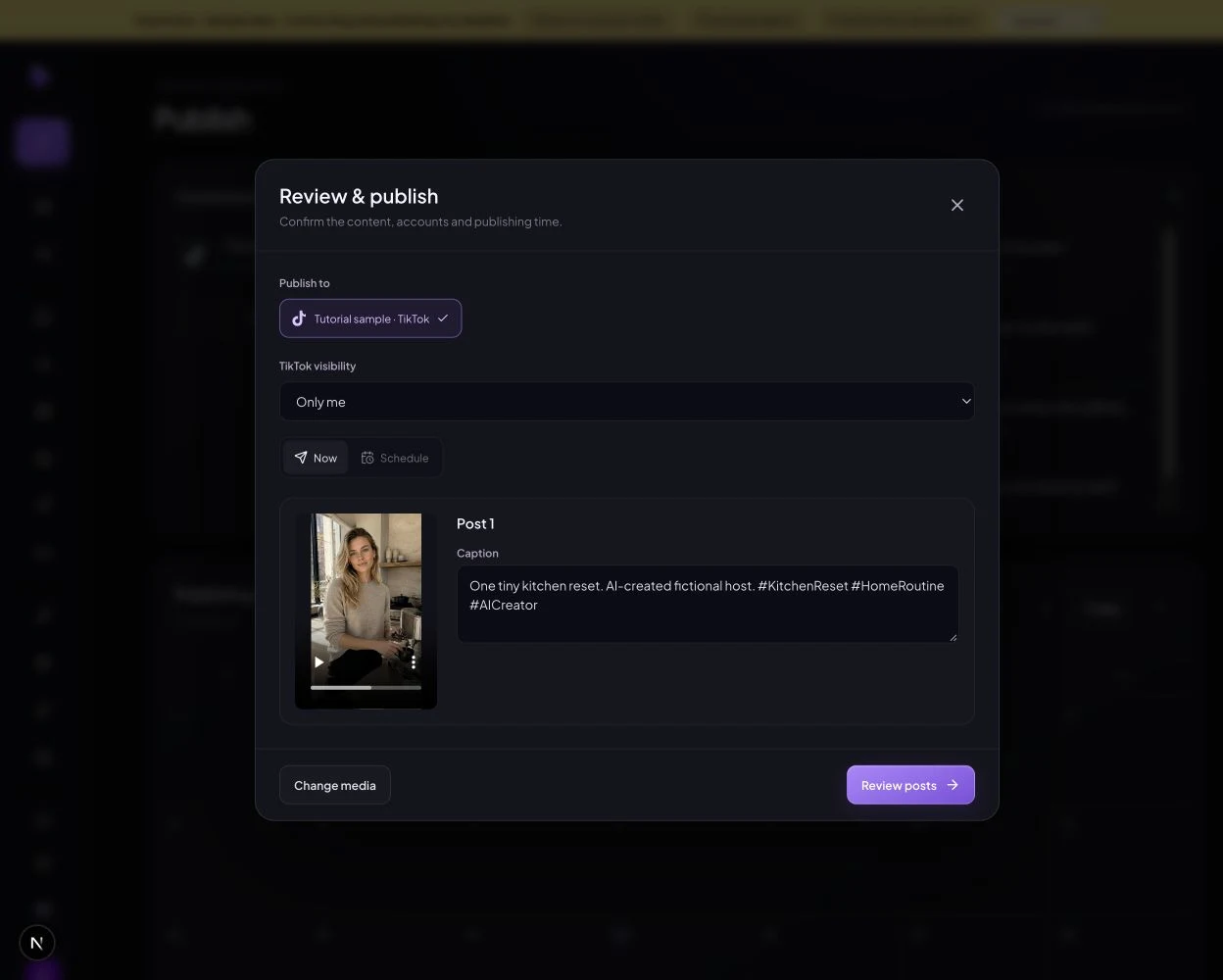
In Review & publish, select the account under Publish to, edit Caption, and check TikTok visibility. The default is Only me; Public is also offered. Choose deliberately—an accepted private post is not a public post.
Keep copy concise: the current publishing service documents a 150-character TikTok caption limit, even though the shared editor accepts more. Hashtags belong in the caption. There is no separate hashtag, music or TikTok cover editor here.
Step 7. Publish Now or Schedule for Later
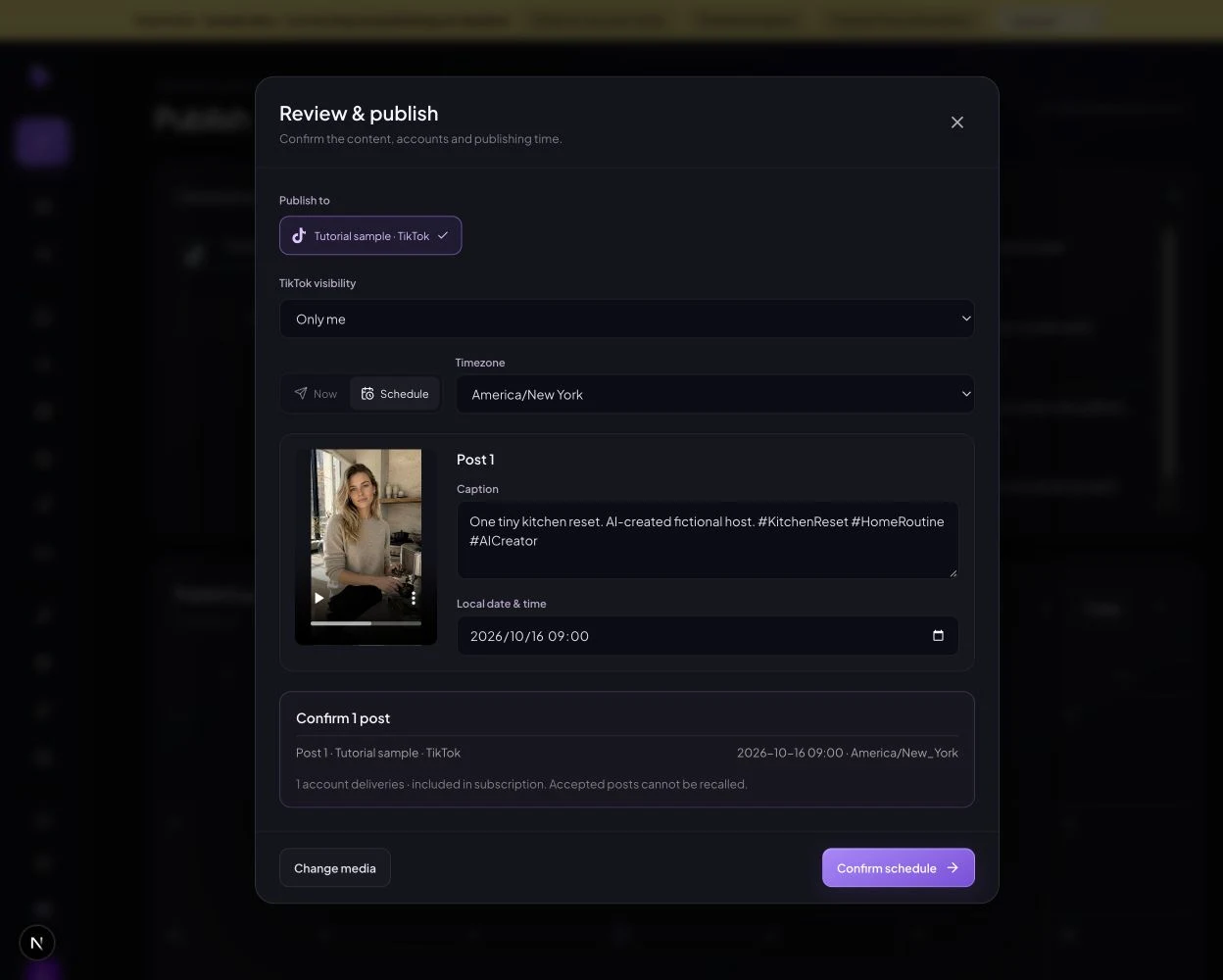
Choose Now for immediate submission, then Review posts and Confirm & publish. For a later time, choose Schedule, select a timezone and local date/time, review the summary, then use Confirm schedule. Submit once.
Step 8. Check Your Publishing Status
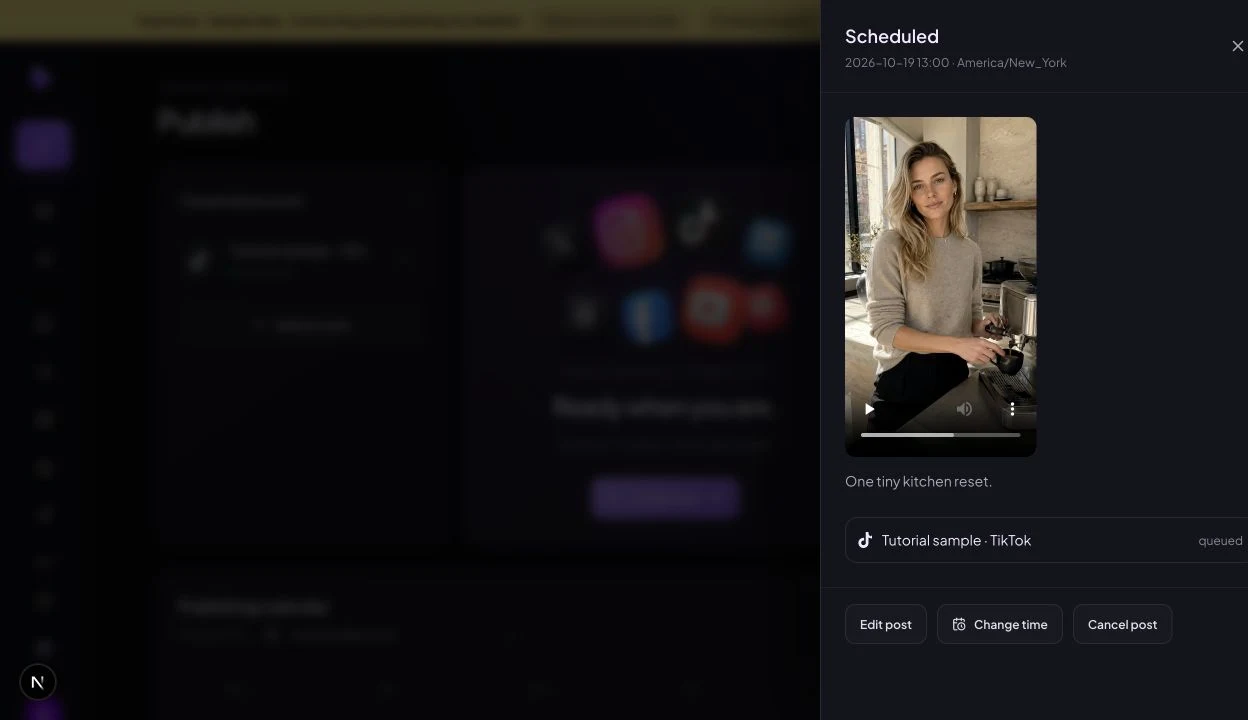
Watch the progress card and Publishing activity. Statuses include Waiting to publish, Submitting post, Waiting for confirmation, Publishing, Published, Failed and Paused. The detail drawer may show raw delivery terms such as queued.
Published follows a confirmed provider result with an output identifier or URL. Open the resulting TikTok post to verify the account, visibility, video and disclosures. A pending request or scheduled card is not proof of a live post.
How to Schedule AI Influencer TikTok Posts
Scheduling saves the selected content, accounts and intended time; the system submits it when due. Pick the video and account, edit the caption, choose Schedule, then check both the local time and named timezone before confirming.
Use Month or Week in the Publishing calendar to inspect the plan. Its timezone selector controls how dates are displayed. After submission, open a calendar item to inspect its delivery. Editing or cancellation depends on its current state; the composer warns that accepted posts cannot be recalled.
| Day | Local time | Content / task | What to inspect |
|---|---|---|---|
| Mon · Oct 19 | 13:00 | One tiny kitchen reset | Opening-hook test |
| Tue · Oct 20 | — | Review the first post; reply to comments | Watch-time drop-off |
| Wed · Oct 21 | 18:00 | A three-step counter reset | Completion and saves, if available |
| Thu · Oct 22 | — | Prepare a stronger first frame | Compare questions in comments |
| Fri · Oct 23 | 18:00 | Small-space setup: one useful detail | Shares and profile visits |
| Sat · Oct 24 | — | Review results and prepare the next batch | Production time and rejected takes |
| Sun · Oct 25 | 09:00 | Which reset should we try next? | Useful comments and follower change |
Proposed topics and review tasks, not measured results. These are test appointments, not a claim that these hours are best for every account.
How to Label AI-Generated Content on TikTok
Disclose realistic AI media and disclose commercial relationships separately. An “AI-created fictional host” caption explains identity; it does not automatically satisfy every platform control.
In TikTok's video-posting flow, its official instructions point to More options → AI-generated content. TikTok may also add an automatic label that creators cannot remove. Its policy allows contextual disclosure in text or descriptions and requires realistic synthetic content to be labeled.
| Question | Required distinction |
|---|---|
| Was realistic content generated or significantly edited by AI? | Apply AI disclosure and make the fictional identity understandable. Obtain permission for any real person's likeness or voice. |
| Does it promote your own business? | TikTok's commercial disclosure uses Promotional content for your brand. |
| Is a third-party brand providing payment or another incentive? | Use the commercial-content setting for Paid partnership, as applicable. |
TikTok requires the commercial-content setting when promoting a brand, product or service. Never invent personal product experience or a real person's endorsement. Even labeled AI content can violate its prohibited-content rules.
How to Optimize Your AI Influencer TikTok Posts
Make the topic easy to recognize and the video worth finishing. TikTok describes watch behavior and other interactions as important recommendation signals; search also considers how well content matches the query. Scheduling alone cannot create relevance.
- Strong opening hook: show the problem or result immediately. “Three ways to clear a tiny kitchen counter” promises a specific answer.
- Relevant captions and keywords: use the phrase your audience would search, naturally, in the caption and appropriate spoken/on-screen explanation.
- Effective hashtags: choose labels that describe the topic and format. Irrelevant trending tags do not repair a weak premise.
- Clear vertical framing: preview on a phone. Keep faces, demonstrations and subtitles clear of app controls and caption overlays.
- Consistent character identity: retain recognizable traits while varying action and setting; reject identity drift.
- Original storytelling: resolve the hook with a real explanation. Repeated near-identical clips give viewers little reason to return.
Use these teaching captions only for videos that actually deliver the described content:
Three ways to clear a tiny kitchen counter. AI-created fictional host. #SmallKitchen #HomeOrganization #AICreator
One jacket, two workday outfits. AI-created fictional creator. Which would you wear? #OutfitIdeas #Workwear #AICreator
Both fit the documented 150-character service limit. Neither replaces required native disclosures. For the underlying signals, see how TikTok recommends content.
TikTok Video vs. Photo Engagement
Median engagement rate; zero baseline, common 0–4% scale.
When and How Often Should You Post?
Start by testing two to five reviewed posts per week, then adjust to your audience and production capacity. This is a manageable experiment informed by Buffer's results, not a TikTok requirement.
How Posting Frequency Affects TikTok Views
Reported relative views per post versus one post/week. Common 0–40% scale.
How to Track Your TikTok Publishing Performance
Use Publish for delivery status and TikTok Studio for audience performance. This integration does not currently surface TikTok analytics. First verify the post exists; then inspect available metrics in TikTok Studio.
| Metric | Useful question / action |
|---|---|
| Views | Did the topic reach anyone? Compare posts over the same elapsed observation window. |
| Average watch time | Where might the setup be too slow? Test a clearer first sentence or earlier demonstration. |
| Completion rate | Did viewers reach the ending? Compare similar durations; inspect the retention curve where available. |
| Shares and comments | Was it useful enough to pass along? Turn real recurring questions into a follow-up. |
| Profile visits | Did the video create interest in the character's recurring promise? Improve the profile connection. |
| Follower growth | Is the series attracting returning interest? Use attributed follows only when TikTok provides them. |
Record unavailable metrics as unavailable. A simple log—topic, hook, duration, scheduled time, actual publication time and comparable outcomes—helps you change one variable at a time without claiming causation from a small sample.
Common TikTok Publishing Problems
Read the delivery message before retrying. A confirmed failure and an uncertain provider response need different actions; duplicate submissions can create duplicate posts.
| Problem | Possible cause | What to do |
|---|---|---|
| TikTok account not connected | Authorization was not completed or the wrong account was used. | Open Publish, connect TikTok, and check the intended account's Connected state. |
| Authorization expired | The delivery is paused or its message requests reconnection. | Reconnect the affected account; retry only after checking the original delivery. |
| Video upload failed | Transfer failure or an unsupported file. | Check H.264 MP4, the 100 MB upload limit and network; retain the original reviewed file. |
| Post still processing | Submitting, Publishing or Waiting for confirmation. | Check status again. The system reconciles provider results; do not resubmit while acceptance is uncertain. |
| Scheduled post failed | Authorization, quota/subscription, media or provider issue. | Open the calendar item and read its delivery error. Resolve it before retrying. Needs confirmation is not automatic publication. |
| AI disclosure missing | The adapter flag has not been confirmed on the actual TikTok post. | Inspect TikTok's post controls. Use a route that supports the necessary disclosure if you cannot verify it. No dedicated missing-label detector is claimed. |
| Video format not supported | A photo, photo group or incompatible video was selected. | Use one eligible video for TikTok; a multi-photo application draft is not a TikTok carousel post. |
| Content rejected / public posting blocked | TikTok rules, account restrictions or integration approval may apply. | Read the provider message, check TikTok rules and visibility eligibility. Do not evade a rejection by removing disclosure. |
Frequently Asked Questions
Can I post an AI influencer on TikTok?
Yes. Use an original character, hold the rights to the visuals and audio, disclose realistic AI-generated content, and follow TikTok's Community Guidelines. An AI label does not make prohibited impersonation or deceptive endorsements acceptable.
Does TikTok allow AI-generated videos?
Yes, subject to its content rules. TikTok requires labeling for realistic AI-generated images, audio and video. It prohibits some synthetic content even when labeled, including certain false public-figure depictions and unauthorized private-person likenesses.
Do AI influencers need to be labeled on TikTok?
Realistic AI-generated influencer videos require disclosure. Make the fictional identity clear and verify the post's AI label. Commercial posts also need the appropriate commercial disclosure; an AI disclosure is a separate requirement.
Can I connect TikTok to AI Influencer Generator?
Yes. Open Publish, choose Connect Social Accounts or Add account, select TikTok, and complete the authorization flow. Return to Publish and confirm that the intended account appears as Connected. An active subscription is required to submit posts.
Can I schedule AI influencer TikTok posts?
Yes. Select an eligible video and connected account, choose Schedule, set the timezone and local date and time, review the summary, then choose Confirm schedule. Scheduled means the task is saved for later; verify its eventual delivery status.
Can I post directly without downloading the video?
Yes. Eligible finished videos can be selected from Generation history in Publish and submitted to the connected TikTok account. This is a direct-post workflow, not TikTok inbox draft upload. Public visibility remains subject to account permissions and the publishing integration's TikTok approval.
Why isn't my TikTok post publishing?
Check the account connection, subscription, supported video format, visibility and delivery message. An expired authorization may need reconnection. A waiting-for-confirmation status is not confirmed failure: do not submit duplicates while the provider result is uncertain.
Will labeling AI content reduce my reach?
TikTok says turning on the AI-generated content setting will not affect video distribution as long as the content follows its Community Guidelines. That is not a promise of reach, recommendation eligibility or monetization.
Sources & Methodology
Checked October 15, 2026. Platform rules come from TikTok Support, commercial-disclosure guidance and developer documentation. Product behavior was checked against the current composer, connection routes, queue worker and status reconciliation, plus the publishing service's field documentation. No live authorization, submission, public-label result or provider audit approval was tested.
Research charts redraw Buffer's format findings and posting-frequency study; its methodology explains sample and metric limits. The time module uses its 7.1M-post timing study. These are Buffer-user observations, not a representative experiment on AI influencers. Captions, proposed edits and the seven-day calendar are teaching examples; screenshots show existing product components, not customer outcomes.
Ready to put a reviewed video on the calendar? Open Publish, connect the intended account, and verify the first delivery before scheduling a larger batch.
Connect TikTok & Start Publishing
Plan Content
Measure Engagement
Build Your Profile
Price Your Work
Write Post Copy
Brand Partnerships