
What Is AI Dance Motion Control?
Motion Control transfers a performance to a character image. Instead of asking a model to invent a dance from text, you provide the steps, rhythm and poses in a reference video. The output is newly generated, so it can still introduce mistakes.
| Workflow | What guides the result? | Use it when… |
|---|---|---|
| Motion Control | Character image + movement video | You have a specific dance to transfer. |
| Image-to-Video | Image + text describing movement | You want the model to invent a short action. |
| Face Swap | Existing footage + replacement face | You intend to replace a face, rather than regenerate a whole character performance. |
How to Create AI Influencer Dance Videos in 5 Steps
Use Motion & Dance → Motion Transfer, not Video Remake. A new session defaults to Kling 2.6 Motion Control; Kling 3.0 is also available. The Jean Phil-inspired demonstration used 3.0 and a boxing reference. For a dance, choose choreography footage instead.
1. Prepare your character image
Choose a fictional adult AI influencer or an authorized likeness. For footwork, use a full-body image with both shoes visible and room around the arms.
Use the AI Influencer selector for a saved character, or upload your character photo. Need a character first? Start with our AI influencer creation guide.
2. Choose a dance template or upload a reference
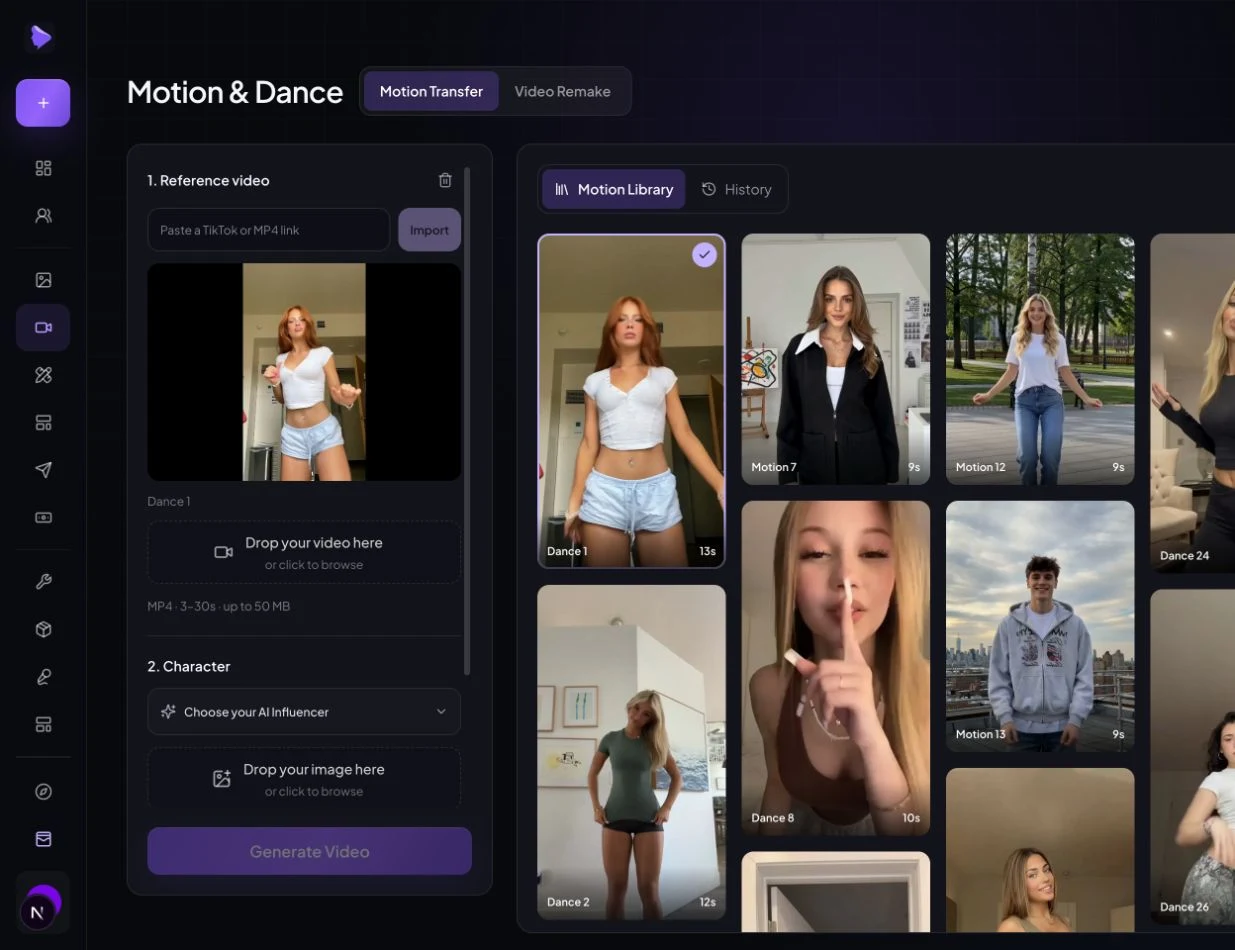
Select a tile from the Motion Library, or use Reference video to upload your own MP4. Start with one continuous phrase, rather than a montage. The Dance 1 shortcut below selects that exact library clip; add your own character image. Its selection stays in the return URL if you need to sign in.
3. Set up Motion Control
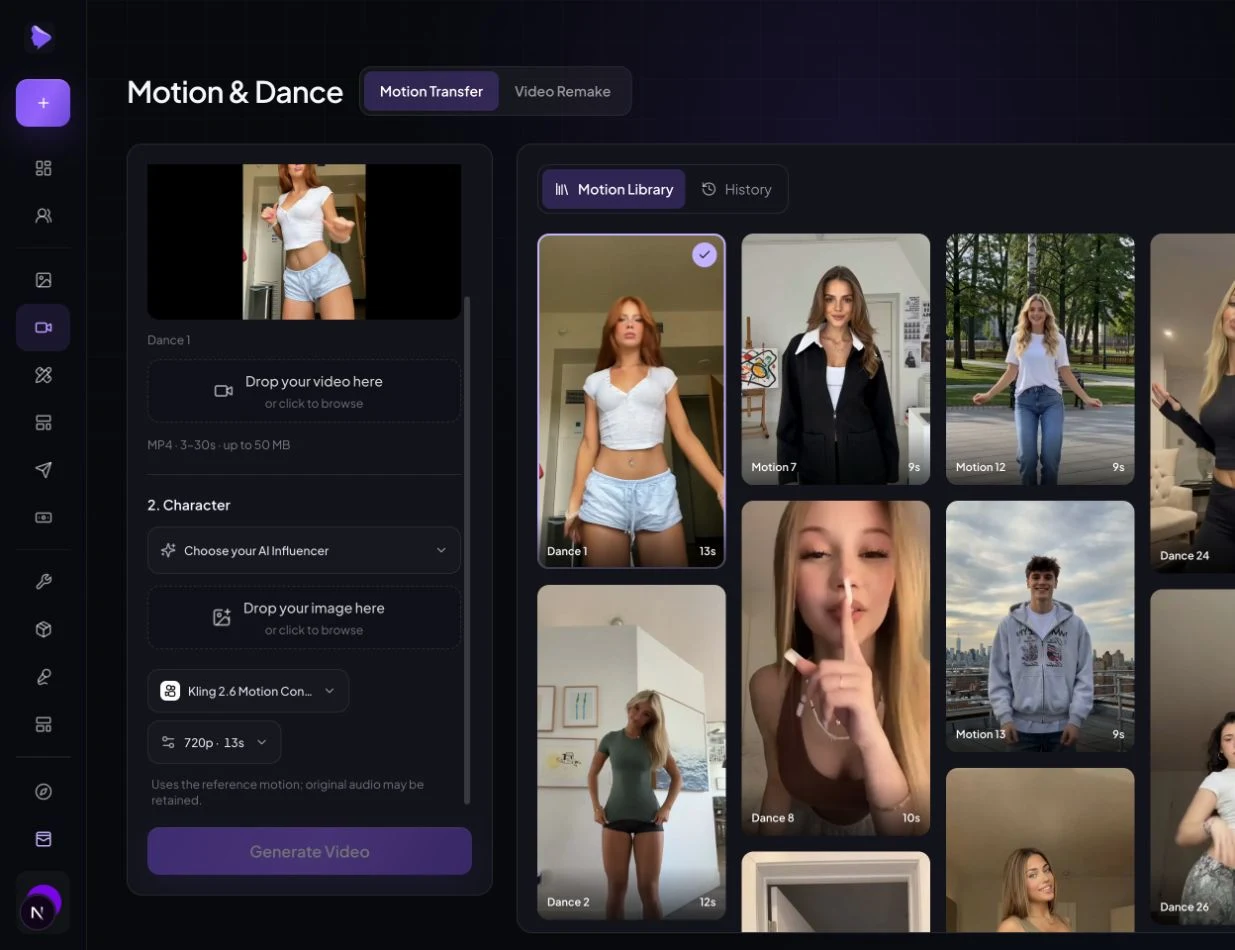
Keep Motion Transfer selected. Choose Kling 2.6 Motion Control or Kling 3.0 Motion Control and select 720p or 1080p in settings. The reference determines duration.
The current integration sends video orientation automatically. There is no orientation switch or separate background-source control in this workspace.
4. Generate and check the whole clip
After your inputs are ready, read the site-credit quote beside Generate Video, then generate. Video generation requires a paid plan. Check the completed result in History; do not submit another job just because processing takes longer than expected.
Watch once at normal speed and again around turns, crossed arms and fast footwork. Check that the face remains recognizable, fingers separate naturally and planted shoes do not slide across the floor. Review the ending as carefully as the first frame.
5. Download, edit and publish
Use the completed result’s Download action. Watch the exported file with sound, then make your final social crop in your editor. Leave space for captions without hiding feet or hands. Clear the music and reference rights, apply the platform’s required AI disclosure, and publish only the version you reviewed.
Motion Control Specifications: What Applies Here?
The site’s upload limits and the provider’s API limits are different. This table separates them. These are supported formats and duration ceilings, not a quality comparison. Checked October 15, 2026.
| Parameter | AI Influencer Generator | KIE official 2.6 specification |
|---|---|---|
| Character image | One JPEG, PNG or WebP; up to 10 MB. Kling inputs are normalized to JPEG. | One JPEG/PNG/JPG; up to 10 MB. |
| Dance reference | One MP4; 3–30 seconds; up to 50 MB. | MP4 or QuickTime; 3–30 seconds; up to 100 MB. |
| Resolution | 720p or 1080p for either integrated Motion Control model. | 720p or 1080p. |
| Orientation | Video orientation is sent automatically. | Image orientation: up to 10s. Video orientation: up to 30s. |
| Applicable mode | Motion Transfer. Video Remake is a separate mode. | kling-2.6/motion-control |
Reference duration ceiling by orientation
Kling 2.6 Motion Control · seconds · official specification
Used by this workspace
Sources: KIE’s 2.6 API documentation and model page. The separate 3.0 API documentation describes that model’s own requirements; do not treat the 2.6 chart as a 3.0 specification.
How to Choose the Right Character Image and Dance Reference
Match the framing before you improve the prompt. A full-body routine asks the model to move legs and feet; a waist-up portrait does not show what those body parts should look like. Similar body scale and camera distance reduce the amount it must invent.
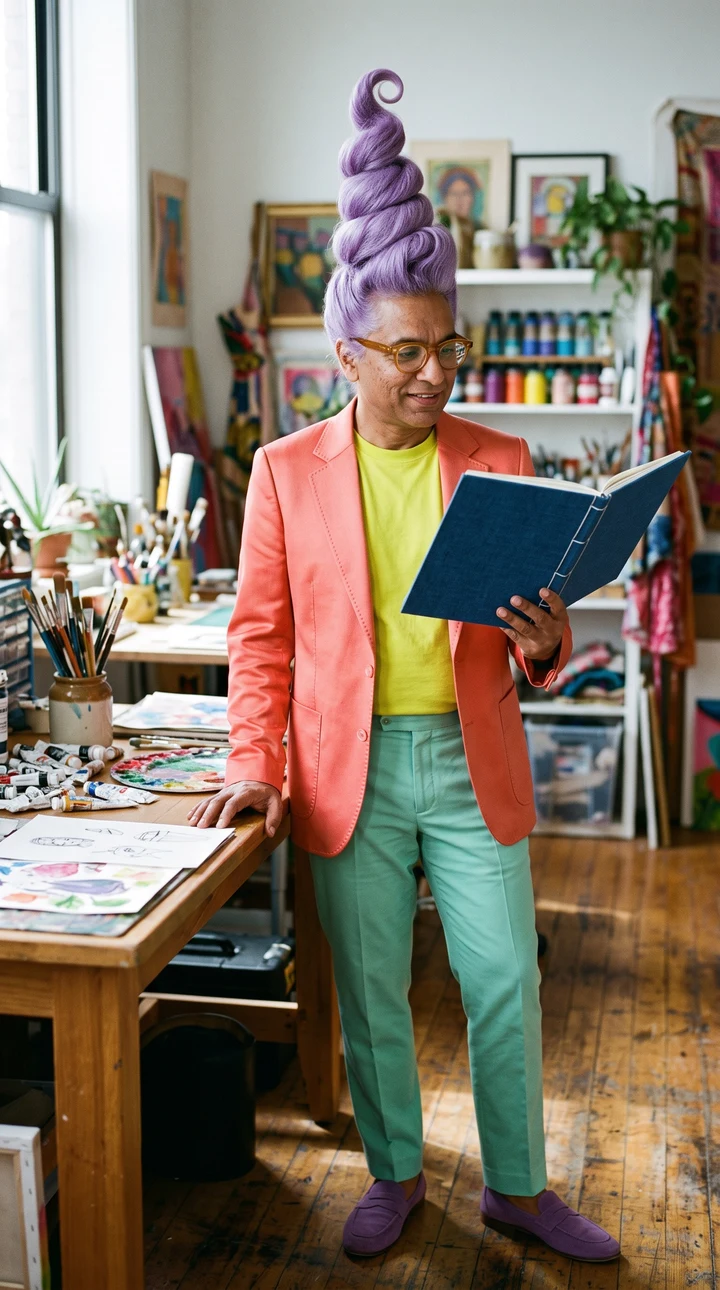
For the dance reference, prefer one adult performer who stays visible through a continuous shot. Keep the head, shoulders, hands and shoes readable. Leave space for the largest sideways step or arm extension, not just the starting pose.
Occlusion makes tracking harder: a hand behind a jacket, crossed legs or hair covering the face can hide information the model needs. Fast cuts, zooms, camera shake and multiple dancers can also make the intended movement ambiguous. Start with a simpler section, then increase complexity after inspecting a short test.
Motion Control Prompt Examples
A Motion Control prompt should preserve visual details, not choreograph a competing dance. The reference supplies movement and rhythm; the image supplies appearance. The current Motion Transfer tab uses a built-in instruction, without a custom prompt box. These copyable examples are for prompt-enabled Motion Control workflows; do not switch to Video Remake just to paste them. Match outfit and setting details to your own input.
1. Keep the established character
Follow the dance reference's movements and timing. Preserve the character image's face, sculpted lavender hair, coral jacket and mint trousers. Keep one adult performer and the full body in frame.
2. Keep a simple indoor scene
Transfer the reference dance without changing its choreography. Retain the character's identity, outfit and art-studio setting. Use steady daylight, a fixed camera and consistent floor contact.
3. Keep the focus on footwork
Use the reference video's steps, pauses and weight shifts. Preserve the character image's appearance and proportions. Keep both shoes visible, with room around the arms and no added cuts or dancers.
Adding “do a backflip” to a walking reference introduces conflicting instructions. Change the source clip if you want different steps.
About @ references: Motion Transfer binds the selected image and video through its input controls. Typing @Image1 or @Video1 into ordinary text does not upload or bind a file. Other modes offer picker-inserted reference tokens; use the actual picker when supported.
Inspect the Real Example, Not Just the Poster
Compare reference and result at the same timestamp. The frames below match the five-second Jean Phil reference excerpt and Remy’s actual output. The character and setting come from the input image; the reference supplies the punches and timing.
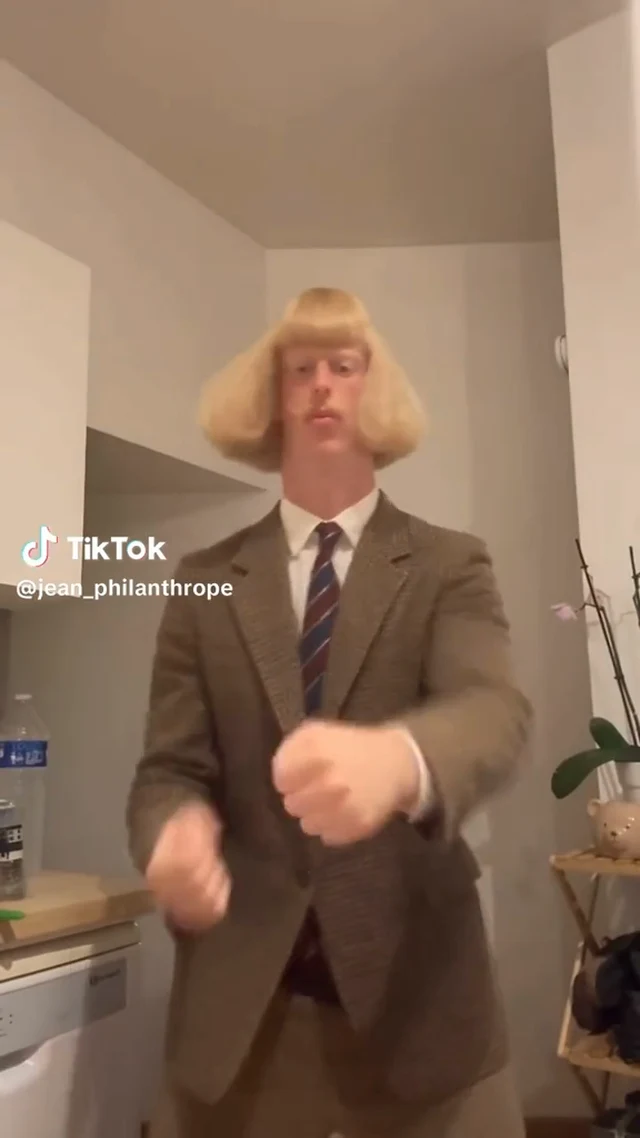
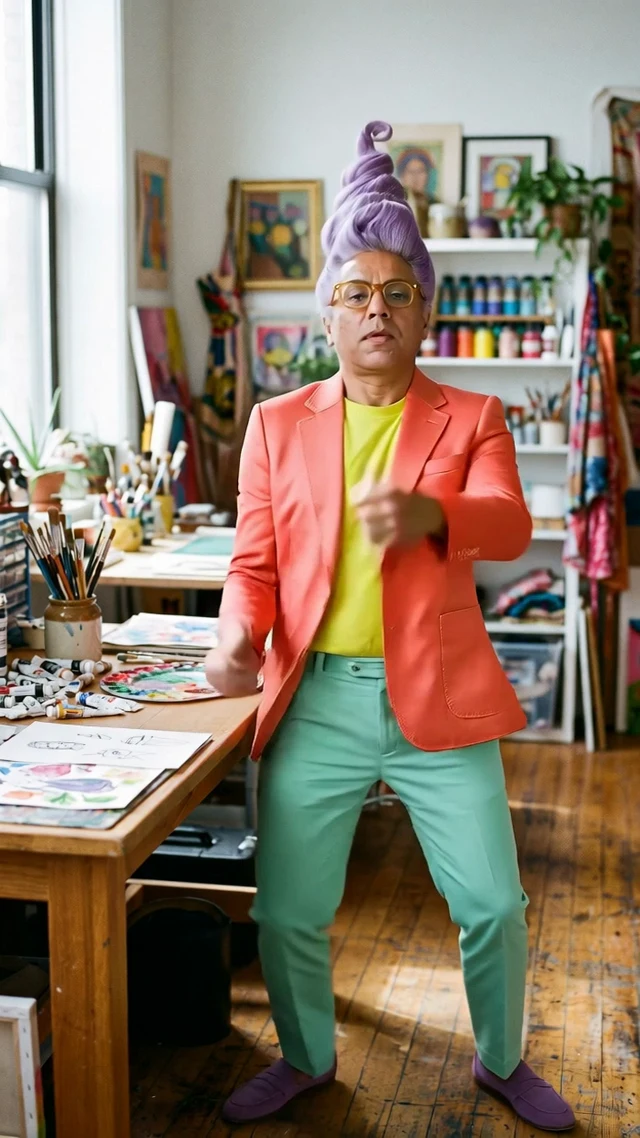
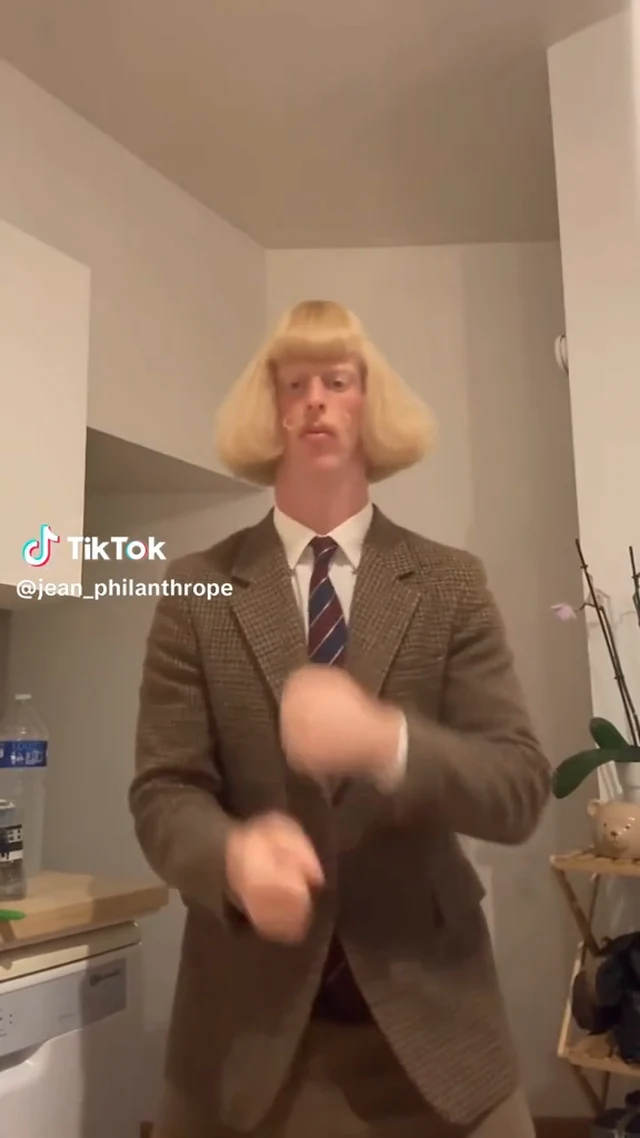
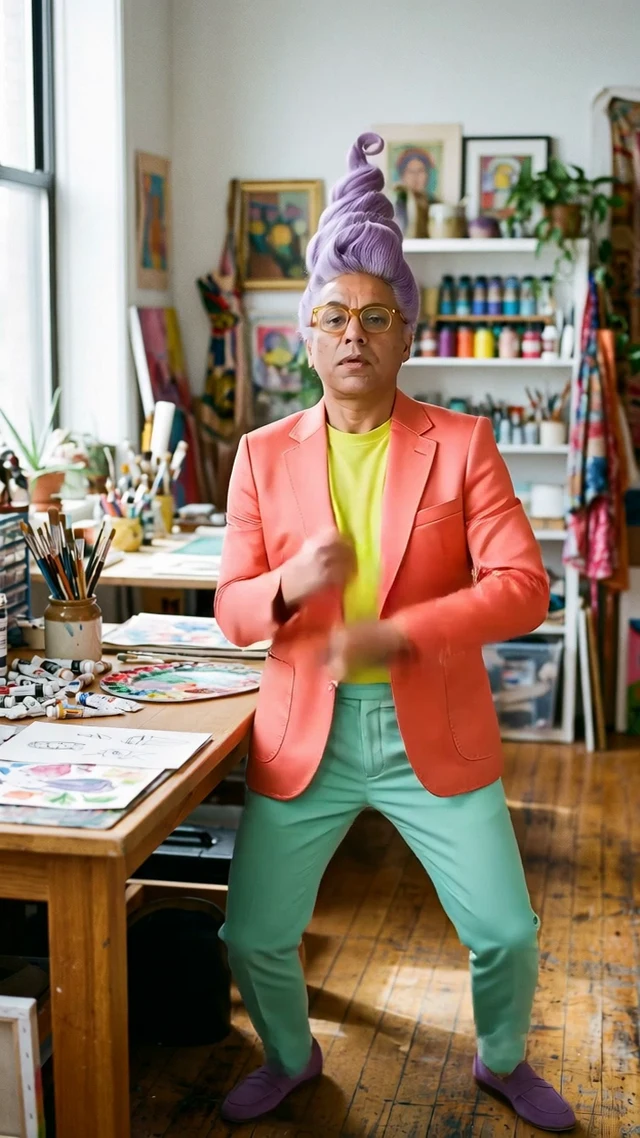
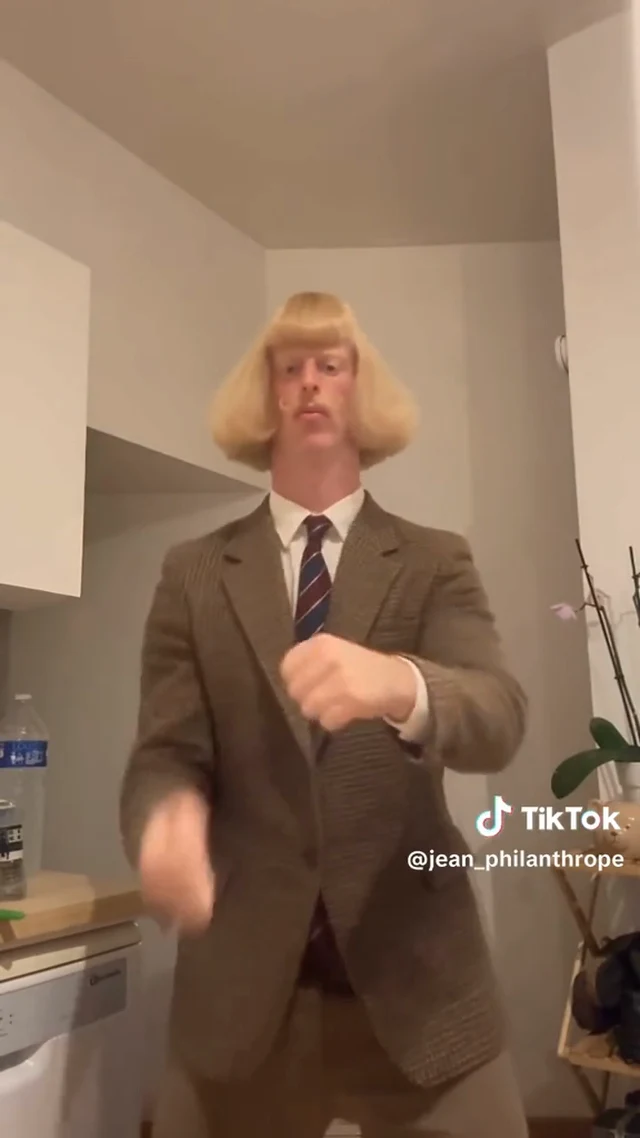
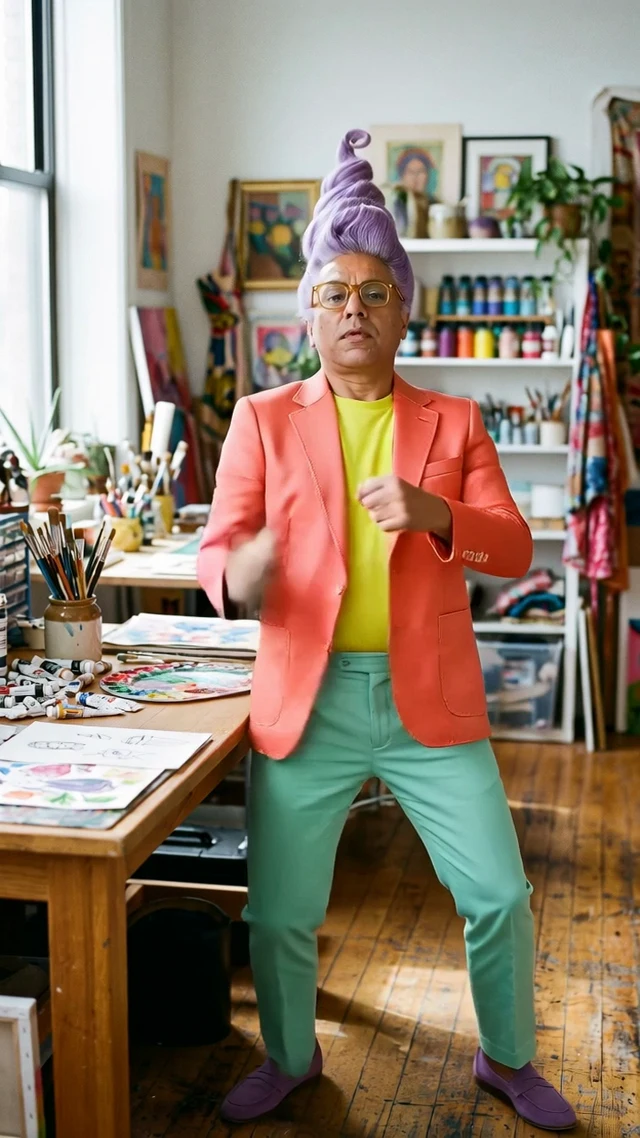
Remy’s sculpted lavender hair, glasses and coral jacket remain recognizable across these frames; fast hands show motion blur. The source crops out the feet, so this pair cannot prove faithful dance footwork or floor contact. For dancing, choose a full-body reference and inspect planted shoes throughout the clip. Still frames do not establish smooth motion between them.
| Model / output | Video length | Observed completion | Site credits | Retries |
|---|---|---|---|---|
| Kling 3.0 Motion Control / 720p | 5 seconds | About 6m 25s from submission to recorded completion, including polling | Not recorded in this marketing case’s customer-credit ledger | Not recorded |
The provider log records 100 KIE credits, not a site retail charge. This archived presentation had reference audio added afterward without regenerating the video; it does not prove native audio retention. One documented case is not a speed or success-rate benchmark.
Common Problems and How to Fix Them
Change one input at a time and inspect the new result. The causes below are plausible explanations to test, not diagnoses of every output. None of these adjustments guarantees a fix.
| Problem | Possible cause | What to try |
|---|---|---|
| Face changes during a turn | Face becomes small, occluded or far from the source pose. | Use a clearer identity image and a shorter routine with fewer extreme turns. |
| Malformed hands or feet | Blur, crossed limbs or hidden joints leave ambiguous motion. | Choose a clearer, slower phrase; keep hands and shoes visible in both inputs. |
| Feet slide over the floor | Scale, perspective or weight shifts do not align. | Match camera distance and floor perspective; simplify large sideways travel. |
| Arms or shoes leave the frame | The source framing has too little room for the routine. | Use a wider character image and reference; check the final export crop separately. |
| Background drifts | Reference camera movement or conflicting scene instructions. | Try a steadier reference and a simple prompt retaining the image’s scene. |
Budget for review and possible retries before making a series. Shorten the reference to the phrase you need and test at 720p first if that fits your delivery requirements. Read the new site-credit quote before every generation; do not use KIE API prices as the amount AI Influencer Generator will charge.
Frequently Asked Questions
Do I need to know how to dance?
No. The reference supplies the movement and timing. You still need to choose a usable performance, check the result and have permission to use the source. Motion Control does not remove the need for human review.
Can I use my own dance video?
Yes. Upload your own MP4 reference in Motion Transfer, or choose a built-in dance template. The current site limit is 3–30 seconds and 50 MB. A single, continuously visible adult dancer is a practical starting point. Use recordings and likenesses you are authorized to use.
Will it keep the music?
The original reference audio may be retained; it is not guaranteed. Motion Transfer has no separate music-generation setting. Listen to the downloaded file before publishing. A template or reference does not automatically license a song; use cleared audio or the destination platform's permitted music library.
How long can a dance video be, and what does it cost?
The current Motion Transfer workflow follows a 3–30-second reference, with duration billed per started second. Kling 2.6 and 3.0 offer 720p or 1080p. A paid plan is required, and the Generate Video button shows the current site-credit quote after your inputs are ready. Model, resolution and reference length affect the quote; provider API rates are not the site's retail price.
Can I publish AI influencer dance videos on social media?
You can publish when you have the necessary rights and follow the destination platform's current rules. Check the character likeness, choreography footage, music and any brand assets separately. Use required AI-content disclosures, avoid presenting a fictional performer as a real endorsement, and inspect the final vertical crop before posting.
Give your character a dance worth reviewing
Start with one clear identity, one usable routine and one short test. Our AI dance video generator explains the dance use case; AI Motion Transfer covers the broader tool. This guide focuses on choosing inputs, following the workspace and judging the output.
Create Your AI Dance VideoBefore posting, see commercial-use guidance and AI disclosure. No workflow can promise reach, rankings or AI-search citations.
Plan Content
Measure Engagement
Build Your Profile
Price Your Work
Write Post Copy
Brand Partnerships